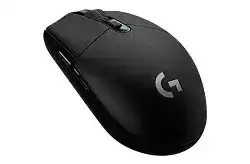
When Windows moves the pointer but G HUB shows no connected device, the Logitech G305 LIGHTSPEED Wireless Gaming Mouse Driver may not have completed its software link. This model communicates through its dedicated LIGHTSPEED USB receiver rather than Bluetooth. Normal pointer movement only confirms that Windows loaded basic HID control; it does not prove that G HUB can read profiles, sensitivity stages, report rate, or programmable buttons.
Install the current G HUB package with the receiver attached directly to the computer. Let the installation finish, restart Windows, and then open G HUB after signing back in. The G305 should appear with its battery status and configuration pages. Avoid launching several Logitech utilities together because an older gaming-software process can hold the receiver while G HUB waits for access.
Logitech G305 LIGHTSPEED Wireless Gaming Mouse Windows Driver Download
| Driver Name | Description | Supported OS | File Size | Download |
|---|---|---|---|---|
| Logitech G HUB Software | Customizes mouse buttons, pointer behavior, sensitivity levels, shortcuts, and device-specific settings. | Windows 11, Windows 10 32-bit/64-bit | 67.08 MB | |
| Logitech Gaming Software 64-bit | Provides a full 64-bit package for offline setup, button assignments, DPI adjustment, profiles, and gaming controls. | Windows 11, Windows 10 64-bit | 119.96 MB | |
| Onboard Memory Manager | Manages hardware profiles, button commands, and sensitivity settings stored directly in the mouse memory. | Windows 11, Windows 10 32-bit/64-bit | 12.45 MB |
Logitech G305 LIGHTSPEED Wireless Gaming Mouse Mac OS Driver Download
| Driver Name | Description | Supported OS | File Size | Download |
|---|---|---|---|---|
| Logitech G HUB Software | Configures mouse buttons, pointer sensitivity, scrolling behavior, shortcuts, profiles, and other device controls. | macOS 26, macOS 15, macOS 14 | 11.36 MB | |
| Logitech G HUB Software | Supports profile creation, programmable controls, DPI changes, and personalized mouse behavior on compatible systems. | macOS 13 | 10.43 MB | |
| Logitech Gaming Software | Handles button mapping, sensitivity stages, application profiles, and gaming-oriented mouse configuration. | macOS 10.15, macOS 10.14, macOS 10.13, macOS 10.12 | 204.99 MB |
The receiver appears only as a generic 2.4 GHz device
Device Manager may describe the dongle as a USB receiver, HID device, or 2.4 GHz receiver instead of showing the full product name. That label alone does not indicate a fault. Check G HUB before removing anything. If the utility still shows no device, unplug the dongle, close G HUB completely, reconnect it through another USB port, and launch the software again.
A damaged G HUB installation can preserve normal clicks while losing device recognition. Use the repair or reinstall option in Windows Apps when it is available. If that fails, uninstall G HUB, restart the computer, and install a fresh copy. Reconnecting the receiver after installation often gives Windows a clearer chance to rebuild its HID and Logitech software entries.
G HUB remains stuck on loading
A spinning logo or blank window points to the application rather than the wireless hardware. End the G HUB processes through Task Manager, then reopen the program with normal user permissions. Security software can also interrupt an update, leaving mixed program files behind. Repair the application first; remove it completely only when the repair process cannot restore the interface.
Restore the LIGHTSPEED Link Before Changing Game Profiles
The Logitech G305 LIGHTSPEED Wireless Gaming Mouse Driver works with the mouse through its matching USB receiver. The G305 is not a Bluetooth model, and a general-purpose receiver will not automatically replace its original dongle. When the pointer remains motionless, confirm the receiver connection and power state before spending time changing profiles or reinstalling game software.
The mouse stops responding after the dongle is moved
Plug the receiver into a direct USB port for the first test. Hubs, monitor ports, docking stations, and keyboard pass-through sockets can introduce power or detection problems. After Windows recognizes the dongle, switch the G305 off, wait several seconds, and turn it on again. This power cycle prompts the device to search for its established LIGHTSPEED link.
The small extension adapter supplied with some packages can improve the wireless path on a desktop. Place the receiver near the mouse pad without letting it touch another wireless dongle. A computer case under a desk, metal furniture, or several nearby 2.4 GHz devices can weaken communication even though the receiver still appears in Windows.
A replacement receiver does not connect
Receiver compatibility matters. The G305 does not use a Unifying or Logi Bolt receiver, so those dongles cannot substitute for its LIGHTSPEED hardware. Use a receiver identified for the compatible gaming-device family, then run the supported Logitech pairing function. Simply inserting an unrelated Logitech dongle will not create a link.
During pairing, keep other Logitech gaming receivers disconnected where practical. Turn the G305 off before the utility requests a power cycle, then switch it on when instructed. If pairing repeatedly expires, change the USB socket and repeat the process at close range. Failure with multiple computers can indicate a damaged receiver or a hardware fault inside the mouse.
Fix Stutter, Sudden Sensitivity Changes, and Profile Conflicts
The pointer jumps during fast movement
The HERO optical sensor can run from 200 to 12,000 DPI, but wireless conditions still affect how consistently movement reaches the computer. Bring the LIGHTSPEED dongle onto the desk with a USB extension when the tower sits far away. Separate it from busy USB 3.x devices, external drives, Wi-Fi adapters, and other radio equipment before changing sensor values.
Also inspect the tracking surface. Glass, glossy material, dirt, and mixed textures can produce abrupt movement that resembles radio lag. Clean the sensor opening with dry air and test on a plain mouse pad. Do not insert tools into the sensor cavity. A steady result on another surface separates tracking trouble from receiver interference.
DPI changes after G HUB closes
G HUB can assign several sensitivity stages to the DPI button. An accidental press may make the cursor feel suddenly slow or extremely fast. Open the sensitivity page, remove stages that you never use, and keep a small set of clearly separated values. This prevents an unintended button press from selecting an impractical level during work or play.
The G305 also includes onboard memory for a stored profile. Software-controlled mode and onboard mode do not always use the same assignments. Save the intended sensitivity, report rate, and button functions to the onboard slot when you need consistent behavior without G HUB running. Confirm the saved profile by closing G HUB and checking the mouse again.
Windows acceleration makes sensitivity feel inconsistent
Windows pointer acceleration can alter movement according to hand speed, while G HUB controls the sensor DPI and wireless report rate. Combining both can make identical physical movements travel different distances. Disable Enhance pointer precision when you want direct sensor response, then adjust DPI in G HUB. Change one value at a time so the result remains easy to judge.
A high report rate affects an older game
The G305 can use a report rate up to 1,000 Hz. Most current systems handle that rate normally, but an older game or heavily loaded computer may show frame-time spikes while processing rapid input. Test 500 Hz or 250 Hz in G HUB. Lowering the rate for diagnosis does not repair wireless interference, but it can expose a game-engine or CPU limitation.
Correct Clicks, Wheel Movement, and Programmable Button Behavior
The Logitech G305 LIGHTSPEED Wireless Gaming Mouse Driver gives G HUB access to six programmable controls, including the two thumb buttons and the DPI control. Windows can handle the primary clicks and wheel without G HUB, while custom assignments depend on the software profile. Check whether a problem occurs everywhere or only inside one game before changing the configuration.
Thumb buttons work in one program but not another
Return the side controls to their default back and forward commands, then try them in a web browser. If they respond there, the physical switches and Windows input path are functioning. Reopen the affected game profile and assign supported keyboard commands or in-game actions. Some applications ignore browser-style navigation commands even though G HUB sends them correctly.
Automatic profile switching can also load an unexpected layout. Check which executable G HUB associates with the game, especially when a launcher starts a different program file. For a quick comparison, use one persistent profile temporarily. Restore application-specific switching after confirming that the intended assignments work.
One click produces two actions
First increase the double-click speed slightly in Windows and test the button outside G HUB. This change can reduce accidental opening when the timing threshold is too generous, but it cannot repair a worn switch. Remove any macro or command that repeats a click, and check both software-controlled and onboard profiles for duplicate actions.
Persistent double-clicking across multiple computers usually points beyond the software. Do not spray liquid cleaner into the button gap or dismantle a mouse that remains under warranty. Record the symptom, test with a known-good battery, and pursue service or replacement when every press continues to register twice.
The wheel scrolls in the opposite direction
Erratic wheel movement often begins when debris reaches the encoder area. Switch the G305 off, remove the battery, and rotate the wheel firmly several times while using short bursts of dry air around its openings. Keep the can upright and avoid moisture. Reinstall the battery and test in a long document before changing Windows scroll-line values.
If upward and downward movements continue to alternate, compare the result on another computer. The G305 uses a standard notched wheel rather than a selectable free-spin mechanism, so software cannot change its physical mode. Reversed steps on two systems usually indicate encoder wear that needs hardware service.
Battery, Sleep, and Wake Behaviour on the G305
The pointer freezes after the computer wakes
Turn the mouse off and on before removing software. If that restores movement, Windows or the USB controller may have resumed the receiver before the G305 re-established communication. Move the dongle to another direct socket and install pending chipset or USB-controller updates from the computer manufacturer. Disable USB power saving only when wake failures continue on that specific port.
After a full shutdown, inspect the AA compartment and make sure the battery sits firmly against both contacts. The removable top cover must close without pressing the cell out of position. Slight contact movement can look like a sleep problem because lifting or moving the mouse briefly interrupts power.
Battery life drops faster than expected
The published maximum reaches up to 250 hours in performance use, while endurance configuration can stretch typical use much longer. Actual life changes with report rate, operating mode, battery chemistry, storage conditions, and how often the device remains active. Check the battery indicator in G HUB and compare performance with a new, reputable AA cell before treating the drain as a fault.
Do not mix batteries, recharge a disposable alkaline cell, or leave a leaking battery inside the compartment. Clean dry contacts gently when oxidation or residue prevents a firm connection. Switch the G305 off before long periods of transport, particularly when movement inside a bag could keep waking the sensor.
Preserve a Consistent G305 Profile Across Games
Once detection, wireless placement, and power are stable, use the Logitech G305 LIGHTSPEED Wireless Gaming Mouse Driver to simplify the active configuration. Keep only the DPI stages you can distinguish, choose a report rate the computer handles comfortably, and verify every custom control in its target game. Save a dependable onboard profile before experimenting with automatic switching.
When a new symptom appears, separate software from hardware with three comparisons: another USB port, another tracking surface, and another computer. Receiver failures follow the dongle, profile errors change when G HUB or onboard mode changes, and worn clicks or wheel encoders usually remain faulty everywhere. That distinction prevents repeated installations from hiding the actual cause.