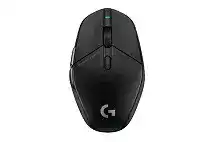
A mouse that tracks normally yet refuses to save DPI values or button assignments usually has a software or profile problem rather than a failed sensor. The Logitech G303 Shroud Edition Driver works through Logitech G HUB to manage the HERO 25K sensor, LIGHTSPEED connection, programmable controls, onboard memory, battery status, and firmware for this rechargeable wireless gaming mouse.
Logitech G303 Shroud Edition Windows Driver Download
| Driver Name | Description | Supported OS | File Size | Download |
|---|---|---|---|---|
| Logitech G HUB | Customizes mouse buttons, pointer behavior, sensitivity settings, shortcuts, profiles, and other gaming device controls. | Windows 11, Windows 10 32-bit/64-bit | 67.08 MB |
Logitech G303 Shroud Edition Mac OS Driver Download
| Driver Name | Description | Supported OS | File Size | Download |
|---|---|---|---|---|
| Logitech G HUB | Manages button assignments, pointer sensitivity, gaming profiles, macros, and compatible Logitech device settings. | macOS 26, macOS 15, macOS 14 | 11.36 MB | |
| Logitech G HUB | Adjusts mouse controls, DPI levels, onboard profiles, shortcuts, and application-specific gaming configurations. | macOS 13 | 10.43 MB | |
| Logitech G HUB | Provides access to pointer tuning, programmable buttons, profile switching, and supported gaming peripheral options. | macOS 11 | 5.02 MB | |
| Logitech G HUB | Configures mouse sensitivity, button commands, game profiles, macros, and device-specific performance preferences. | macOS 10.15 | 5.04 MB |
Logitech G303 Shroud Edition Driver When G HUB Cannot Find the Mouse
The G303 Shroud Edition connects through its LIGHTSPEED USB receiver and does not use Bluetooth. Start by placing the receiver in the supplied extension adapter, then connect the adapter to the charging and data cable. This arrangement puts the receiver nearer the mouse and away from metal computer cases, crowded USB panels, and other 2.4 GHz equipment.
The device appears inactive inside G HUB
First confirm that Windows can move the pointer and register clicks. When ordinary input works but G HUB shows an inactive device, close every G HUB process from Task Manager and reopen the program. Connect the receiver directly rather than through a dock, monitor, or unpowered hub. A different USB port often forces Windows and G HUB to identify the receiver again.
Connecting the USB-C cable can help during detection and firmware work, but the LIGHTSPEED receiver remains the normal wireless connection. After G HUB recognizes both components, disconnect the cable and confirm that the device stays active through the receiver. Reinstall G HUB only after a restart and direct-port test fail.
The receiver lost its pairing
Open the device-pairing tool from G HUB settings when the receiver appears but the pointer does not move wirelessly. Select the LIGHTSPEED receiver, choose the G303 Shroud Edition, and begin pairing. The utility will ask for a power cycle. Turn the switch off, pause briefly, and turn it on again while keeping another working pointer available to finish the process.
A LIGHTSPEED logo on two products does not automatically make every receiver interchangeable without pairing. Use the receiver that came with the mouse whenever possible. When replacing it, select a compatible receiver and complete pairing through G HUB rather than older Logitech connection utilities that may not recognize this model.
A firmware update keeps restarting
Charge the mouse first, attach its USB-C cable directly to the computer, and leave the receiver connected during the update. G HUB may need access to both the mouse firmware and receiver firmware in the same session. Close games, hardware-monitoring tools, and duplicate G HUB windows before pressing the update button again.
If the installer repeatedly asks for a restart, exit G HUB completely and reboot Windows instead of continuing the loop. Open the program after the desktop settles, then retry with the receiver and cable on separate direct USB ports. Do not unplug either component while the progress screen is moving.
DPI and Onboard Profiles That Behave Differently
The HERO 25K sensor offers adjustable sensitivity from 100 to 25,600 DPI. G HUB can assign several DPI stages, change the report rate, alter button commands, and store a profile in onboard memory. Confusion starts when the software profile and the saved hardware profile contain different values.
The DPI button seems to do nothing
Pressing the top DPI control may only show a white status light when G HUB has not loaded the expected sensitivity stages. Open the sensitivity page and add at least two distinct DPI values. Mark the normal value as the default, then press the physical control while watching the active stage change inside the program.
If every stage feels identical, move the values farther apart for testing, such as one low and one noticeably high setting. Return to practical values afterward. Also check whether the top control has been reassigned to another command, because G HUB permits that button to perform something other than DPI cycling.
Settings vanish when G HUB closes
Automatic profiles operate while G HUB runs in the background. Onboard mode uses a profile stored inside the mouse and can work without the application. Configure the desktop profile first, switch to onboard mode, and replace the selected memory slot with that finished profile. Merely enabling onboard mode does not always copy the latest changes.
When an old profile refuses to update, clear its memory slot and write it again. Confirm the result by closing G HUB, moving the receiver to another computer, or checking the mouse with Onboard Memory Manager. The Logitech G303 Shroud Edition Driver should not need to stay open once a valid onboard profile contains the required DPI and button choices.
A game loads the wrong sensitivity
G HUB changes profiles by matching the running game executable. Updates and different launchers can alter that file path, leaving the desktop profile active. Open the affected game profile and link its current executable. Watch the profile name while switching between the desktop and game to confirm that automatic detection follows the correct program.
A persistent profile deliberately blocks automatic switching. Disable persistence when each game should use separate controls. Keep it enabled only when one sensitivity and assignment layout must remain active everywhere. This single option often explains why editing an individual game profile produces no visible change.
Side Buttons, Scroll Input, and Click Symptoms
The mouse carries two thumb buttons, a clickable wheel, primary left and right controls, and the top DPI button. G HUB can remap these inputs, but corrupted virtual-device entries sometimes make one physical control trigger two commands. Mechanical symptoms need a different response from software mapping faults.
A thumb button also changes DPI
Reset the affected assignments to their defaults inside G HUB before building new commands. When one side control still performs its own action plus the DPI command, remove the Logitech virtual mouse entry from Device Manager. Disconnect the receiver, restart Windows, reconnect it, and let the operating system create the virtual input layer again.
Test the default controls before importing an old profile. A damaged profile can recreate the same crossed assignment immediately. Build a temporary profile with one plain keyboard shortcut on the affected thumb button. If that behaves normally, recreate the original profile instead of restoring it wholesale.
The wheel reverses direction or moves by itself
Occasional opposite scrolling can come from debris around the wheel encoder or a physical wheel fault. Turn the mouse off and use gentle compressed air around the wheel opening while rotating it. Avoid liquid cleaners, excessive pressure, and opening the shell during warranty coverage.
Check the symptom in several applications because some games and browsers process wheel input differently. When reverse movement appears everywhere, survives a second computer, and continues with G HUB closed, software changes are unlikely to solve it. A recently purchased unit with repeatable wheel errors should go through warranty service.
The wheel feels unusually loud, stiff, or uneven
Scroll resistance can vary slightly, but catching between steps, harsh vibration, or a wheel that settles into an unintended movement is not a DPI or polling issue. Compare upward and downward scrolling at slow speed. Also check that no loose cable, desk edge, or finger position is pressing against the wheel area.
Do not lubricate the wheel from outside or force it past a stiff point. Those actions can spread residue into the encoder and complicate a warranty claim. When the mouse is new and the wheel has a visible molding defect, severe seam, or inconsistent step feel, replacement offers a safer remedy than disassembly.
A single click sometimes becomes two
First lower the Windows double-click speed temporarily and test individual clicks in folders and another computer. This separates an operating-system timing issue from a physical switch problem. Remove custom click macros as well, since a repeated or multi-action command can imitate double input.
When the same primary button produces duplicate clicks on different computers with default assignments, the switch may be failing. Reinstalling G HUB will not repair worn click hardware. Keep the mouse intact and use warranty support rather than applying heat, liquid, or unofficial switch modifications.
Wireless Stutter and Sudden Pointer Lock
The strongest LIGHTSPEED path usually comes from the supplied extension adapter placed within a short distance of the mouse. Plugging the receiver into a rear computer port can put a metal chassis and several active USB devices between the receiver and the desk. That layout may cause brief freezes during small aiming corrections even when large movements look normal.
Micro-adjustments pause during play
Move the extension adapter onto the desk and keep it clear of routers, wireless storage devices, and densely packed cables. Try another USB port, especially when the current one sits beside a high-traffic external drive. The official setup arrangement uses the charging cable as an extension so the receiver can stay closer to the mouse.
Test at the default report rate before raising other performance values. A heavily loaded system may show frame or input problems that look like a wireless failure. Close overlays and hardware utilities, then compare movement on the desktop and in a second game. This reveals whether the lock follows the mouse or one application.
The sensor feels inconsistent on the desk surface
Clean the sensor window with dry air and wipe the pad. Reflective glass, deeply patterned material, dust, and a warped surface can alter tracking. Use a conventional cloth mouse pad for comparison and keep the base flat. The narrow rear shape can tilt when lifted from one side, raising the sensor farther than expected.
Return Windows pointer speed to its middle position and disable enhanced pointer precision when testing raw game input. Then set sensitivity through G HUB rather than combining extreme Windows and in-game multipliers. A controlled baseline makes acceleration, surface trouble, and genuine wireless pauses easier to separate.
Charging and Battery Readings That Do Not Match
The G303 Shroud Edition contains a rechargeable battery and charges through its USB-C port. G HUB displays the estimated level, while the status light provides brief feedback. An abrupt percentage drop does not always represent the same amount of real battery loss, especially after firmware changes, reconnecting the receiver, or leaving G HUB open through sleep.
The charge falls sharply after unplugging
Let the mouse reach a full charge, unplug it, and use it through the LIGHTSPEED receiver for a complete session. Restart G HUB before judging the reading. Battery estimation can recalculate after switching from cable power to wireless operation, creating a sudden visible drop even though the remaining operating time stays normal.
When runtime is genuinely short, try another known-good USB-C cable and a different computer USB port. Confirm that the power switch stays on and that the cable sits fully in the recessed connector. Avoid charging through an unstable hub or low-power keyboard port during diagnosis.
The mouse does not wake after charging or sleep
Turn the power switch off, disconnect the charging cable, wait several seconds, and switch it on while the receiver remains attached. If wireless input does not return, reconnect the cable long enough for G HUB to detect the device, then use the pairing tool to restore the receiver link.
Test the mouse and receiver on another computer before treating it as bricked. This separates a local USB or G HUB failure from hardware trouble. When neither wired detection nor LIGHTSPEED pairing returns after a full charge and direct-port test, contact warranty support rather than repeating firmware attempts.
Leave the Mouse With One Proven Hardware Profile
Finish troubleshooting by setting one practical DPI value, one report rate, and default commands on every physical control. Save that profile into onboard memory and close G HUB for a test session. The Logitech G303 Shroud Edition Driver can remain installed for firmware, battery information, and profile editing without controlling every gaming session in real time.
Keep the LIGHTSPEED receiver in its extension adapter during play, store it inside the mouse only for transport, and charge with a cable that fits the recessed USB-C port without strain. When a fault follows the mouse across computers with default onboard settings, stop changing software. That result points toward the wheel, switch, battery, receiver, or another physical component that needs service.