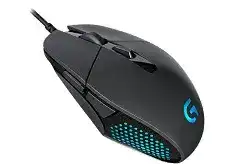
The Logitech G302 Daedalus Prime MOBA Gaming Mouse Driver becomes useful when the pointer and main clicks work, but DPI stages, lighting, profiles, or extra button assignments remain unavailable. Windows can run this wired model through its standard USB input support. Logitech Gaming Software is still needed for the original device controls that were provided when the G302 was released.
Connect the mouse directly to a computer USB port before opening the software. The G302 does not use Bluetooth, a wireless receiver, or a rechargeable battery, so pairing tools and wireless utilities will not solve a detection failure. Keep the cable attached throughout installation, then restart Windows before checking whether the software identifies the model.
Logitech G302 Daedalus Prime MOBA Gaming Mouse Windows Driver Download
| Driver Name | Description | Supported OS | File Size | Download |
|---|---|---|---|---|
| Logitech G HUB | Customizes mouse buttons, pointer behavior, sensitivity levels, shortcuts, lighting, and game-specific profiles. | Windows 11, Windows 10 32-bit/64-bit | 67.08 MB | |
| Logitech Gaming Software 64-bit | Manages programmable controls, tracking sensitivity, lighting settings, profiles, and device-specific gaming commands. | Windows 11, Windows 10 64-bit | 119.96 MB | |
| Onboard Memory Manager | Stores compatible button assignments, DPI levels, and profile settings directly in the mouse onboard memory. | Windows 11, Windows 10 32-bit/64-bit | 12.45 MB |
Logitech G302 Daedalus Prime MOBA Gaming Mouse Mac OS Driver Download
| Driver Name | Description | Supported OS | File Size | Download |
|---|---|---|---|---|
| Logitech G HUB | Adjusts programmable buttons, pointer response, scrolling behavior, shortcuts, lighting effects, and application profiles. | macOS 26, macOS 15, macOS 14 | 11.36 MB | |
| Logitech G HUB | Configures mouse sensitivity, button functions, lighting preferences, shortcuts, and profiles for supported games. | macOS 13 | 10.43 MB | |
| Logitech G HUB | Controls DPI stages, programmable inputs, lighting patterns, profile switching, and other mouse-specific settings. | macOS 11 | 5.02 MB | |
| Logitech G HUB | Provides access to button remapping, tracking adjustments, lighting controls, shortcuts, and saved gaming configurations. | macOS 10.15 | 5.04 MB | |
| Logitech Gaming Software | Sets mouse commands, DPI values, illumination, automatic game detection, and customized profiles on older Mac systems. | macOS 10.15, macOS 10.14, macOS 10.13, macOS 10.12 | 204.99 MB |
Logitech Gaming Software opens without showing the G302
Disconnect other Logitech gaming mice while testing. Older and newer control packages can compete for the same background services, especially when several Logitech applications remain installed. Close every Logitech process, reconnect the G302, and start Logitech Gaming Software again. A direct USB port works better for diagnosis than a monitor port, docking station, keyboard passthrough, or unpowered hub.
When the software still shows an empty device screen, remove the existing installation and restart the computer. Install one compatible Logitech Gaming Software release rather than stacking several versions. Reconnect the mouse only when Windows has returned to the desktop. Confirm detection before importing saved profiles or enabling automatic game scanning.
Windows repeatedly connects and disconnects the mouse
A repeating USB sound usually points to the port, cable, connector, or power management rather than a profile error. Try the G302 on another direct port and gently change the cable position near the front of the mouse. Do not bend it sharply. If movement stops whenever the cable shifts, software changes will not repair the damaged connection.
Open Device Manager when the connection stays active long enough. Remove the affected HID mouse or USB input entry, unplug the G302, and restart Windows. Reconnect it after the restart so the operating system creates a fresh hardware entry. Avoid removing unrelated keyboard or controller devices while doing this.
Restore DPI and Profile Behaviour Without Rebuilding Every Assignment
The G302 has four adjustable DPI levels from 240 to 4000 DPI, six programmable controls, and onboard memory for saved commands. These features can make an apparent sensor fault turn out to be a profile problem. A game may load different pointer values from the desktop, while an onboard profile can keep an older setting after the software closes.
Open the Logitech G302 Daedalus Prime MOBA Gaming Mouse Driver controls and inspect the active profile before changing Windows pointer speed. Check the assigned DPI stages, the default level, and the DPI-cycle button. Remove unwanted stages instead of placing several nearly identical values beside each other. A smaller set makes accidental switching easier to notice.
DPI changes as soon as a game launches
Logitech Gaming Software can keep separate pointer values for individual application profiles. Select the game profile and compare it with the desktop profile. Disable per-profile pointer values when every program should use the same sensitivity. When separate values are intentional, set a clear default DPI for each game instead of relying on whichever stage was active during editing.
Automatic profile detection can also choose the wrong executable. Some games launch through a separate client, updater, or anti-cheat process. Edit the profile path so it follows the actual game executable. Test in windowed mode while watching the active profile indicator inside Logitech Gaming Software.
The DPI button works in Windows but not inside a game
Check whether the game has captured that button for its own command. Delete the conflicting in-game binding or give the G302 control a different function. Also compare software mode with the onboard profile. A command saved to onboard memory may differ from the assignment shown in the computer-managed profile.
Do not assign several actions to the same physical control across different layers. A DPI command in onboard memory and a keyboard action in the active software profile can produce confusing results. Reset that button to its default function, test it, and then add one new assignment.
Saved controls disappear on another computer
Only commands written to onboard memory travel with the mouse. Application detection and more complex computer-managed actions remain tied to Logitech Gaming Software on the original system. Select onboard memory mode, choose the intended slot, and store a simple profile with the required DPI and button commands.
Close the software after saving, unplug the G302, and connect it again. This test shows whether the profile was actually written to the device. Repeat it before moving the mouse to another computer. Do not assume that editing a desktop profile automatically updates onboard memory.
Clicks and Wheel Input Need a Different Test From Pointer Tracking
One press produces two clicks
Remove macros and rapid-click commands from the affected button first. Test the primary click in several ordinary Windows programs with Logitech Gaming Software closed. Adjusting the Windows double-click speed may change folder-opening behaviour, but it will not cure a switch that physically sends two separate presses.
Use short bursts of compressed air around the button gap while the mouse is unplugged. Avoid liquid cleaners and do not open the body while warranty coverage remains relevant. If a single press still registers twice on another computer with default assignments, the button switch likely needs warranty service or professional replacement.
A main button feels loose or responds unevenly
The G302 uses a metal spring tensioning system beneath its primary buttons to keep the button surfaces close to their switches. A profile cannot change the physical travel or sound. Compare the left and right buttons with the mouse disconnected. Grinding, sticking, or a large difference in movement points away from software.
Check that the shell is clean and that nothing has entered the narrow space beside the button. A damaged spring, worn hinge, or failing switch requires hardware attention. Repeatedly increasing click speed or assigning the command to another profile only hides the symptom.
The middle button works, but scrolling misses steps
Test the wheel on a long document with all custom assignments removed. Scroll slowly in both directions, then compare another USB port and another computer. If only one application behaves badly, review that program’s scroll options. A wheel that reverses direction or skips across every program may have debris or a worn encoder.
Unplug the mouse and use compressed air around the wheel opening. Turn the wheel gently while clearing dust, but do not force it beyond its normal movement. The G302 does not have a tilt wheel or free-spinning mode, so horizontal tilt commands and wheel-mode adjustments do not apply to this model.
Sensor Spin-Outs, Surface Changes, and Cable Drag
The G302 uses Logitech’s Delta Zero optical sensor and was built around fast MOBA clicking, but very fast low-sensitivity swipes can exceed the sensor’s practical tracking range. A sudden turn, frozen pointer, or incorrect direction during an extreme flick does not always mean the Logitech G302 Daedalus Prime MOBA Gaming Mouse Driver has failed.
The pointer jumps during very fast swipes
Return the report rate and DPI to moderate values before testing. Use one known profile and remove acceleration changes from both the game and Windows. Then repeat the movement on a clean, uniform mouse pad. Extremely fast low-sensitivity turns can expose the sensor limit more easily than normal desktop movement or medium-sensitivity play.
Raising DPI slightly and lowering in-game sensitivity can reduce the physical distance needed for the same turn. This does not upgrade the sensor, but it may keep movement within a range the G302 tracks more consistently. Avoid software calibration claims that promise to remove a genuine high-speed sensor limitation.
Movement becomes uneven on a new desk or pad
Optical tracking depends heavily on the surface. Reflective glass, glossy finishes, deep patterns, and dirty fabric can produce uneven movement. Test a plain gaming pad before changing software. Clean the sensor window with dry air and a soft lint-free cloth without pressing into the opening.
Check the underside feet as well. Worn, peeling, or contaminated feet can make the body rock or drag, which feels similar to sensor hesitation. Remove loose dirt around the edges. Do not stack replacement feet over old material because the extra height can change the sensor’s distance from the surface.
The stiff cable pulls the mouse during wide movements
Leave enough free cable on the desk for the full swipe rather than letting its weight hang behind the table. Straighten tight coils gradually and route the lead away from monitor stands or sharp desk edges. A mouse bungee can lift part of the cable, although a loose loop near the pad may work just as well.
If the cable has developed a permanent kink near the USB plug or mouse shell, watch for brief input loss while moving it. Cable drag changes the feel of aiming, while an internal break causes actual disconnects. These symptoms need different solutions, so test them separately.
Keep the G302 Profile Focused on the Game That Uses It
Use the Logitech G302 Daedalus Prime MOBA Gaming Mouse Driver to create one desktop profile and one game profile before adding more. Confirm the six controls, the chosen DPI stages, report rate, and blue lighting behaviour in those two profiles. A small profile set is easier to diagnose than many automatically imported entries with similar names.
Finish by checking the mouse with Logitech Gaming Software open, with it closed, and after a Windows restart. That sequence reveals whether a command belongs to the application profile, onboard memory, or basic USB input. When the same click, wheel, cable, or tracking fault remains on another computer, stop rebuilding profiles and treat it as a hardware symptom.