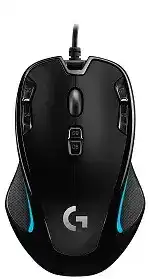
The pointer may move normally while gaming controls remain missing because the Logitech G300s Optical Gaming Mouse Driver relies on software support beyond the standard Windows HID entry. This wired USB model has nine programmable controls, adjustable sensitivity, onboard profiles, and profile lighting. Ordinary system input support cannot configure those functions.
G HUB detection is a frequent source of confusion with the G300s. This older model belongs to the Logitech Gaming Software generation, and G HUB may not display it even after repeated reinstalls. Use the compatible Logitech Gaming Software package instead of treating a blank G HUB screen as a USB or hardware failure.
Logitech G300s Optical Gaming Mouse Windows Driver Download
| Driver Name | Description | Supported OS | File Size | Download |
|---|---|---|---|---|
| Logitech Gaming Software 64-bit | Customizes programmable mouse buttons, tracking speed, profiles, lighting, and device-specific gaming settings through a full 64-bit package. | Windows 11, Windows 10 64-bit | 119.96 MB | |
| Logitech Gaming Software 64-bit | Provides the complete 64-bit installation files for offline configuration of button assignments, pointer response, profiles, and lighting controls. | Windows 10 64-bit, Windows 8 64-bit, Windows 7 64-bit | 120.04 MB | |
| Logitech Gaming Software 32-bit | Installs the full 32-bit software package for managing mouse sensitivity, programmable commands, game profiles, and onboard device settings. | Windows 10 32-bit, Windows 8 32-bit, Windows 7 32-bit | 109.04 MB |
Logitech G300s Optical Gaming Mouse Mac OS Driver Download
| Driver Name | Description | Supported OS | File Size | Download |
|---|---|---|---|---|
| Logitech Gaming Software for Mac | Manages programmable controls, pointer performance, gaming profiles, and compatible lighting options on supported Mac systems. | macOS 10.15, macOS 10.14, macOS 10.13, macOS 10.12 | 204.99 MB |
Logitech Gaming Software cannot see the mouse
Connect the G300s directly to a computer USB port before opening the utility. Remove any extension lead, docking station, monitor port, or unpowered hub during diagnosis. If Logitech Gaming Software was already open, close it fully, reconnect the cable, wait for Windows to finish identifying the device, and launch the program again.
Windows Device Manager should show a mouse or HID input entry when the USB connection works. An error symbol, repeated connection sound, or disappearing entry points toward a port, cable, or system-device problem. Test another direct port and restart Windows before replacing software files.
The pointer works but programmable controls do not
Basic movement and primary clicks come from the operating system, so they can work without Logitech Gaming Software. Extra commands need either an active software profile or a configuration stored in onboard memory. Open the utility and check which operating mode is selected before rebuilding every button assignment.
Computer-based automatic game detection uses profiles kept by the application. Onboard mode reads profiles saved inside the G300s itself. Editing one mode does not necessarily change the other, which explains why a command can appear correctly in the utility yet behave differently during a game.
Software installation finishes but the utility will not open
Close leftover Logitech processes through Task Manager, then start the application again. When it still fails, uninstall the damaged copy, restart the computer, and install a version intended for the current Windows architecture. Running another installer over a broken copy often preserves the files or services causing the startup failure.
Avoid keeping several generations of Logitech gaming utilities active together while troubleshooting. Multiple background services can compete for the same wired device or load different profile components. Remove the package that does not support the G300s, reboot, and test Logitech Gaming Software by itself.
Profile Modes Change More Than the Colored Side Lighting
The G300s can hold as many as three profiles in onboard memory. Each profile can use a different lighting color, sensitivity arrangement, and control layout. The colored side strips therefore provide a quick indication of the active slot rather than serving only as decoration.
The mouse changes commands after pressing the profile button
An accidental profile switch can make several controls appear scrambled at once. Watch the side lighting when the assignments change. A new color usually means another stored slot became active. Return to the intended slot, or open Logitech Gaming Software and make the unused profiles match your preferred layout.
Another option is to remove the profile-cycle command from a button that you press unintentionally. Do that only after confirming which control changes profiles. Saving a new assignment to onboard memory prevents the unwanted switch when Logitech Gaming Software is closed.
A game launches with the desktop profile
Automatic game detection depends on the executable path linked to its profile. A game update, separate launcher, or changed installation folder can leave the old path pointing at the wrong file. Edit the profile and associate it with the executable that remains active while the game is running.
Launchers can complicate detection because the first program closes after starting a second executable. Add the actual game process rather than only the launcher. When several editions use different executable files, associate each relevant path with the same profile.
The active profile keeps changing outside the game
Overlays, launchers, and background tools can briefly take focus and return the mouse to another application profile. Set one configuration as persistent when you need the same commands everywhere. This stops automatic switching until you disable the persistent selection.
A persistent profile is also useful for testing. If the controls behave correctly while it remains active, the hardware and assignments are probably intact. The fault then lies with application detection, profile association, or focus changes rather than the buttons themselves.
Logitech G300s Optical Gaming Mouse Software for DPI and Pointer Behavior
The Logitech G300s Optical Gaming Mouse Driver lets you define sensitivity levels within the model’s adjustable range and assign controls for cycling through them. Sudden pointer-speed changes often come from an unwanted DPI stage, a profile transition, or an accidental press on a sensitivity control rather than a failing optical sensor.
Sensitivity jumps during a match
Open the active game profile and inspect every configured DPI level. Remove values you never use, then choose a clear default. Fewer stages reduce the chance of landing on an extreme setting after an accidental press. Reassign the DPI-cycle control when its current location is too easy to hit.
Check both software and onboard configurations. A profile saved inside the mouse may contain older values than the computer-based version. Write the revised arrangement to the intended onboard slot if you expect the same sensitivity after closing the Logitech utility or moving the G300s to another system.
Pointer movement feels uneven or delayed
Test the optical sensor on a plain, opaque mouse pad before changing software. Reflective glass, glossy patterns, dust, and uneven surfaces can interrupt tracking. Wipe the sensor opening gently with a dry, soft cloth and inspect the underside for material caught around the feet.
Windows pointer acceleration can also change how distance and speed feel. Review the system pointer-speed control and Enhanced Pointer Precision setting, then test with a single known DPI value. Adjust one layer at a time; changing Windows speed, game sensitivity, and mouse DPI together makes the cause difficult to isolate.
The cursor clicks but will not move
When buttons respond but the pointer remains still, test another surface and USB port first. Restart the computer with the mouse already connected. If the same G300s tracks correctly on another computer, reinstall the affected system’s HID mouse entry through Device Manager and let Windows recreate it after rebooting.
A pointer that fails on several computers and several suitable surfaces suggests a sensor or cable fault. Software cannot restore an optical sensor that receives power but sends no movement data. Check for intermittent tracking while gently repositioning the cable near the mouse body, without sharply bending it.
Separate Button Assignment Faults from Worn Switches
Nine programmable controls give the G300s a large number of possible layouts, but games do not interpret every assignment in the same way. A control can work in Logitech Gaming Software yet do nothing inside a game because of profile selection, command type, game restrictions, or conflicting in-game bindings.
Extra controls do nothing inside one game
Assign the affected control to a simple keyboard key that the game already accepts, then bind that key inside the game. Some titles handle ordinary keyboard input more consistently than uncommon mouse-button codes. Make sure the chosen key does not conflict with chat, overlays, or another action.
Run the game and Logitech Gaming Software with compatible permission levels. A game started with elevated privileges may ignore commands sent by a utility running normally. Avoid permanent administrator access unless it is necessary, but keep both programs at the same level during diagnosis.
A macro stops working in onboard mode
Onboard memory cannot reproduce every command available through computer-based automatic game detection. Complex scripts, application launches, and some multi-step actions may require Logitech Gaming Software to remain active. Replace the assignment with a simpler keystroke sequence or return to software-managed profiles.
Test the command before saving it to the mouse. Once it works in automatic game detection mode, switch to onboard memory and check whether the utility permits the same assignment. A missing or simplified option indicates a storage limitation rather than an installation error.
One press produces two clicks
Restore the affected control to a standard click with no macro or repeat instruction. Check the Windows double-click speed, then test the button in more than one application. If a single physical press creates two inputs across another computer as well, the switch may be bouncing mechanically.
Compressed air around the button gap may remove loose debris, but do not flood the housing with cleaner or dismantle the mouse for a software problem. Persistent duplicate clicks need switch service or replacement. Scripts that suppress rapid inputs can delay legitimate gaming clicks and conceal the fault without repairing it.
A control remains pressed after release
First remove any toggle, repeat, or press-and-hold macro attached to that control. Replace it temporarily with one ordinary keystroke. If the stuck input disappears, rebuild the macro with clear press and release events rather than copying the damaged command sequence.
When an ordinary assignment also remains active, close overlays and keyboard-remapping utilities that may capture the same key. Test with a new blank profile. A blank profile separates conflicting software from a physical button that does not release correctly.
Resolve Wheel and USB Faults Before Rewriting Profiles
Scrolling moves in the wrong direction or skips lines
Check whether the problem occurs in every program. Browser extensions, document viewers, and games may apply their own scrolling behavior. Test a plain Windows window, then review the application’s scroll preferences before changing Logitech assignments.
Remove visible dust around the wheel with gentle air while the cable is unplugged. Do not insert liquid into the wheel opening. Irregular movement on several computers after cleaning usually indicates encoder wear, especially when one wheel step moves down and immediately returns upward.
The mouse disconnects when the cable moves
A wired G300s should remain present without pairing or wireless software. Repeated USB tones, momentary lighting loss, or Device Manager entries that vanish when the cable shifts point toward a physical connection fault. Try more than one computer port to exclude a loose socket on the system.
Inspect the cable along its full length for crushing, sharp folds, or exposed material. Pay particular attention near the USB plug and where the cable enters the mouse. Stop using the device if the insulation is damaged. No driver reinstall can correct an internal break that interrupts power or data.
Windows reports an unrecognized USB device
Shut down the computer completely, unplug the G300s, and start Windows without it. Reconnect the mouse through another direct USB port after the desktop appears. This forces a fresh enumeration rather than restoring the same failed connection state from a quick restart.
Remove the failed USB or HID entry through Device Manager only when it returns with an error. Reboot afterward and let Windows supply its standard input components. Install the Logitech G300s Optical Gaming Mouse Driver software after basic pointer movement returns, since profile software cannot repair a USB device that Windows cannot enumerate.
Use the Onboard Slots as a Recovery Copy
Once the main layout works, store a practical version in one onboard slot. Keep the other slots for alternate games, left-handed use, or a plain desktop arrangement. Distinct lighting colors make those configurations easier to identify when software-based profile switching is unavailable.
Record the chosen DPI values and critical button commands before changing Logitech Gaming Software or moving to another computer. The Logitech G300s Optical Gaming Mouse Driver can manage richer application profiles, while onboard memory preserves a usable fallback when the utility fails to start. That division makes profile recovery much easier than rebuilding every control after a software problem.