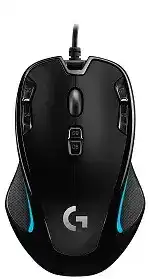
Here you will get the latest Logitech G300s Optical Gaming Mouse driver and software that support Windows and Mac OS.
Logitech G300s Windows Driver Download
The Logitech G300s Optical Gaming Mouse software lets you customize your gaming mouse, keyboard, headset, touchpad, number pad and other devices settings in Windows and Mac.
Logitech Gaming Software (LGS)
LGS provides a user-friendly interface for configuring various aspects of the G300s mouse, including button assignments, DPI settings, and polling rate adjustments.
Logitech gaming software lets you customize mice, keyboards, headsets and select wheels.
Supported Windows OS: Windows 11, Windows 10 (64-bit)
Logitech G300s Optical Mouse Logitech Gaming Software (LGS) for Windows 64-bit (119.96 MB)
Supported Windows OS: Windows 10 (32-bit ,64-bit) Windows 8 (32-bit ,64-bit) Windows 7 (32-bit ,64-bit)
Logitech G300s Optical Mouse Logitech Gaming Software (LGS) for Windows 64-bit (120.04 MB)
Logi G300s Optical Mouse Logitech Gaming Software (LGS) for Windows 32-bit (109.05 MB)
Logitech G300s Mac OS Driver Download
Logitech Gaming Software (LGS)
Supported Mac OS: MacOS 10.15, MacOS 10.14, MacOS 10.13, MacOS 10.12, MacOS X 10.11, MacOS 10.10, MacOS X 10.9.x, MacOS X 10.8.x
Logitech G300s Optical Mouse Logitech Gaming Software (LGS) for Macintosh ver : 9.02.22 (205 MB)
Logi G300s Optical Mouse Logitech Gaming Software (LGS) for Macintosh ver : 8.98.306 (201.99 MB)
The Logitech G300s Driver is designed to optimize the performance of the Logitech G300s gaming mouse, ensuring that users reap the full benefits of its features. This driver is compatible with several operating systems, including Windows 11, Windows 10, Windows 8, Windows 7, and MacOS versions ranging from 10.10 to 10.15. It supports functionality such as customizable RGB lighting, programmable buttons, and adjustable sensitivity settings, making it a versatile tool for gamers and productivity enthusiasts alike. The driver enhances the mouse’s performance by allowing fine-tuning of its features through Logitech’s configuration software, providing an edge in competitive gameplay and enhancing overall user experience.
Download Logitech G300s Driver and Software Download Software
Ensure that you have the latest version of the Logitech G300s Driver to guarantee optimal performance and functionality. The installation file should be available on your computer, typically stored in the Downloads folder or a location you designated for downloads. This driver package enacts changes that enhance your device’s operation, such as improved tracking sensitivity and button mapping features, essential for both casual browsing and intense gaming sessions.
How to install Logitech G300s Driver and Software Download Software on Windows and Mac OS?
Installing the Logitech G300s software can significantly upgrade your device experience. The installation process varies slightly depending on whether you are using Windows or Mac OS. Follow these general steps: First, locate the installer file you’ve saved to your computer. Next, execute the file and follow the on-screen prompts provided during the installation wizard. Pay attention to any configuration options available that can be customized to suit your preferences and ensure you review the license agreement. Once the installation is complete, a system restart may be required to fully integrate the driver and its functionalities.
Installing Logitech G300s Driver and Software Download Software on Windows 11, 10…
For Windows systems, here’s how to install the Logitech G300s Driver:
- Locate the downloaded installer file: This is likely in your Downloads folder.
- Run the installer executable: Double-click to open and begin the installation.
- Follow the installation prompts: The installation wizard will guide you through the process.
- Accept the license agreement: Read the terms and proceed if you agree.
- Complete the installation: Confirm any custom settings as needed and install the driver.
- Restart your computer: This will ensure that all changes take effect.
After restarting, verify that the mouse is functioning correctly and that all features are available.
Installing Logitech G300s Driver and Software Download Software on Mac OS
For Mac users, installation of the Logitech G300s Driver follows a straightforward process:
- Open the downloaded file: Navigate to your Downloads folder and double-click the installer.
- Follow the on-screen installation instructions: The process should be intuitive as guided by the software’s wizard.
- Grant necessary permissions: MacOS may require access permissions; ensure you allow these when prompted.
- Complete the installation: Once finished, check for any final configuration settings that suit your needs.
- Restart your Mac: A restart may help fully integrate changes made by the installation.
Next, you should confirm that the mouse operates correctly through the settings in System Preferences.
Why choose our website for Logitech G300s Driver and Software Download Drivers Downloads?
Our platform is dedicated to providing users with reliable access to software drivers, ensuring a seamless installation experience. By navigating through our structured content, you can easily obtain essential drivers like the Logitech G300s Driver without the hassle of searching for various sources. Our website focuses on delivering the information you need, with detailed instructions, features, and specifications that enhance user understanding and usability. We prioritize clarity and accessibility, making your driver management process straightforward.
Uninstalling the Logitech G300s Driver and Software Download Software
Should you need to uninstall the Logitech G300s Driver for any reason, the process is straightforward on both Windows and Mac platforms:
- Windows: Navigate to the Control Panel, select ‘Programs and Features,’ find the Logitech G300s Driver, and choose ‘Uninstall.’
- Mac: Go to Finder, locate the Applications folder, find the Logitech software, and drag it to the Trash.
After uninstalling, it’s advisable to restart your computer to ensure all components are completely removed. This will help to reset any settings that the driver may have altered.
Conclusion about Logitech G300s Driver and Software Download Driver
While using the Logitech G300s Driver, some users may encounter issues such as unresponsive buttons or tracking inconsistencies. Addressing these concerns typically involves checking your settings or reinstalling the driver. Here are some effective troubleshooting solutions:
- User Manual: Review the setup guide for detailed instructions and tips.
- Support Forums: Engage with the community for shared insights and solutions.
- Configuration Guides: Access detailed documentation for advanced setup options.
Consistent performance, particularly with programmable button functionalities, is crucial for enhancing your gaming experience. Regularly check hardware connections and ensure your software is updated to the latest version, which will help avoid functionality issues.