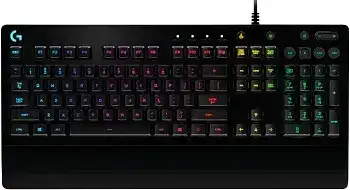
When the lighting changes by itself, keys stop responding, or G HUB shows an empty device screen, the Logitech G213 Prodigy RGB Gaming Keyboard Driver provides access to the keyboard’s supported controls. The G213 is a wired USB gaming keyboard with five-zone LIGHTSYNC RGB, dedicated media buttons, Game Mode, spill-resistant Mech-Dome keys, and an integrated palm rest. Windows can handle ordinary typing without G HUB, but the software manages lighting zones, game profiles, and keys disabled during Game Mode.
Logitech G213 Prodigy RGB Gaming Keyboard Windows Driver Download
| Driver Name | Description | Supported OS | File Size | Download |
|---|---|---|---|---|
| Logitech Gaming Software 64-bit | Full 64-bit package for offline setup, game-profile management, RGB lighting control, programmable keys, and keyboard-specific settings. | Windows 11, Windows 10 64-bit | 119.96 MB | |
| Logitech G HUB | Manages LIGHTSYNC RGB effects, game profiles, key assignments, macros, and other supported gaming-keyboard settings. | Windows 11, Windows 10 32-bit/64-bit | 67.08 MB |
Logitech G213 Prodigy RGB Gaming Keyboard Mac OS Driver Download
| Driver Name | Description | Supported OS | File Size | Download |
|---|---|---|---|---|
| Logitech G HUB | Configures synchronized RGB lighting, custom key commands, game profiles, and device preferences on recent macOS releases. | macOS 26, macOS 15, macOS 14 | 11.36 MB | |
| Logitech G HUB | Provides keyboard lighting adjustments, programmable assignments, profile switching, and supported device controls for macOS 13. | macOS 13 | 10.43 MB | |
| Logitech G HUB | Handles LIGHTSYNC effects, application profiles, key customization, and gaming-peripheral preferences on macOS 11. | macOS 11 | 5.02 MB | |
| Logitech G HUB | Controls compatible RGB zones, command assignments, stored profiles, and keyboard behavior on macOS 10.15. | macOS 10.15 | 5.04 MB | |
| Logitech Gaming Software | Full gaming software package for creating profiles, programming keyboard commands, and adjusting RGB lighting on older macOS versions. | macOS 10.15, macOS 10.14, macOS 10.13, macOS 10.12 | 204.99 MB |
Logitech G213 Prodigy RGB Gaming Keyboard Driver When G HUB Cannot See the Keyboard
A missing G213 tile in G HUB does not always mean the keyboard has failed. First unplug the USB cable, close G HUB completely, and connect the keyboard directly to another USB port on the computer. Avoid a monitor port, passive hub, dock, KVM switch, or desk-mounted USB extension during this test. The keyboard should light and type before G HUB finishes loading.
The keyboard types but stays absent from G HUB
Windows may load the standard USB keyboard service while G HUB fails to identify the gaming controls. Open Device Manager and look for an unknown USB device or a keyboard entry carrying an error symbol. Disconnect the G213, restart Windows, and reconnect it after reaching the desktop. This forces the operating system to enumerate the hardware again before the Logitech background services inspect it.
When the G HUB installation itself is damaged, run the current installer over the existing copy first. Its repair process may restore missing services without removing profiles. If repair fails, uninstall G HUB, restart the computer, and install it again. Do not import an old settings folder until the Logitech G213 Prodigy RGB Gaming Keyboard Driver detects the keyboard and opens its lighting page normally.
G HUB remains on loading or initialization
A spinning logo or endless initialization screen points to the application rather than the keyboard cable. End the G HUB application, agent, and updater processes through Task Manager, then open the program as an administrator. Also check that its updater service starts with Windows. Security software can sometimes stop the agent while leaving the main window visible, producing a screen that never reaches the connected-device view.
Test with only the G213 attached if several Logitech gaming products appear incomplete. Once the keyboard loads, reconnect the other devices one at a time. This separates a general G HUB failure from a damaged profile attached to one product. It also avoids deleting every gaming profile when only one device record has become unreadable.
Take Back Control of the Five RGB Zones
The G213 uses five lighting areas rather than individual illumination for every key. A color assigned inside one zone therefore affects a group of nearby keys. G HUB can apply fixed colors, breathing effects, color cycles, and game-linked lighting. The keyboard also has a dedicated backlight button, so check that button before rebuilding a profile simply because all illumination has gone dark.
Windows changes the colors after startup
On newer Windows systems, Dynamic Lighting can compete with G HUB for control of compatible RGB hardware. The result may be a dim color, an unexpected rainbow, or a pattern that returns seconds after you select another effect. Open Windows Personalization, find Dynamic Lighting, and turn off control for the keyboard. Restart G HUB, select the G213 again, and reapply the intended LIGHTSYNC effect.
Keep only one lighting controller active. Game launchers, RGB suites for the motherboard, and screen-synchronization tools may also attempt to manage connected lighting. Close those programs during testing. When the chosen pattern remains after they are closed, disable their Logitech integration or remove the G213 from their device list rather than repeatedly saving the same G HUB profile.
Lighting switches off when a game opens
G HUB can activate a game-specific profile as soon as it recognizes an executable. That profile may carry a dark effect or allow the game to control the keyboard. Open Games and Applications in G HUB, select the affected title, and inspect its lighting assignment and integrations. Disable the game integration or copy the preferred desktop effect into that game profile.
A persistent profile can stop automatic switching when one appearance should remain everywhere. Enable persistence from the profile area, choose the desired lighting configuration, and launch the game again. This fix is more precise than closing G HUB because it keeps the keyboard controls available while preventing one title from replacing the five-zone color scheme.
The selected color resets after a reboot
Confirm that G HUB starts with Windows and that the saved effect belongs to the active profile. A temporary profile may disappear when the program updates or signs out. Create a new profile with a distinct name, assign the lighting again, and set it as persistent for testing. If the pattern survives several restarts, remove the older duplicate profile that kept taking priority.
Keys That Stop, Repeat, or Behave Differently in Games
The Windows key suddenly does nothing
The dedicated Game Mode button disables the Windows keys by default so an accidental press does not interrupt play. Its indicator lights while the mode is active. Press the Game Mode button once and test the Windows key again. Reinstalling software will not restore that key while Game Mode intentionally blocks it.
G HUB can add other keys to the Game Mode disabled list. Open the G213 page, enter the Game Mode view, and inspect the highlighted keys. Remove any letter, number, modifier, or function key that should remain active. This is especially useful when a key works on the desktop but stops only after the gaming profile loads.
Function keys or shortcuts fail in one title
First test the same combination outside the game. A shortcut that works in Windows but not inside one title may conflict with the game’s own controls, an overlay, or a G HUB profile. Turn Game Mode off briefly and disable the title’s integration. Then restore one feature at a time until the shortcut fails again. This identifies the profile rule without changing the physical keyboard.
Keyboard layouts can also change how shifted number keys and punctuation behave. Confirm that Windows uses the layout printed on the G213. Remove an unwanted secondary language or switch back with the Windows language shortcut. A layout mismatch often looks like a defective key because the physical key produces a different symbol rather than no input at all.
One press enters two or three characters
Repeated letters on individual G213 keys can come from debris, liquid residue, a worn Mech-Dome contact, or software that processes the same input twice. Close G HUB and test several lines in a plain text field. Connect the keyboard to another direct USB port and, when possible, another computer. Repetition that follows the keyboard across systems points away from the Logitech software.
Turn the keyboard off by disconnecting its USB cable before cleaning. Hold it at an angle and use gentle air around the affected keys, followed by a dry, soft brush. Do not flood the membrane with cleaner, even though the keyboard has limited spill resistance. That rating covers small accidental spills under test conditions; it does not make the internal layers safe for soaking.
A key needs several presses before it responds
Compare the faulty key with nearby keys in more than one application. If only one or two positions miss input after port and computer tests, software replacement is unlikely to solve it. Avoid removing keycaps or opening the chassis while warranty coverage may still apply. Record which keys fail and whether they also repeat, then use that evidence for a hardware claim.
When many unrelated keys stop together, inspect the USB connection before assuming several switches failed at once. A loose plug, damaged cable section, unstable hub, or power-saving event can interrupt the whole input matrix. Connect directly, restart the computer, and disable USB selective power saving temporarily to see whether the broad key loss disappears.
Media Buttons, Volume Control, and USB Interruptions
The Logitech G213 Prodigy RGB Gaming Keyboard Driver works alongside dedicated play, pause, skip, mute, and volume controls. These buttons send media commands to Windows, but the active application decides whether it accepts them. A working volume button does not guarantee that a browser tab, music service, or game will respond to play and skip commands.
Play, pause, or skip buttons have no effect
Open a local media player and test the controls there. If they work locally but fail in a browser, close other tabs or applications that may have claimed the system media session. Browser extensions, communication tools, and music programs can compete for the same commands. Restart the intended player after closing the others, then bring it to the foreground before testing again.
If none of the media buttons respond, turn Game Mode off and close G HUB for one test. Reconnect the keyboard after Windows reaches the desktop. Check the Human Interface Device services in Windows and confirm they are running. These services handle many special-key events independently of normal letter input, which explains why typing may continue while playback controls remain inactive.
The volume control reacts slowly or jumps
Press each volume button separately rather than holding it down. A stuck or contaminated button can send a continuing command and make the level climb or fall unexpectedly. Disconnect the keyboard and clean around the media-control area with a dry brush. When the problem continues on another computer, treat it as a control-button fault rather than a G HUB lighting problem.
The keyboard disconnects during play
Move the G213 to a direct motherboard or laptop USB port and disconnect unnecessary high-power USB devices for comparison. Do not run it through an unpowered splitter with lighting strips, storage drives, or charging cables. A brief USB reset can extinguish the RGB, freeze all keys, and reconnect moments later, which may look like a game crash or profile change.
Check the fixed cable for sharp bends near the keyboard and USB plug. Do not twist or pull it while testing. If slight cable movement repeatedly cuts the lights and input, stop using that port arrangement. Software cannot correct an intermittent physical cable path, and continued movement may make the break more frequent.
Separate Profile Faults from Worn Key Hardware
Finish diagnosis with three controlled tests: ordinary typing while G HUB is closed, lighting control after G HUB opens, and the same keyboard on another direct USB connection. The Logitech G213 Prodigy RGB Gaming Keyboard Driver belongs in the second test. It should not be blamed for a single worn key that fails on every computer, nor should the keyboard be replaced because Windows Dynamic Lighting overrides one color profile.
Restore Game Mode and game integrations only after every required key works on the desktop. Then add the preferred five-zone effect, launch one game, and watch which profile becomes active. This sequence reveals the exact moment a command or color changes. It also keeps USB detection, physical key response, and application-specific behavior from becoming one mixed troubleshooting problem.
When double entries, dead positions, or cable dropouts survive the direct-port and second-computer tests, preserve the keyboard rather than attempting an internal membrane repair. For lighting resets, missing media commands, or blocked Windows keys, keep attention on G HUB profiles, Dynamic Lighting, Game Mode, and the application currently receiving keyboard input.