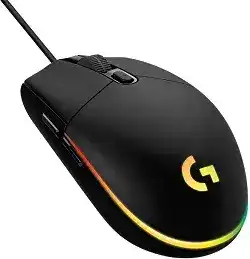
Lighting that changes after startup can make a working mouse appear incorrectly configured. The Logitech G203 LIGHTSYNC Gaming Mouse Driver uses G HUB to manage the three-zone LIGHTSYNC effect, sensitivity, report rate, six-button layout, and onboard memory. Windows may still provide ordinary clicks and pointer movement when G HUB is missing, but customized behavior will not necessarily load.
The G203 LIGHTSYNC is a wired USB gaming mouse. It does not use Bluetooth, a wireless receiver, charging software, or a pairing utility. Connect its cable directly to a computer USB port while diagnosing detection trouble. A keyboard socket, monitor hub, dock, or adapter adds another connection point that can hide the real fault.
Logitech G203 LIGHTSYNC Gaming Mouse Windows Driver Download
| Driver Name | Description | Supported OS | File Size | Download |
|---|---|---|---|---|
| Logitech G HUB Software | Customizes mouse buttons, pointer behavior, sensitivity settings, lighting effects, shortcuts, and device profiles. | Windows 11, Windows 10 32-bit/64-bit | 67.08 MB | |
| Onboard Memory Manager | Manages compatible onboard profiles and saves mouse settings directly to the device without keeping G HUB open. | Windows 11, Windows 10 32-bit/64-bit | 12.45 MB |
Logitech G203 LIGHTSYNC Gaming Mouse Mac OS Driver Download
| Driver Name | Description | Supported OS | File Size | Download |
|---|---|---|---|---|
| Logitech G HUB Software | Controls button assignments, pointer sensitivity, scrolling behavior, shortcuts, lighting, and gaming profiles on newer Mac systems. | macOS 26, macOS 15, macOS 14 | 11.36 MB | |
| Logitech G HUB Software | Provides device customization for button commands, DPI levels, LIGHTSYNC effects, and stored application profiles. | macOS 13 | 10.43 MB |
Windows replaces the selected LIGHTSYNC effect
Windows 11 Dynamic Lighting can take control of compatible RGB hardware and prevent G HUB from applying the effect shown in its LIGHTSYNC page. Open the Windows personalization controls and inspect Dynamic Lighting before rebuilding profiles. Either let Windows control the device or disable its control for the mouse so G HUB remains responsible for the lighting.
Check application priority when both systems remain enabled. An RGB program with higher background priority may replace the chosen color after sign-in or whenever a game starts. Close other lighting utilities for one test, select a fixed color in G HUB, and restart Windows. A color that now remains steady points to software control rather than failed LEDs.
The color wave returns after every restart
G HUB software profiles load only after its background services start. When the desktop appears before those services are ready, the mouse may briefly use its factory color wave. Save a simple lighting arrangement to onboard memory when you need the same appearance before sign-in or on a computer without G HUB.
Onboard storage does not reproduce every software-driven animation. Audio visualizers, screen sampling, game integrations, and synchronized effects need G HUB running. Use a fixed or simple stored effect for startup, then let the desktop profile apply richer lighting after the application finishes loading.
One lighting zone shows an unexpected color
First choose a solid white, red, green, and blue effect at full brightness. This reveals whether the problem follows one physical zone or only one animation. If every basic color appears correctly, delete or recreate the troublesome effect instead of reinstalling the entire package. Game integrations may also alter individual zones while the game is active.
A zone that consistently displays the wrong shade across several solid-color tests may have a hardware problem. Confirm it on another USB port and another computer before requesting service. Software cannot correct an LED channel that produces the same color error with G HUB closed.
Recover Detection Without Disturbing Every Profile
When G HUB shows an empty home screen, preserve existing profiles before performing a full removal whenever the program still opens. The Logitech G203 LIGHTSYNC Gaming Mouse Driver may disappear from G HUB even while Windows lists a generic USB input device. That difference usually points to device enumeration, a stalled service, or damaged application data.
G HUB does not list the G203
Unplug the mouse, close G HUB from the system tray, and connect the cable to another direct USB port. Wait for Windows to finish recognizing it before reopening the program. This simple re-enumeration often restores the product name when the first port retained an incomplete device record.
Open Device Manager when the mouse still appears only as a generic or failed USB device. Remove the affected entry, disconnect the cable, restart Windows, and reconnect it. Avoid deleting unrelated keyboards or input devices. The goal is to make Windows create a new record for this physical USB connection.
The program remains on the spinning logo
A frozen G HUB startup does not always involve the mouse. Restart Windows first because this also restarts the updater, agent, and background services in their normal order. If the loading screen returns, close every LGHUB process in Task Manager and start the application again with the device already connected.
Use a full reinstall only after the service restart fails. Remove G HUB, restart the computer, and install the current release. Installing a second copy over damaged files often preserves the same loading fault. Back up accessible profiles beforehand, since software-mode assignments and game paths may need to be created again.
The mouse lights up but nothing else responds
Lighting proves that the USB port supplies power, not that Windows has established a usable data connection. Try another direct port and inspect the cable near both the plug and the point where it enters the shell. Movement that cuts in and out when the cable shifts suggests physical cable damage rather than a sensitivity setting.
Restart the computer with the mouse disconnected, then attach it after reaching the desktop. Also install pending operating-system USB and chipset updates. If the G203 fails on a second computer while another wired mouse works in the same ports, the fault likely sits inside the cable or mouse electronics.
Stop DPI and Button Changes From Following the Wrong Profile
G HUB can assign separate controls to the desktop and individual games. The Logitech G203 LIGHTSYNC Gaming Mouse Driver therefore may seem inconsistent when automatic profile switching activates a layout that was edited months earlier. Watch the active profile name while opening the affected program before changing hardware or Windows pointer options.
Sensitivity suddenly becomes too fast
Open the game profile and inspect every stored DPI stage. Remove values you never use, then choose the intended default stage. The top button cycles through enabled stages, so one accidental press can produce a large speed change when widely separated values remain in the profile.
A persistent profile prevents G HUB from changing sensitivity for each application. Use it temporarily to determine whether automatic switching causes the jump. When the speed remains fixed, repair the individual game profile or its executable path rather than altering the sensor calibration.
DPI returns to another value after G HUB closes
Software mode and onboard mode can hold different sensitivity values. Configure the preferred DPI in G HUB, open the device settings, enable onboard memory, and write the finished profile into the available slot. Test it after fully exiting G HUB. This confirms what the mouse itself will use before the software starts.
Some advanced assignments require the background application and will not behave identically in onboard mode. Store straightforward clicks, keystrokes, and sensitivity values when the mouse must work on locked-down computers or before login. Keep G HUB active when a profile depends on application detection or complex macros.
Side buttons send the wrong commands
The two thumb buttons normally provide browser back and forward behavior until G HUB replaces them. Open the active profile, assign a simple keystroke to each button, and test them separately. If one press triggers two actions, check whether both the hardware button and a macro carry commands inside the same profile.
Close G HUB completely and test the default behavior next. Correct back and forward actions without the software indicate a profile conflict. Wrong input on another computer with no Logitech software points more strongly to the switch or onboard assignment. Rewriting a default onboard profile can clear an accidental stored mapping.
Only the DPI button still works
An onboard profile can contain unusable primary-button assignments, especially after left click was removed or replaced. Disconnecting and reconnecting the mouse may temporarily restore its factory behavior. Once normal clicks return, open G HUB and assign left click, right click, middle click, and the thumb controls deliberately before saving the profile again.
Do not experiment with removing the primary click unless another pointing device is connected. Losing left click makes profile repair awkward because G HUB still expects ordinary navigation. A keyboard or spare mouse provides a safe way to restore the assignment without repeatedly resetting the application.
Separate Wheel and Click Wear From Software Faults
The scroll wheel and main buttons use physical mechanisms that can wear independently of the sensor and lighting. Reinstalling G HUB will not repair a failing wheel encoder or switch. A few controlled tests can show whether the symptom follows an application, an assignment, or the mouse itself.
The page scrolls in the opposite direction
Test the wheel in several programs and with G HUB closed. Erratic movement that appears everywhere, including short upward jumps while scrolling down, usually involves debris or wear around the wheel encoder. Blow gentle, dry air around the wheel opening while rotating it normally. Do not force the wheel against the desk or apply liquid cleaner.
Application-specific reversal has a different cause. Check the program’s own scrolling options, smooth-scroll extensions, accessibility tools, and operating-system direction setting. When only one browser or game behaves incorrectly, changing the mouse software will rarely solve it.
Middle click no longer opens links
Restore the wheel button to its standard middle-click assignment in the active G HUB profile. Then test it in a browser and another application. A successful response outside the original program means that program has captured or reassigned middle-click input.
If the wheel still scrolls but pressing it produces no input on multiple computers, the wheel switch may have failed. Gentle cleaning around the opening can remove loose dust, but avoid opening the shell during warranty coverage. Hardware service is more appropriate when pressure or repeated clicking briefly revives the switch.
One physical click becomes two
Return the affected button to a plain click rather than a macro, exit G HUB, and reduce the operating system’s double-click speed only for comparison. Test click-and-drag as well. A folder that opens twice or a selected item that drops during dragging can indicate an unstable mechanical switch.
Repeat the test on another computer without imported profiles. Consistent double input there rules out game bindings and most software causes. Avoid oils, moisture, unsupported scripts, and switch modifications as quick remedies. They may damage the shell or hide the symptom without restoring dependable contact.
Fast movement stutters in one game
The G203 LIGHTSYNC offers a USB report rate up to 1000 Hz. Older games, overlays, remote sessions, or busy systems can react badly to frequent pointer updates even when desktop movement looks normal. Lower the report rate in G HUB and close overlays for one test. Keep the change that removes the hitch without making aiming feel delayed.
Also test a plain mouse pad and disable operating-system pointer acceleration when a game expects raw input. Do not change DPI, report rate, in-game sensitivity, and surface at the same time. Adjusting one item per test makes the cause visible instead of producing a different but equally confusing feel.
Leave the Mouse Usable Before G HUB Starts
Finish by creating a restrained onboard profile with ordinary primary clicks, working thumb buttons, one practical DPI value, and a simple lighting effect. Keep richer game profiles in G HUB. This split lets the mouse navigate firmware screens, login pages, restricted computers, and recovery tools without waiting for the control application.
After saving it, close G HUB and verify every essential control. Reopen the program, launch one game, and confirm that its profile activates without changing unrelated buttons. The Logitech G203 LIGHTSYNC Gaming Mouse Driver is functioning as intended when the wired connection, onboard defaults, software profiles, and Windows lighting control no longer compete with one another.