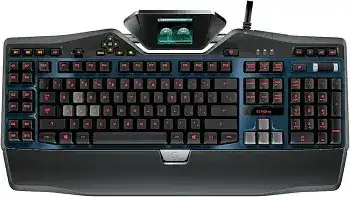
Here you will get the latest Logitech G19s Gaming Keyboard driver and software that support Windows and Mac OS.
Logitech G19s Gaming Keyboard Windows Driver Download
Logitech Gaming Software (LGS)
G19s Gaming Keyboard Logitech Gaming software lets you customize your gaming mouse, keyboard, headset, touchpad, number pad and other devices settings in Windows.
Supported Windows OS: Windows 10 (32-bit ,64-bit) Windows 8 (32-bit ,64-bit) Windows 7 (32-bit ,64-bit)
Logitech G19s Gaming Keyboard Logitech Gaming software (LGS) for Windows 64-bit (120.04 MB)
G19s Gaming Keyboard Logitech Gaming software (LGS) for Windows 32-bit (109.05 MB)
Logitech G19s Gaming Keyboard Mac OS Driver Download
Supported Mac OS: macOS 11, macOS 10.15, macOS 10.14, macOS 10.13, macOS 10.12, Mac OS X 10.11, macOS 10.10, Mac OS X 10.9.x, Mac OS X 10.8.x
Logitech G19s Gaming Keyboard Logitech Gaming software (LGS) for Mac macOS 10.15-macOS 10.12 ver:9.02.22 (205 MB)
G19s Gaming Keyboard Logitech Gaming software (LGS) for Mac Mac OS X 10.11-Mac OS X 10.8.x ver:8.96.40 (180.47 MB)
Logitech G19s Gaming Keyboard Logitech Gaming software (LGS) for Mac Mac OS X 10.11-Mac OS X 10.8.x ver:8.83.55 (127.70 MB)
The Logitech G19s driver is a crucial component for users who want to maximize the functionality of the G19s gaming keyboard. This software enhances your gaming experience by enabling advanced features such as customizable backlighting, programmable keys, and extensive macro support. With this driver, users can tap into the keyboard’s full potential, leveraging its capabilities for a competitive edge in gaming. The Logitech G19s driver supports multiple operating systems, including Windows 10, Windows 8, Windows 7, and various versions of macOS, making it versatile for different users’ needs. Overall, this driver ensures seamless integration between the hardware and your gaming system for an optimized experience.
Improve your device with the Logitech G19s Driver and Software Download Software
By installing the Logitech G19s driver, you can enhance your gaming setup significantly. The software allows for personalization, so you can configure the backlighting settings according to your preferences, ensuring that your keyboard looks good and functions effectively during intense gaming sessions. Additionally, it supports programmable macro functionality, which can improve your reaction times and overall gameplay by giving you quick access to complex commands. Other benefits include:
- Custom Profiles: Easily switch between different gaming profiles for various titles.
- On-the-Fly Adjustments: Modify settings without pausing your game.
- Game Mode: Disable unwanted key presses during gameplay.
This level of customization makes the Logitech G19s driver an essential tool for anyone looking to improve their gaming experience and performance.
Logitech G19s Driver and Software Download Software Specifications
The specifications of the Logitech G19s driver encompass several noteworthy features designed to complement the keyboard’s hardware capabilities. Some of these specifications include:
- Compatibility: Supports Windows 10, Windows 8, Windows 7, macOS versions 10.10 to 11.
- Macro Functionality: Allows up to 54 programmable keys for different commands
- Backlighting: Fully customizable RGB lighting for individual keys.
- Onboard Memory: Saves up to five profiles directly on the keyboard.
These features not only enhance the functionality of the Logitech G19s gaming keyboard but also contribute to a tailored user experience that meets the demands of various gaming genres.
Installing Logitech G19s Driver and Software Download software on Windows and Mac OS
To set up the Logitech G19s driver, follow these straightforward installation steps:
- Locate the downloaded installer file: Check your computer’s Downloads folder or the location where you saved the file.
- Open the installer executable: Double-click on the installer file to launch the installation process.
- Follow the on-screen prompts: The installation wizard will guide you through the setup. Accept any license agreements and select your preferred installation options.
- Complete the installation: Wait for the installation to finish, and if prompted, restart your computer to apply the changes.
After the installation is complete, your Logitech G19s driver will be ready to use, allowing you to take full advantage of the keyboard’s features.
How to update Logitech G19s Driver and Software Download driver
Keeping your Logitech G19s driver up to date ensures peak performance and access to new features. To update the driver, follow these steps:
- Right-click on the Start menu: Select ‘Device Manager’ from the list.
- Expand the Keyboard category: Locate the Logitech G19s gaming keyboard in the list.
- Right-click on the device: Choose ‘Update Driver’ from the context menu.
- Follow the wizard: Select ‘Search automatically for updated driver software’ and let the system check for any new versions.
If an update is found, follow the prompts to install it. Restart your computer to ensure the changes take effect.
Uninstall and reinstall the Logitech G19s Driver and Software Download driver
If you encounter issues or want to start fresh with your Logitech G19s driver, uninstalling and reinstalling can be beneficial. Here’s how to do it:
- Access the Control Panel: Go to the Start menu, type ‘Control Panel,’ and hit Enter.
- Select ‘Programs and Features’: Find the Logitech G19s driver in the list of installed software.
- Uninstall: Right-click on the driver and select ‘Uninstall.’ Follow the prompts to remove the software.
- Reinstall: After uninstallation, navigate to the previously saved installer file for the Logitech G19s driver and run it. Follow the installation steps outlined earlier.
Reinstalling the driver often clears up persistent issues and refreshes the software setup on your system.
Solving Common Setup and Performance Issues
Many users may experience challenges, such as connectivity issues or unresponsive keys after installing the Logitech G19s driver. These issues can be frustrating, especially when you’re in the middle of a game. Here are some helpful tips to troubleshoot:
- Keyboard Not Recognized: Check USB connections and ensure the keyboard is properly plugged into a functioning port.
- Keys Not Responding: Make sure the correct profiles are loaded in the Logitech software.
- Backlighting Issues: Verify that lighting settings are enabled in the driver configuration.
Maintaining the Logitech G19s gaming keyboard ensures advanced features like customizable lighting remain functional. Consistently check the physical connections and verify the software settings to mitigate potential issues over time.