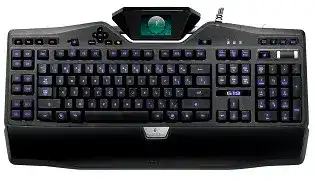
A blank color display, missing G-key profiles, or a keyboard that appears only as a standard USB device usually points to a software or power problem rather than failed typing hardware. The Logitech G19 Keyboard for Gaming Driver links Logitech software with the programmable keys, GamePanel display, lighting controls, media functions, and saved application profiles. The keyboard may still type when that software layer is missing, which can make the fault difficult to identify.
Logitech G19 Keyboard for Gaming Windows Driver Download
| Driver Name | Description | Supported OS | File Size | Download |
|---|---|---|---|---|
| Logitech Gaming Software 64-bit | Full 64-bit package for offline setup, keyboard profile management, programmable G-key assignments, macros, and display settings. | Windows 11, Windows 10 64-bit | 119.96 MB | |
| Logitech Gaming Software 64-bit | Complete offline installer for configuring game profiles, macros, backlighting, LCD functions, and G-key commands on 64-bit systems. | Windows 10 64-bit, Windows 8 64-bit, Windows 7 64-bit | 120.04 MB | |
| Logitech Gaming Software 32-bit | Offline 32-bit software package for creating keyboard profiles, recording macros, assigning G-keys, and adjusting lighting behavior. | Windows 10 32-bit, Windows 8 32-bit, Windows 7 32-bit | 109.04 MB |
Logitech G19 Keyboard for Gaming Mac OS Driver Download
| Driver Name | Description | Supported OS | File Size | Download |
|---|---|---|---|---|
| Logitech Gaming Software | Mac software for managing G19 keyboard profiles, programmable controls, game macros, backlighting, and compatible LCD features. | macOS 10.15, macOS 10.14, macOS 10.13, macOS 10.12 | 204.99 MB | |
| Logitech Gaming Software | Legacy Mac package for assigning keyboard commands, building application profiles, controlling illumination, and configuring macros. | Mac OS X 10.11, Mac OS X 10.10, Mac OS X 10.9, Mac OS X 10.8 | 180.47 MB |
Logitech G19 Keyboard for Gaming Driver for a Blank or Restarting LCD
The G19 does not run every feature from USB power alone. Its external power adapter supplies the color LCD and powered USB ports, while the USB cable carries keyboard data to the computer. When normal keys work but the display stays dark, check the round power connector at the keyboard and the adapter connection at the wall before changing Windows settings.
The LCD stays black while typing still works
Disconnect both the USB plug and power adapter from the keyboard. Leave them out briefly, connect the power adapter first, and then attach the USB cable directly to the computer. This full power cycle clears a display controller that has stopped responding. A loose adapter plug can also make the screen fail even though Windows continues receiving ordinary keystrokes.
Test the adapter in a known working outlet and avoid a switched extension socket during diagnosis. If the screen lights only when the power cable is held at an angle, stop moving the connector repeatedly. That symptom points to a physical connection fault rather than a software problem, and continued strain can make the socket worse.
The display flashes or repeatedly returns to its logo
A screen that starts, goes dark, and starts again often accompanies a broken USB handshake or unstable power. Move the keyboard cable from a hub, dock, monitor, or front-panel socket to a direct motherboard port. Then close Logitech software from the notification area and reopen it after Windows finishes identifying the keyboard.
Remove other unnecessary USB devices for one test when the cycling begins during startup. The G19 presents several functions to Windows, including the keyboard, display interface, and onboard USB hub. Some older motherboard controllers struggle while several devices initialize together. Reconnecting the remaining peripherals after the desktop appears can reveal which port or device combination triggers the reset.
The screen works but no GamePanel applet appears
The display can remain powered even when the Logitech GamePanel service has stopped. Exit the gaming software completely, check that no frozen Logitech process remains, and start the program again. If the display changes from its logo to the default applet after the restart, the keyboard hardware was already working and only the background component had stalled.
Disable an applet that began failing after its related program was updated or removed. One damaged display plug-in can prevent normal applet switching. Restore the default clock or performance screen first, confirm that the navigation buttons respond, and then enable additional applets separately instead of activating the whole set at once.
When Logitech Software Cannot Find the G19
Windows can load generic keyboard support without exposing the programmable controls to Logitech software. In that state, letters, numbers, and function keys may work while the LCD configuration and G-key editor remain unavailable. Install the Logitech G19 Keyboard for Gaming Driver package only after confirming that the keyboard uses a direct USB port and appears consistently in Windows.
Logitech Gaming Software opens without showing the keyboard
Unplug the G19 and remove its failed or unknown entry from Device Manager, then restart the computer. Reconnect it to another direct USB socket after the desktop loads. Open Logitech Gaming Software only when Windows has finished detecting the device. This order prevents the control program from starting with an incomplete hardware record.
Older G19 software may behave differently on a clean installation of a newer Windows release than it did after an operating-system upgrade. Use a compatible Logitech Gaming Software build rather than assuming G HUB will manage this legacy keyboard. G HUB may support newer Logitech G hardware without providing the original GamePanel and profile functions required by the G19.
Detection fails after a security or Windows change
Modern Windows security features can block older low-level components used by legacy gaming software. Check Windows Security and the system event history when the failure begins immediately after a security update. Turning off a protection feature should not be the first response. Reinstall the signed Logitech package, apply pending Windows updates, and test a different release of Logitech Gaming Software before weakening system protection.
When the software worked before a clean Windows installation, remove partial Logitech components before trying again. Restart after the uninstall, delete no system files manually, and install one Logitech gaming package. Running several generations of Logitech control software together can leave competing services and make the keyboard appear in one program but not another.
The keyboard disconnects after sleep or hibernation
USB power saving may shut down part of the G19 and fail to restore every interface when the computer wakes. In Windows power settings, test with USB selective suspend disabled. You can also open the relevant USB hub properties in Device Manager and prevent Windows from turning off that hub to save power.
Change one power option at a time and run another sleep test. If the keyboard wakes correctly but another USB device does not, restore the previous setting and move the G19 to a different controller. Broad power changes across every hub can create new problems without showing which connection caused the original fault.
G-Key Commands That Change, Stall, or Open the Wrong Profile
The G19 has twelve programmable G-keys and three mode buttons, providing separate command banks for M1, M2, and M3. Logitech software can switch profiles when an assigned program launches. A command that appears lost may actually remain under another mode or application profile, so inspect the active profile before recording the macro again.
A G-key runs an old command
Press each mode button and watch which profile information appears on the LCD. The same physical G-key can hold three different actions. Open the software on the active mode, remove the unwanted assignment, and save a short test command. Rebuild the full macro only after that single command works in the intended application.
Automatic profile switching depends on the executable path stored in the profile. A game update or launcher change can leave the old path behind. Select the current executable rather than the launcher when the game itself needs the command. Do not mark the profile as persistent unless you want it to override every automatic application change.
Macros play too quickly or miss some actions
A recorded sequence may send events faster than the target program accepts them. Open the macro editor and inspect its delays instead of recording the same command repeatedly. Add short pauses between actions that open menus, change screens, or wait for a game response. Remove excessive pauses when the sequence works but feels unusually slow.
Test the macro in a harmless program before using it in a game. This shows whether the G-key produces the intended keystrokes without interference from game controls, anti-cheat restrictions, or administrator permissions. Keep both Logitech Gaming Software and the target application at the same permission level so Windows does not block simulated input between them.
On-the-fly recording does not save the result
Confirm the correct M1, M2, or M3 bank before pressing the macro-record key. Complete the sequence and finish recording according to the keyboard controls, then open Logitech Gaming Software to verify where it was stored. A quick macro can seem lost when it was recorded under another mode or attached to a temporary application profile.
Profiles may also fail to retain new commands when their configuration data becomes damaged. Export profiles that still work, create a new empty profile, and record one G-key assignment there. If the new profile saves normally, rebuild the affected profile from the exported commands instead of replacing the entire software installation.
USB Ports, Startup Freezes, and Backlight Changes
The two powered USB ports on the G19 depend on the external adapter as well as a stable connection to the computer. Storage drives, phones, and other peripherals can increase the load during startup. Keep high-demand hardware connected directly to the computer while troubleshooting the keyboard, especially when Windows pauses during boot or repeatedly plays the USB disconnect sound.
The built-in USB ports do not power a device
Check the keyboard power adapter first. The pass-through ports may stop supplying useful power while the typing section remains active through USB. Test with a low-power device and then try the same device directly on the computer. If it works directly but not through either keyboard port, reconnect the adapter and perform a complete power cycle.
A device that exceeds the available hub power can disconnect the keyboard or its display. External drives and charging devices are poor test choices because their load changes during use. Reserve the G19 ports for lighter peripherals, and connect equipment with demanding or inconsistent power requirements to the computer or its own powered hub.
The computer hangs while the G19 is connected at boot
Some motherboard firmware treats the keyboard’s internal USB functions as boot devices. Disconnect items from the G19 USB ports and start the computer again. If startup returns to normal, reconnect those items only after Windows loads. Also check the firmware boot order and remove unnecessary USB boot options without changing unrelated storage settings.
Try a USB 2.0 port when an older G19 behaves unpredictably on a newer USB controller. This is not a universal requirement, but it can separate a controller-compatibility problem from failed keyboard hardware. Once the keyboard starts consistently, reconnect the display power and other USB devices one at a time.
The backlight color changes with the wrong program
Lighting can follow the active application profile. When the color changes unexpectedly, open the profile currently shown in Logitech Gaming Software rather than editing the default profile. Save the intended color for that application and check whether a persistent profile has taken control of every program.
If colors reset after each restart, create a temporary profile with an obvious lighting choice and close the software normally. Reopen it and check whether the change survived. A successful test points to damage in the original profile. A failed test across every profile suggests that the software cannot save its configuration and needs a careful reinstall.
Rebuild the GamePanel Environment Without Erasing Useful Macros
Export working profiles before removing Logitech software. Then disconnect the keyboard, uninstall the current gaming package, restart Windows, and install the compatible release without adding another Logitech control application beside it. Reconnect the USB cable and external power only after installation, then confirm that the LCD, profile editor, and G-keys appear before restoring saved files.
Bring the keyboard back in stages. Test ordinary typing, LCD navigation, one G-key, each mode bank, backlight changes, media controls, and the powered USB ports as separate functions. Add third-party GamePanel applets last. This sequence keeps a faulty plug-in, damaged profile, or demanding USB device from hiding an otherwise successful Logitech G19 Keyboard for Gaming Driver installation.