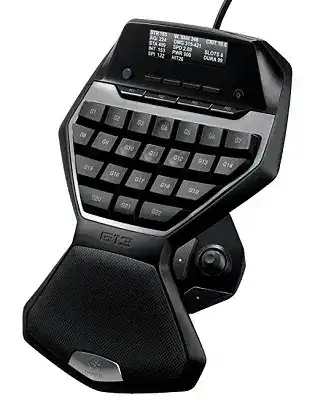
Here you will get the latest Logitech G13 Advanced Gameboard driver and software that support Windows and Mac OS
Logitech G13 Advanced Gameboard Windows Driver Download
Logitech Gaming Software (LGS)
G13 Advanced Gameboard Logitech Gaming software lets you customize your gaming mouse, keyboard, headset, touchpad, number pad and other devices settings in Windows.
Supported Windows OS: Windows 11 (64-bit), Windows 10 (64-bit)
Logitech G13 Advanced Gameboard Logitech Gaming software (LGS) for Windows 64-bit (119.96 MB)
Windows 10 (32-bit ,64-bit) Windows 8 (32-bit ,64-bit) Windows 7 (32-bit ,64-bit)
Logitech G13 Advanced Gameboard Logitech Gaming software (LGS) for Windows 64-bit (120.04 MB)
G13 Advanced Gameboard Logitech Gaming software (LGS) for Windows 32-bit (109.05 MB)
Logitech G13 Advanced Gameboard Mac OS Driver Download
Supported Mac OS: macOS 10.15, macOS 10.14, macOS 10.13, macOS 10.12, Mac OS X 10.11, macOS 10.10, Mac OS X 10.9.x, Mac OS X 10.8.x
Logitech G13 Advanced Gameboard Logitech Gaming software (LGS) for Mac macOS 10.15-macOS 10.12 ver:9.02.22 (205 MB)
Logi G13 Advanced Gameboard Logitech Gaming software (LGS) for Mac Mac OS X 10.11-Mac OS X 10.8.x ver:8.98.306 (180.47 MB)
Logitech G13 Advanced Gameboard Logitech Gaming software (LGS) for Mac Mac OS X 10.11-Mac OS X 10.8.x ver:8.83.55 (127.70 MB)
The Logitech G13 Driver is specifically designed to enhance the performance of the Logitech G13 Advanced Gameboard. This software enables users to fully utilize the programmable keys and customizable features of the gaming device, ensuring a seamless gameplay experience. Compatible operating systems include Windows 11, Windows 10, Windows 8, and Windows 7, along with multiple versions of macOS such as macOS 10.15, 10.14, 10.13, 10.12, 10.11, 10.10, 10.9, and 10.8. The driver facilitates easy configuration of the gameboard’s macros, profiles, and settings, allowing for efficient gameplay and user-focused optimization. Users benefit from quick access to complex commands and macros that can significantly improve gaming efficiency and performance.
Download Logitech G13 Driver and Software Download Software
To utilize the full potential of the Logitech G13 Driver and Software, it is essential to ensure that the latest software version is installed on your system. With the necessary files already saved on your computer, you can proceed directly to the installation process. This ensures that your device operates at peak efficiency, facilitating easy customization of button layouts and optimum usage of on-the-fly macro commands. Once installed, users can take advantage of advanced profile management and key bindings tailored to their preferences.
How to install Logitech G13 Driver and Software Download Software on Windows and Mac OS?
Installing the Logitech G13 Driver is a straightforward process that can be completed on both Windows and Mac systems. Begin by locating the downloaded installer file on your computer. Once found, run the executable file to initiate the installation wizard. Follow the on-screen prompts carefully. You may need to accept the license agreement and select installation preferences. After confirming your choices, the installation will proceed. If required, a system restart may be necessary upon completion. Once fully installed, users should verify that the G13 Gameboard is recognized and functional by checking device settings within their operating systems.
Installing Logitech G13 Driver and Software Download Software on Windows 11, 10…
For Windows users, the installation of the G13 Driver is intuitive. Begin by locating the installer in your Downloads folder or the designated area where it was saved. Step 1: Open the downloaded file to launch the installation process. Step 2: Follow the setup instructions, engaging with the prompts offered in the installation wizard. You may need to authorize the installation by accepting the license agreement. Step 3: Upon completion, you may be prompted to restart your computer; doing so supports optimal functionality. Once the system reboots, you can check for the driver in Device Manager to confirm successful installation.
Installing Logitech G13 Driver and Software Download Software on Mac OS
Mac users can also enjoy the benefits of the Logitech G13 Driver with a simple installation process. First, locate the installer file in your Downloads folder or wherever you saved it. Step 1: Open the downloaded file to begin the setup. Step 2: You will encounter a series of on-screen instructions to guide you; make sure to adhere to these as you proceed. Accept the license agreement when prompted. Step 3: Finish the installation; a system reboot may be necessary to fully integrate the new driver. After restarting, access System Preferences to verify that your Logitech G13 Gameboard is correctly set up and operational.
Why choose our website for Logitech G13 Driver and Software Download Drivers Downloads?
Choosing the right site for driver resources is essential for ensuring your device functions correctly. Our platform focuses on providing reliable, easy-to-access Logitech G13 Driver and Software files essential for peak performance. Users benefit from:
- Up-to-Date Resources: Ensure you always have the latest driver version compatible with your OS.
- User-Friendly Interface: Navigate easily to find exactly what you need without distractions.
- Comprehensive Guides: Detailed installation instructions to assist you every step of the way.
- Dependable Support: Access to troubleshooting tips and solutions for common installation issues.
Uninstalling the Logitech G13 Driver and Software Download Software
If you need to uninstall the Logitech G13 Driver for any reason, the process is straightforward. Begin by accessing your system settings: on Windows, go to Control Panel > Programs > Programs and Features, while Mac users can find the application in Finder under Applications. Step 1: Locate the Logitech software in the list of installed items. Step 2: Select it and choose the uninstall option or drag the application to the Trash on Mac OS. Step 3: Follow any prompts to complete the uninstall process. After removing the driver, restart your system to ensure all components are fully removed.
Conclusion about Logitech G13 Driver and Software Download Driver
When using the Logitech G13 Driver, users may encounter occasional challenges that can hinder optimized performance, such as updates or configuration issues. Consider the following for effective troubleshooting:
- Driver Configuration Documentation: Refer to the user manual for detailed configurations.
- System Settings Adjustment: Check your OS settings for compatibility issues with the driver.
- Community Forums: Engage with other users for solutions to common problems.
To keep the device functioning well, regularly consult the settings to ensure all customizations remain intact. This ensures that the adjustable macros are readily available, resulting in a enhanced gaming experience. Additionally, verify driver updates periodically to sustain compatibility and performance.