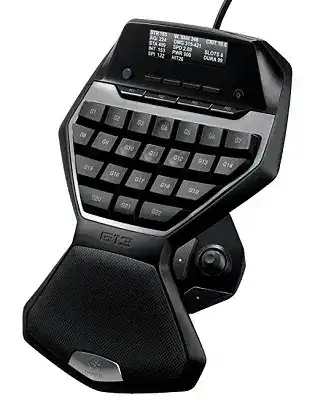
A thumbstick that stops sending movement, an LCD frozen on one screen, or G-keys that fall back to ordinary keystrokes usually points to the software layer rather than the gameboard itself. The Logitech G13 Advanced Gameboard Driver works through Logitech Gaming Software to manage profiles, macros, backlighting, LCD applets, and the mini-joystick on this wired USB controller.
Logitech G13 Advanced Gameboard Windows Driver Download
| Driver Name | Description | Supported OS | File Size | Download |
|---|---|---|---|---|
| Logitech Gaming Software 64-bit | Full 64-bit package for configuring G13 game profiles, programmable controls, macros, backlighting, and device-specific settings during offline setup. | Windows 11, Windows 10 64-bit | 119.96 MB | |
| Logitech Gaming Software 64-bit | Complete 64-bit installer for managing game commands, custom key assignments, LCD functions, profiles, and G13 configuration without an internet download. | Windows 10 64-bit, Windows 8 64-bit, Windows 7 64-bit | 120.04 MB | |
| Logitech Gaming Software 32-bit | Full 32-bit software package for assigning gameboard keys, creating macros, switching profiles, adjusting lighting, and setting application-specific commands offline. | Windows 10 32-bit, Windows 8 32-bit, Windows 7 32-bit | 109.04 MB |
Logitech G13 Advanced Gameboard Mac OS Driver Download
| Driver Name | Description | Supported OS | File Size | Download |
|---|---|---|---|---|
| Logitech Gaming Software | Configures programmable G-keys, game profiles, macros, backlighting, LCD options, and other G13 controls on supported macOS releases. | macOS 10.15, macOS 10.14, macOS 10.13, macOS 10.12 | 204.99 MB | |
| Logitech Gaming Software | Handles G13 key programming, profile selection, command macros, illumination controls, and gameboard preferences on earlier Mac OS X systems. | Mac OS X 10.11, Mac OS X 10.10, Mac OS X 10.9, Mac OS X 10.8 | 180.47 MB |
A thumbstick that stops sending movement, an LCD frozen on one screen, or G-keys that fall back to ordinary keystrokes usually points to the software layer rather than the gameboard itself. The Logitech G13 Advanced Gameboard Driver works through Logitech Gaming Software to manage profiles, macros, backlighting, LCD applets, and the mini-joystick on this wired USB controller.
Logitech G13 Advanced Gameboard Driver for Thumbstick Failures
The mini-joystick can work in two different ways. Logitech Gaming Software can translate its directions into assigned keyboard commands, such as W, A, S, and D, or present it as a joystick control. A game may accept one method but ignore the other, so changing the assignment mode often solves movement trouble faster than reinstalling the entire package.
Thumbstick movement does not appear in the game
Open the active game profile and inspect the four directional assignments. When the title expects keyboard movement, bind each direction to the matching movement key instead of choosing joystick mode. Save the profile, switch away from it, and return once so the utility reloads the new commands. Also check that the game has not replaced its movement keys with another layout.
For a title that accepts controller axes, choose the joystick function and then open the Windows game-controller panel. If the G13 does not appear there, unplug it, close Logitech Gaming Software, reconnect the USB cable, and reopen the program. Test the axis before starting the game because some titles scan for controllers only during launch.
One direction remains active after releasing the stick
A stuck movement command can come from a damaged macro, a software interruption, or a thumbstick that no longer settles cleanly at its center. Replace the four current assignments with plain single-key commands and remove recorded delays or repeated actions. This separates a physical centering problem from a profile that keeps sending a key-down event.
Test the stick in another profile with no game running. If the direction remains active there, reconnect the gameboard through another direct USB port and restart the software service. Persistent drift or a direction that never releases on a second computer suggests wear around the joystick mechanism rather than a Windows profile fault.
Windows cannot find the joystick interface
The ordinary G-keys may continue working even when Windows does not register the joystick portion. Remove duplicate or inactive G13 entries from Device Manager, disconnect the gameboard, and restart the computer. Install the compatible Logitech Gaming Software release before reconnecting it. Let Windows finish identifying every interface before opening a game or profile editor.
Profiles That Switch Late, Load Incorrectly, or Vanish
The G13 can use separate command layouts for different programs, with three mode banks selected through M1, M2, and M3. Automatic switching depends on the executable path saved in each profile. A game update, launcher change, or move to another drive can break that link while leaving every command visible inside the editor.
The default profile opens instead of the game profile
Launch the game, return to Logitech Gaming Software, and confirm which profile appears active. Edit the application association when the utility follows a launcher rather than the actual game executable. Some titles start through one file and continue through another. Associate the profile with the executable that remains open during play, then remove obsolete paths that point to an older installation.
A persistent profile overrides automatic detection and keeps one layout active everywhere. Turn that option off when different programs need different commands. After changing it, close and reopen the target application. The Logitech G13 Advanced Gameboard Driver cannot switch profiles correctly when the intended program was already running before the revised association was saved.
M1, M2, and M3 recall unexpected commands
Each mode bank holds its own assignments, backlight choice, and joystick behavior within a profile. Check the illuminated mode key before editing commands because a change made under M2 does not alter M1. Give the three banks noticeably different backlight colors during testing. The color change makes an accidental mode switch much easier to spot.
When commands appear copied across several banks, create one temporary profile and assign a different letter to the same G-key under each mode. Test all three modes outside the game. If the letters remain distinct, the hardware buttons work and the original profile data needs rebuilding or importing again.
Saved profiles disappear after reinstalling Windows
Export important profiles before uninstalling Logitech Gaming Software or moving to another computer. A normal program removal may leave configuration files behind, but a system reset or manual cleanup can erase them. Import the saved profiles only after the new installation detects the G13, and test one profile before restoring a large collection.
Older exported profiles may contain application paths that no longer exist. The commands can import correctly while automatic switching still fails. Open each frequently used profile, choose the current executable, and verify the M-key banks. Rebuilding only the broken associations is safer than recreating every macro from memory.
Macro Commands That Repeat, Stall, or Miss Keystrokes
The programmable keys can send single keys, combinations, text blocks, and timed sequences. Problems often begin when a macro contains mismatched press and release events or when a program cannot process the sequence at the recorded speed. A short test command reveals more than repeatedly running a long macro that already contains several unknown faults.
A G-key keeps repeating after it is released
Open the assigned command and inspect its repeat option. Change it to a single execution while testing. Delete duplicate key-down events and confirm that every pressed key has a matching release. If the repeating continues, clear that G-key completely, save the profile, and assign one ordinary character. A clean result means the previous command data caused the loop.
Virtual stuck keys can also appear after Logitech Gaming Software stops responding during a macro. Exit the utility from the notification area and press the affected keyboard key once to clear its state. Restart the software afterward. Avoid forcing the computer to sleep while a repeating macro is still active.
Recorded sequences run too quickly for the game
Some programs ignore commands delivered with no spacing between them. Add modest delays between actions rather than slowing the whole sequence with one long pause. Begin with a simple two-command macro, test it, and extend it in small stages. This keeps the timing readable and identifies the exact action that the game fails to accept.
Quick recording through the MR control captures what you press, but the resulting timing may not suit every application. Use the software editor for commands that depend on menus, loading screens, or animation delays. Re-recording the same sequence several times rarely fixes an application that needs deliberate spacing.
Macros work on the desktop but fail inside a program
Check whether the target program runs with administrator rights while Logitech Gaming Software runs normally. Windows may prevent the lower-privilege utility from sending commands into the elevated application. Run both at the same permission level. Remove unnecessary administrator mode from the target program when it does not require elevated access.
Also test whether the program blocks automated inputs or reserves the assigned shortcut. Replace the macro temporarily with a basic unused key. If that command works, the connection and profile are active; the original shortcut, timing, or application rule needs adjustment.
LCD, Backlight, and Short USB Dropouts
The integrated LCD and configurable illumination make software faults visible before the main controls fail. A frozen display can occur while G-keys still respond, while a USB interruption may blank the screen and stop every input for a moment. Treat those symptoms separately instead of assuming that any LCD fault means the complete gameboard has disconnected.
The LCD stays on its opening screen
Close Logitech Gaming Software completely and launch it again. The display can keep its startup image when the LCD service fails even though Windows still receives key presses. Use the buttons beside the display to cycle through enabled applets after the software restarts. Disable an applet that freezes the screen whenever it becomes active.
Third-party LCD programs may stop working after their parent application changes or disappears. Remove the inactive applet from the LCD configuration rather than reinstalling every G13 component. If all applets fail, repair the Logitech Gaming Software installation and restart Windows before importing profiles.
The backlight returns to another color
Backlight colors belong to profiles and mode banks, so a color change may indicate profile switching rather than lost illumination data. Select the intended application profile and M-key, choose the color again, and close the utility normally so it writes the change. Test the setting after reopening the software instead of restarting the computer immediately.
If every color choice disappears, make a new temporary profile and save three different colors across M1, M2, and M3. Settings that remain in the new profile confirm damage within the older profile. Export any usable commands, remove the faulty entry, and rebuild it without carrying over corrupted lighting data.
All controls stop for a few seconds
Periodic pauses often trace back to USB power management, another USB device, or a port that briefly resets. Connect the G13 directly to the computer rather than through a hub, monitor, or docking station. In Windows power options, prevent the relevant USB hub from being turned off to save power, then test the gameboard through several normal idle periods.
Disconnect unnecessary USB devices during diagnosis, especially when several peripherals share one hub or front-panel connection. A direct motherboard port can provide a steadier path. If the pauses continue on more than one computer without Logitech Gaming Software running, inspect the cable for strain near the gameboard and USB plug.
Rebuild Only the Part That Failed
Do not erase a working profile collection because one applet, mode bank, or joystick assignment behaves badly. First test a blank profile, one G-key, one thumbstick direction, and one LCD screen. That small comparison shows whether the fault belongs to the device connection, the active profile, or a particular command.
Use the Logitech G13 Advanced Gameboard Driver with the compatible Logitech Gaming Software release rather than assuming that newer Logitech control programs include this legacy gameboard. Connect it through a direct USB port, confirm detection, and then restore profiles in small groups. Finish by checking all three mode keys, the thumbstick center, LCD selection buttons, and backlight changes before launching a full-screen game.