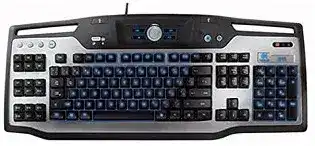
The ordinary keys may work while macros, mode banks, and profile switching remain unavailable. In that situation, the Logitech G11 Gaming Keyboard Driver gives the older wired keyboard access to Logitech Gaming Software rather than leaving Windows to treat it as a plain USB input device. The package controls its 18 G-keys, three macro modes, quick recording, fixed blue lighting, and game-specific commands.
Logitech G11 Gaming Keyboard Windows Driver Download
| Driver Name | Description | Supported OS | File Size | Download |
|---|---|---|---|---|
| Logitech Gaming Software 64-bit | Full 64-bit package for offline keyboard profile, macro, hot-key, and gaming control setup. | Windows 11, Windows 10 64-bit | 119.96 MB | |
| Logitech Gaming Software 64-bit | Offline 64-bit installer for configuring G-key commands, game profiles, macros, and keyboard settings. | Windows 10 64-bit, Windows 8 64-bit, Windows 7 64-bit | 120.04 MB | |
| Logitech Gaming Software 32-bit | Complete 32-bit package for assigning G-keys, recording macros, and managing application-specific profiles without an online installer. | Windows 10 32-bit, Windows 8 32-bit, Windows 7 32-bit | 109.04 MB |
Logitech G11 Gaming Keyboard Mac OS Driver Download
| Driver Name | Description | Supported OS | File Size | Download |
|---|---|---|---|---|
| Logitech Gaming Software | Mac software for creating keyboard profiles, assigning programmable keys, and managing gaming commands. | macOS 10.15, macOS 10.14, macOS 10.13, macOS 10.12 | 204.99 MB | |
| Logitech Gaming Software | Legacy Mac package for programming G-keys, storing custom command profiles, and controlling keyboard gaming functions. | Mac OS X 10.11, Mac OS X 10.10, Mac OS X 10.9, Mac OS X 10.8 | 180.47 MB |
Logitech G11 Gaming Keyboard Driver When G-Keys Stay Silent
The G11 predates current Logitech control apps. Windows normally supplies the standard USB keyboard component, but that component does not create or manage G-key assignments. Use a compatible release of Logitech Gaming Software for the programmable section. G HUB or Logi Options+ may install successfully yet fail to show this legacy model, so changing between newer apps rarely restores its original controls.
Logitech software opens without showing the G11
Disconnect the keyboard before repairing the software installation. Remove conflicting Logitech keyboard utilities, restart Windows, and install Logitech Gaming Software with an administrator account. Reconnect the G11 directly after the installation reaches the desktop. A direct motherboard port gives the detection service a clearer USB path than a dock, monitor socket, extension lead, or external hub.
When the keyboard still appears only under the standard Windows keyboard category, close the Logitech program from the notification area and reopen it. Changing to another USB port can trigger a fresh hardware scan. Avoid repeatedly installing several software versions over one another because leftover services may start in the wrong order and hide the programmable interface.
G-keys work until the next restart
Profiles that vanish after every reboot often point to a software service or configuration-write problem rather than failed keys. Create one temporary assignment, close Logitech Gaming Software normally, and reopen it before restarting the computer. If the command has already disappeared, reinstall the utility under the main Windows account and check that security software is not restricting its profile folder.
Wait until Windows finishes loading before testing a G-key after startup. On older hardware, the standard typing interface may become active several seconds before the Logitech service loads the macro banks. Opening the utility manually can confirm whether the profile exists and whether M1, M2, or M3 became active.
Macros work on the desktop but fail inside a game
A game running with elevated privileges may reject commands sent by software running at normal privileges. Launch both at the same permission level. Removing unnecessary administrator mode from the game is preferable, but trusted software that requires elevation may also need Logitech Gaming Software launched with matching rights.
Also check the executable attached to the game profile. Updates sometimes replace the original launcher or move the main program file. When that path no longer matches, the G11 stays on its default assignments. Link the profile to the executable that remains open during play, not merely to a launcher that closes after starting the game.
Repair Macro Timing Without Rebuilding All 54 Commands
The keyboard has 18 programmable G-keys and three mode banks marked M1, M2, and M3. That arrangement permits up to 54 assignments within a profile, but only one bank remains active at a time. Many apparent command failures come from editing one mode and testing another. Check the illuminated mode key before deleting or recreating a working macro.
A recorded sequence skips letters or actions
Open the command editor and inspect the delay between events. A sequence recorded too quickly can reach a game before it is ready for the next keypress. Add modest pauses only where the application needs them. Excessive delays create the opposite problem, making a short command take several seconds and leaving keys held longer than intended.
Test the sequence in a plain text field when it contains ordinary letters or numbers. This reveals missing strokes without the game consuming or changing them. Once the order looks right, return to the target program and adjust only its timing. Re-recording the whole macro after every failed test makes it difficult to identify the troublesome event.
The MR key records something different from what was typed
Quick recording follows the currently selected M-bank. Press M1, M2, or M3 first, then press MR, choose the target G-key, enter the sequence, and finish the recording. If another profile becomes active during this process, the command may land in an unexpected profile even though the recording indicator behaved normally.
Use the full editor for commands containing long delays, repeated actions, program launches, or text strings. The MR method suits short keystroke sequences, but it gives less visibility into event order. The Logitech G11 Gaming Keyboard Driver software lets you inspect and correct those details without overwriting unrelated G-key assignments.
A G-key repeats continuously
Check whether the assignment uses a repeat option or contains a key-down event without its matching key-up event. Replace it temporarily with one ordinary keystroke. If the repeated input stops, the keyboard hardware is responding correctly and the stored command needs correction. Delete only that assignment instead of resetting the entire profile collection.
If repetition continues after Logitech Gaming Software closes, unplug the keyboard and inspect the affected key for dirt or physical binding. A G-key that does not rise fully can act like any stuck key. Clean around it with the keyboard disconnected, using dry air and light external cleaning rather than liquid beneath the keycap.
When Lighting, Game Mode, or Media Controls Look Broken
The G11 has fixed blue illumination rather than configurable RGB lighting. Its brightness control cycles through bright, dim, and off. The separate Game Mode switch disables the Windows and menu keys to prevent an accidental return to the desktop. These hardware controls can create symptoms that software installation will not change.
The blue backlight no longer turns on
Press the brightness button more than once. One press advances to the next level, so a keyboard left in the off position may need another press to reach dim or bright illumination. The software cannot select another color because the G11 lighting is fixed blue. A color menu intended for newer keyboards does not apply to this model.
If typing and G-key functions continue but every brightness level remains dark, test another direct USB port. That separates a power-delivery problem from a saved brightness state. Lighting that flickers when the cable moves can indicate cable wear or an internal hardware fault, which a different software package will not repair.
The Windows key and menu key suddenly stop responding
Move the Game Mode switch back to its normal position. Game Mode intentionally blocks those two keys while leaving ordinary typing and programmable commands active. This often looks like a partial keyboard failure because the rest of the board behaves normally. No profile reset is required when the physical switch caused the change.
Test the Windows key after closing the game as well. A game, overlay, or key-remapping program may suppress system shortcuts even when the G11 switch is off. Exit those programs one at a time before changing Logitech profiles. This keeps a separate Windows shortcut conflict from being mistaken for damage to the keyboard.
Play, pause, or volume controls affect the wrong program
Media buttons send system-level commands, while Windows and the active media applications decide which program receives them. Close unused players that remain in the notification area, then reopen the player you want to control. Browser media sessions may also take priority after a video tab has played sound, even when another application appears in front.
If a media key behaves as though it remains pressed, remove the G11 from any intermediate USB hub and connect it to the computer. Then restart the media application. A direct connection can clear repeated volume or playback commands caused by poor communication through another hub.
Two Built-In USB Ports That Cannot Power Everything
The pair of sockets on the G11 are passive, full-speed USB 1.1 ports. They suit low-power peripherals, but they are not equivalent to modern powered USB ports on a computer. Devices that demand more current or higher transfer speed may disconnect, run slowly, or never appear. That limitation belongs to the keyboard hub and cannot be removed with a driver update.
A flash drive or headset is not detected
Plug the device directly into the computer first. If it works there but not through the G11, the keyboard port may lack the required power or speed. Small input devices are a better match for the built-in hub than storage drives, high-power headsets, charging cables, webcams, or other equipment that depends on faster USB operation.
Do not use both keyboard ports as a charging station. The G11 receives its power through one USB cable and does not have a separate supply for the hub. Moving demanding hardware to the computer also reduces the chance that the keyboard will reset when another device starts drawing power.
The whole keyboard disconnects during a game
First remove anything connected to its two USB sockets. Run the G11 alone from a direct computer port and test the game again. If the dropout stops, reconnect only one low-power peripheral. This isolates an overloaded passive hub without disturbing macro files or application profiles.
Windows USB power management can also interrupt an older keyboard after idle periods or sleep. In Device Manager, inspect the power-saving option for the USB hub serving the G11 and prevent Windows from switching off that hub during the test. Change one hub at a time rather than disabling power management across every USB controller.
Several normal keys fail in one area
Close Logitech Gaming Software and test the affected letters in more than one program. A profile can alter G-keys, but it does not normally explain a dead cluster within the standard typing area. If the same group fails on another computer, the membrane, internal traces, contamination, or cable is more likely than the software.
Disconnect the keyboard before cleaning around problem keys. Remove loose debris with dry air and wipe the surface lightly. Do not pour cleaner into the key openings. Keys that recover briefly when the case twists or the cable moves suggest aging hardware rather than a missing Logitech G11 Gaming Keyboard Driver.
Rebuild One Profile Before Restoring the Archive
Export any profiles that still matter, but do not import all of them immediately after reinstalling Logitech Gaming Software. Begin with a new profile and assign one G-key under M1. Add another command under M2, test quick recording, and confirm that the game executable triggers the intended profile. This small trial separates installation trouble from an old damaged configuration.
Bring saved profiles back individually once the test profile survives a restart. Leave the keyboard connected directly while checking Game Mode, blue-light levels, media buttons, and the passive USB sockets. The Logitech G11 Gaming Keyboard Driver has done its job when the utility consistently identifies the keyboard and retains its macro banks; lighting faults, worn keys, and overloaded hub ports then need separate attention.