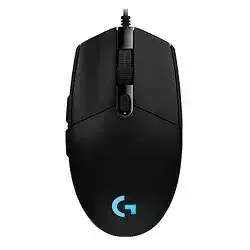
A dark logo, motionless pointer, or missing software entry usually means the USB connection needs attention before any profile changes. The Logitech G102 prodigy wired gaming Mouse Driver provides access to the model’s six buttons, adjustable DPI, RGB lighting, 1 ms report rate, and single onboard memory profile. Windows can handle ordinary pointer input, but the gaming controls require compatible Logitech software.
The G102 Prodigy is a wired USB gaming mouse, so it does not use Bluetooth or a wireless receiver. Connect its fixed cable directly to a computer port while diagnosing detection trouble. Remove hubs, monitor ports, keyboard pass-through sockets, USB switches, and extension leads until Windows recognizes the device consistently.
Logitech G102 Prodigy Gaming Mouse Windows Driver Download
| Driver Name | Description | Supported OS | File Size | Download |
|---|---|---|---|---|
| Logitech Gaming Software 64-bit | Full 64-bit package for configuring mouse buttons, tracking behavior, profiles, lighting, and device-specific gaming settings. | Windows 11, Windows 10 64-bit | 119.96 MB | |
| Onboard Memory Manager | Manages profiles and button assignments stored directly in the mouse’s onboard memory without installing the full gaming suite. | Windows 11, Windows 10 32-bit/64-bit | 12.45 MB |
The logo and sensor remain dark after connection
Unplug the cable, restart the computer, and try a different direct USB port. Give Windows enough time to rebuild its Human Interface Device records. A working mouse should provide ordinary movement before Logitech Gaming Software finishes loading. When there is no light or pointer response on several computers, the fault may involve the cable or internal electronics.
Check the cable near the USB plug and where it enters the shell. Movement that cuts in and out when the cable bends suggests physical wear rather than a damaged profile. Avoid opening the housing while warranty service remains available. Internal cable replacement requires disassembly and should not be the first response to an intermittent connection.
Windows detects a mouse but Logitech software does not
Close Logitech Gaming Software and any G HUB processes before reconnecting the G102. Running two gaming control packages can leave one program holding the device while the other displays an empty screen. Use one application for configuration, restart Windows, and open it only after the mouse works through normal system input.
If detection still fails, remove the warning-marked or inactive Logitech mouse record in Device Manager. Disconnect the G102, restart Windows, and attach it through another port. The operating system will create a new USB record. Reinstall the software only when the rebuilt device works normally but still does not appear in the control application.
The mouse disconnects for several seconds during a game
Temporary freezes can come from a loose USB path, power management, or a busy hub. Connect the mouse to the computer itself and test without a USB switch. In Windows power settings, temporarily disable USB selective suspend and check whether the interruptions stop. Also update the motherboard chipset and USB controller software when several wired devices disconnect together.
Watch the RGB light when the pointer freezes. If the light also turns off, focus on the port, cable, and USB power. If lighting stays active while motion stops, close overlays and gaming utilities, return the report rate to a lower test value, and compare the result outside the affected game.
DPI Stages and Stored Commands Behave Differently
The Logitech G102 prodigy wired gaming Mouse Driver can manage sensitivity from 200 to 6000 DPI and store one hardware profile. The button below the wheel normally cycles through configured DPI stages, but it can accept another command. Confusion begins when an active software profile and the onboard profile contain different values.
Sensitivity changes each time the DPI button is touched
Open the active profile and remove DPI stages that you never use. Leaving only two or three sensible values prevents a single accidental press from producing an extreme jump. Select the preferred stage with the physical DPI button before saving the hardware profile, then verify it after closing the control software.
A game can also activate its own profile when its executable launches. Compare that profile with the desktop configuration instead of changing Windows pointer speed every time. Keep operating-system acceleration and game sensitivity unchanged during the test so only the mouse DPI value moves.
The wheel changes DPI instead of scrolling
Inspect the command assigned to the wheel click and scroll-related controls. A damaged or imported profile may place DPI Up, DPI Down, or DPI Cycle on the wrong input. Restore the default commands, save the profile, and test scrolling in a long document before launching a game.
When controls remain scrambled after a restart, reset the onboard profile rather than editing each incorrect command. Build the configuration again from defaults and write it to the single memory slot. This is especially useful when side buttons begin acting as primary clicks or the top DPI control produces an unrelated action.
Assignments work only while the gaming software stays open
Software-controlled commands depend on the application running, while ordinary onboard assignments remain inside the mouse. Switch to onboard memory mode and save simple button functions, DPI values, lighting, and report rate to the hardware profile. Test the stored configuration after fully closing Logitech software.
Complex macros may not transfer in the same way as basic keystrokes or standard mouse commands. For use on another computer, choose straightforward assignments and confirm them without installing the control application there. Reopen the software only when you need to edit the stored profile.
Single Clicks, Side Controls, and Middle-Button Errors
The G102 Prodigy has left and right buttons, a clickable wheel, two thumb controls, and a DPI button. Incorrect profile commands can affect any of them, but repeated extra clicks under default settings often indicate switch wear. Separate configuration trouble from hardware failure before attempting a repair.
One press registers as a double click
Reset the affected control to its standard click function and close the Logitech application. In Windows, review the double-click speed and test folders, text selection, and drag actions. Try the mouse through another USB port and then on another computer. The Logitech G102 prodigy wired gaming Mouse Driver cannot correct a switch that produces duplicate electrical signals across systems.
Compressed air around the button gap may remove loose dust, but do not blow moisture into the shell or pour cleaner through the opening. Avoid scripts that block rapid clicks because they can delay genuine game input. When duplicate presses continue during a default hardware test, use warranty service or professional switch repair.
Dragging releases before the button is lifted
Draw a selection box across the desktop or drag a window slowly while holding the primary button. A selection that repeatedly drops without releasing your finger often accompanies switch wear. Change the primary button in Windows and repeat the test with the opposite switch to determine whether the failure follows one physical control.
A damaged application profile can imitate this symptom by assigning a macro or repeated command to the main button. Restore the default profile first. Once the problem appears with Logitech software closed and on another computer, further installation changes are unlikely to help.
Thumb buttons stop working in browsers or games
Return the two side controls to standard Back and Forward commands, then try them in more than one browser. For games, confirm that the expected profile activates and that its executable path still matches the installed game. Updates sometimes move or replace an executable, leaving Logitech software attached to an old file location.
When a game runs with administrator rights, its input handling may differ from an ordinary desktop program. Launch the gaming utility with matching permission for a controlled test. Do not leave elevated access enabled unless the game requires it and the side-button problem clearly disappears.
The middle click works only occasionally
Confirm that pressing the wheel is assigned to Middle Button rather than another keystroke. Test tab opening in a browser and automatic scrolling in a supported application. If the click fails while wheel rotation remains normal, remove loose debris around the wheel and compare the result on another computer.
Erratic Scrolling Needs a Hardware Check Early
Reverse movement, skipped notches, and pages that jump in both directions frequently point to debris or wear around the wheel encoder. A profile reset remains worth testing, but scrolling that misbehaves on different computers usually has little connection to DPI or pointer software.
The page moves upward while scrolling down
Close the gaming utility and test a plain webpage. Turn the mouse upside down, rotate the wheel, and use short bursts of dry compressed air around both sides of the wheel opening. Keep the can upright and avoid forcing the wheel sideways. Reconnect the G102 directly after cleaning and repeat the test.
Update the device firmware only when the installed Logitech application offers an update for this exact model. If reverse steps remain in multiple programs and on another computer, the encoder may be worn. Warranty replacement or professional repair is more dependable than repeatedly changing Windows scroll-line values.
Several wheel turns produce no movement
Check whether the issue occurs in every application. Some games use their own wheel bindings, while a document or browser reads standard scroll input. Restore the wheel to its default function and remove any DPI commands attached to it. Slow and fast rotation should then produce movement in the same direction.
Missing steps that become worse over time usually do not come from the Logitech G102 prodigy wired gaming Mouse Driver. Once cleaning, default assignments, a direct USB port, and another computer give the same result, treat the wheel as a hardware concern rather than reinstalling software again.
RGB Lighting and Pointer Tracking Should Be Tested Separately
The G102 Prodigy carries an RGB G logo and light band. Logitech Gaming Software 8.88 or later can adjust its lighting, while the optical sensor handles movement independently. A lighting fault does not automatically mean the sensor has failed, and a pointer problem does not always require changing the RGB configuration.
Lighting returns to a different color after restart
Choose the desired effect in the active profile, then save it to onboard memory if it must remain without software. A desktop profile may show one color while the stored hardware profile uses another. Close the application and reconnect the mouse to confirm which configuration actually starts from memory.
If all lighting disappears but pointer movement continues, restore a visible brightness and static color before reinstalling anything. Profile switching can disable the logo or light band for a particular game. Check the game profile as well as the desktop one.
The pointer shakes or loses movement during fast swipes
Clean the sensor window with a dry, lint-free swab and test on a plain, non-reflective mouse pad. Glass, glossy patterns, dust, and uneven fabric can disturb optical tracking. Return DPI and report rate to moderate values while testing, then raise them gradually after movement becomes consistent.
Disable Windows pointer acceleration temporarily when investigating inconsistent aim. Keep only one variable changing at a time: surface, DPI, report rate, game sensitivity, or system acceleration. This makes a sensor problem easier to distinguish from a setting that merely feels different.
The pointer moves but games ignore some commands
Restore a default desktop profile and check ordinary clicks outside the game. Then create a new game profile instead of repairing a heavily edited one. Verify the executable path, clear duplicate assignments, and keep the first test limited to basic mouse buttons. Add macros only after every standard control responds.
Confirm the Fault Before Rebuilding Every Profile
Finish troubleshooting with a direct USB connection, default button commands, one practical DPI stage, moderate report rate, and a plain mouse pad. Close extra control utilities and test the mouse in Windows before opening a game. This compact test separates USB detection, profile corruption, application binding, and physical input faults.
The Logitech G102 prodigy wired gaming Mouse Driver should expose the six controls, RGB options, adjustable sensitivity, report rate, and onboard profile when the hardware remains healthy. A problem that follows the mouse to another computer with all software closed points away from installation. At that stage, preserve warranty eligibility and choose service rather than unsafe internal modifications.