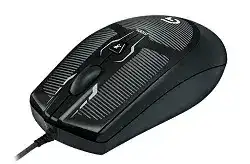
The Logitech G100s Optical Gaming Mouse Driver becomes useful when the pointer still moves but the DPI button, middle click, or software controls no longer behave as expected. This wired optical model connects through USB and carries four main controls: left click, right click, a clickable scroll wheel, and a DPI button. Logitech Gaming Software provides its supported customization functions.
The DPI button normally cycles through 1000, 1750, and 2500 DPI. A short press should change pointer speed immediately, even before opening a game. When nothing changes, first close any mouse utility from another brand. Competing filter software can intercept the button or apply a separate sensitivity value that hides the difference between the three hardware stages.
Logitech G100s Optical Gaming Mouse Windows Driver Download
| Driver Name | Description | Supported OS | File Size | Download |
|---|---|---|---|---|
| Logitech Gaming Software 64-bit | Customizes mouse buttons, pointer sensitivity, profiles, macros, and other gaming controls on 64-bit systems. | Windows 11, Windows 10 64-bit | 119.96 MB | |
| Logitech Gaming Software 64-bit | Provides the full 64-bit package for configuring DPI levels, programmable commands, game profiles, and mouse performance. | Windows 10 64-bit, Windows 8 64-bit, Windows 7 64-bit | 120.04 MB | |
| Logitech Gaming Software 32-bit | Manages button assignments, tracking resolution, onboard profiles, and gaming commands on compatible 32-bit Windows editions. | Windows 10 32-bit, Windows 8 32-bit, Windows 7 32-bit | 109.04 MB |
Logitech G100s Optical Gaming Mouse Mac OS Driver Download
| Driver Name | Description | Supported OS | File Size | Download |
|---|---|---|---|---|
| Logitech Gaming Software | Configures mouse sensitivity, button functions, gaming profiles, and programmable actions on supported macOS releases. | macOS 10.15, macOS 10.14, macOS 10.13, macOS 10.12 | 204.99 MB | |
| Logitech Gaming Software | Supports older Mac systems with controls for DPI adjustment, mouse assignments, profile management, and game-specific settings. | Mac OS X 10.11, Mac OS X 10.10, Mac OS X 10.9, Mac OS X 10.8 | 202.81 MB |
DPI changes once and then appears stuck
Move the pointer across a wide desktop area after each button press. Small movements inside a menu may make 1000 and 1750 DPI feel nearly identical. Set Windows pointer speed near its middle position and turn off Enhance pointer precision while testing. Acceleration can alter travel according to movement speed, making the G100s stages difficult to compare.
If all three stages still feel the same, reconnect the mouse before launching Logitech Gaming Software. Open the application only after Windows finishes detecting the USB device. Restore the mouse configuration to its defaults, close the utility, and cycle through the stages again. This separates a saved software value from a button or hardware fault.
Sensitivity changes when a game opens
Several games apply their own sensitivity multiplier and raw-input option. They may also ignore Windows acceleration. Leave the G100s on one known DPI stage, then adjust sensitivity inside the game rather than changing both controls together. Disable any game profile that automatically replaces the desktop value while you diagnose the unexpected speed change.
A game update can reset its input configuration without changing the mouse. Compare movement on the desktop and in another title. When the speed changes only in one program, check that program’s raw input, acceleration, field-of-view, and sensitivity controls before reinstalling Logitech software.
Restore USB Detection Without Treating It as a Wireless Mouse
The G100s has a fixed USB cable. It does not use Bluetooth, a wireless receiver, batteries, or receiver-pairing software. Connect it directly to a powered computer port. A passive hub, monitor port, or damaged front-panel socket may provide an unstable connection that produces lights or brief detection sounds without dependable pointer input.
Windows shows no response after connection
Move the plug to another direct USB port and wait for Windows to complete device installation. Restart the computer with the mouse attached if the operating system repeatedly plays connection sounds. When another mouse is available, open Device Manager and look under Mice and other pointing devices as well as Human Interface Devices for an entry carrying a warning symbol.
Remove only the failed mouse entry, disconnect the G100s, and restart Windows. Reconnect it after the desktop appears. Windows should load normal USB HID input first. Install the Logitech G100s Optical Gaming Mouse Driver afterward when you need its supported gaming controls, rather than forcing software installation while the operating system cannot see the physical device.
The mouse disconnects when the cable moves
Intermittent input near the plug or where the cable enters the shell usually points to cable strain rather than a software profile. Keep the pointer moving while gently changing the cable position. If Windows repeatedly removes and restores the device at one particular bend, stop flexing that area because continued movement can worsen an internal break.
Test the mouse on another computer before blaming the USB controller. The same failure on two machines confirms that another driver installation is unlikely to help. Avoid wrapping the cable tightly around the body during storage, and route it so the desk edge does not pull on the front of the mouse.
Logitech Gaming Software does not list the G100s
The pointer may operate through Windows while Logitech Gaming Software shows no compatible device. Close the utility, reconnect the mouse directly, and start the application again. Use a Logitech Gaming Software release that includes G100s support. G HUB targets many later Logitech G products, but it should not replace the model’s confirmed software merely because it is newer.
Remove incomplete or overlapping Logitech Gaming Software installations before trying again. Restart after uninstalling, then install one suitable release with the G100s already disconnected. Attach the mouse when installation finishes. The Logitech G100s Optical Gaming Mouse Driver should then identify the wired device without any receiver or pairing stage.
Correct Pointer Jumps, Slow Tracking, and Unwanted Acceleration
The cursor skips across parts of the mouse pad
Clean the optical sensor opening with dry air and inspect it under good light. Hair or dust near the lens can produce sudden jumps even when normal movement seems fine. Wipe the mouse pad as well. Reflective glass, glossy patterns, deep fabric grooves, and badly worn areas can disturb optical tracking, so compare the result on a plain matte surface.
Keep the sensor flat while testing. Tilting the body during fast swipes raises the lens and may interrupt tracking. If skipping occurs at the same physical spot on the pad, the surface is the stronger suspect. If it occurs everywhere and on another computer, restore default sensitivity before considering a sensor or cable problem.
Fast swipes stop or move less than expected
Do not raise Windows pointer speed to compensate immediately. Select 1750 or 2500 DPI with the hardware button and repeat the same movement. Then test with Enhance pointer precision disabled. Windows acceleration can make slow movement feel controlled but change the distance covered during a faster swipe, which may be mistaken for inconsistent optical tracking.
Games that offer raw input should receive movement directly from the device. Compare raw input on and off, but restart the game after changing the option because some engines do not refresh it during play. Keep only one layer responsible for acceleration. Stacking game acceleration over Windows acceleration makes repeated movements difficult to judge.
The pointer drifts or moves without touching the mouse
Place the G100s on a different opaque surface and clear the sensor opening. Strong reflections or debris can feed the optical sensor changing image data while the body remains still. Disconnect other pointing devices during the test, including touchpads with palm-contact problems, drawing tablets, controller software, and remote-access tools that can generate pointer input.
Drift that continues on a plain surface after a restart needs a second-computer check. Do not install several Logitech packages in search of a cure. Normal HID operation is enough to reveal whether the cursor remains still. Persistent movement on both computers suggests a physical sensor fault rather than missing customization software.
Separate Wheel and Click Faults from Game Bindings
The wheel scrolls but middle click does nothing
Scrolling and pressing the wheel use different mechanisms, so one function can fail while the other remains normal. Test middle click in a web page by pressing a link or opening the browser’s auto-scroll function. The exact action can vary by operating system and application, which means a missing response in one game does not prove that the switch has failed.
Check the game’s binding menu for Mouse 3 or middle button. Remove duplicate assignments, then test again. If no program receives the press, disconnect the mouse and clear loose dust around the wheel with short bursts of dry compressed air. Do not pour cleaning fluid through the wheel opening or force the wheel sideways.
Scrolling reverses direction or misses lines
Open a long document and roll the wheel slowly in one direction. A single reverse step among several forward steps usually indicates debris or wear around the wheel encoder. First clean around the wheel and test another application. When only one program jumps, reset that program’s scrolling options rather than changing the entire Windows mouse configuration.
Windows also controls how many lines move per wheel notch. Return that value to a moderate setting while checking the hardware. A very high line count exaggerates one incorrect signal into a large page jump. If reverse steps remain on another computer, software installation will not repair the encoder.
A single press produces a double click
Raise or lower the Windows double-click speed slightly and test single presses in several programs. That control changes how quickly two separate presses become one double-click action, but it cannot reliably hide a switch that sends two electrical signals from one press. Remove any click macro in Logitech Gaming Software before judging the result.
Use dry air around the affected button with the mouse disconnected. If dragging also releases files or selected text without lifting your finger, the switch may no longer hold a continuous signal. Repeated reinstallations of the Logitech G100s Optical Gaming Mouse Driver will not correct worn contacts. Use warranty service or qualified repair rather than opening a unit still covered by warranty.
Click-and-drag releases unexpectedly
Drag a desktop icon in a slow circle while holding the left button. An unexpected release outside games confirms that the problem is not a game binding. Try another USB port and computer to exclude brief cable disconnections. Watch for a Windows disconnect sound because a cable interruption can release every button at once.
If movement continues while only the held click drops, the primary switch is the likely source. When the pointer freezes at the same moment, examine the USB cable and port instead. This distinction prevents a click-switch symptom from being confused with complete device loss.
Leave the G100s on One Predictable Input Path
After troubleshooting, return Windows pointer speed to a comfortable middle range, choose one of the three confirmed DPI stages, and verify all four controls outside a game. Then open Logitech Gaming Software and make only the changes you actually need. Test the DPI button, wheel press, scrolling, and click-and-drag again before adding game-specific sensitivity adjustments.
The final Logitech G100s Optical Gaming Mouse Driver check should focus on consistency rather than extra features. Direct USB detection must remain steady, each DPI press should alter movement, and clicks should register once. When a fault follows the mouse to another computer with default controls, further software changes add noise instead of solving the underlying cable, sensor, wheel, or switch problem.