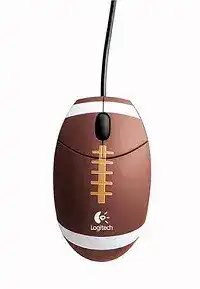
A silent cursor after plugging in the cable usually points to USB detection rather than a missing feature. The Logitech Football Mouse Driver relates to a three-button, wired optical model that connects directly through USB. Modern systems normally load their standard mouse support automatically, while older computers may use Logitech MouseWare for wheel and button preferences.
The football-shaped body makes this model unusual, but its computer connection remains straightforward. It has no wireless receiver, pairing mode, battery, Bluetooth channel, or charging system. Troubleshooting should therefore stay focused on the USB plug, cable, optical sensor, scroll wheel, click switches, operating-system controls, and any legacy software already present.
Logitech Football Mouse Windows Driver Download
| Driver Name | Description | Supported OS | File Size | Download |
|---|---|---|---|---|
| Logitech MouseWare | Provides mouse configuration and device controls for compatible Windows systems. | Windows | 4.07 MB |
Logitech Football Mouse Mac OS Driver Download
| Driver Name | Description | Supported OS | File Size | Download |
|---|---|---|---|---|
| Logitech Control Center | Enables button assignments and mouse-specific controls on newer supported Mac OS X releases. | Mac OS X 10.13, Mac OS X 10.12 | 16.63 MB | |
| Logitech Control Center | Manages pointer behavior and configurable mouse functions across several Mac OS X versions. | Mac OS X 10.11, Mac OS X 10.10, Mac OS X 10.9, Mac OS X 10.8 | 17.06 MB | |
| Logitech Control Center | Adds access to supported mouse settings and button controls on earlier Intel-based Mac systems. | Mac OS X 10.9, Mac OS X 10.8, Mac OS X 10.7, Mac OS X 10.6 | 17.73 MB | |
| Logitech Control Center | Installs legacy mouse configuration support for systems running Mac OS X 10.5.x. | Mac OS X 10.5.x | 18.7 MB |
The pointer never appears after connection
Disconnect the mouse and insert its USB plug into another port on the computer. Use a port built directly into the machine for the first test instead of a keyboard socket, monitor hub, docking station, or unpowered USB splitter. Wait several seconds because an older computer may take a moment to identify the device and finish loading its input support.
Restart the computer with the mouse attached when changing ports makes no difference. This gives the USB controller another chance to detect it during startup. A working optical light underneath the body shows that the port is supplying power, but it does not prove that the computer is receiving movement or click data.
The USB port works with other devices
A port can power the optical light while failing to maintain a sound data connection with this particular plug. Check whether the metal connector sits loosely, moves when touched, or stops responding at certain angles. Remove dust from the port with the computer switched off, then reconnect the plug without forcing it.
Test the mouse on a second computer before changing software. If neither machine detects movement or clicks, the fault probably sits in the plug, cable, or internal electronics. When another computer recognizes it immediately, return to the first machine and examine its USB controller, input-device entries, and installed mouse utilities.
Installing the Logitech Football Mouse Software Without Mixing Generations
The Logitech Football Mouse appeared during the MouseWare era, and archived packages may still be offered for older Windows editions. The Logitech Football Mouse Driver download should match the operating system listed beside the file. A package written for Windows 98 or another legacy release should not be treated as current software for a modern 64-bit computer.
Recent Windows versions generally operate this wired model through their built-in Human Interface Device support. That basic support should cover pointer movement, left and right clicks, wheel scrolling, and the wheel’s middle-click action. Installing unrelated modern Logitech applications will not add wireless functions or advanced controls that the hardware never included.
Old MouseWare refuses to install
An installer may close, display an unsupported-system warning, or fail to detect the mouse when its release predates the installed version of Windows. In that situation, remove the incomplete package and let Windows use its standard mouse entry. Compatibility mode sometimes starts an old installer, but it cannot guarantee that an obsolete filter or control panel will operate safely.
Use MouseWare only on a matching legacy system where its release notes name that operating system. Create a restore point before adding old input software to a computer that still performs important work. If the mouse already points, clicks, and scrolls correctly, the older utility may offer little practical benefit.
Two mouse utilities interfere with each other
Extra cursor acceleration, reversed buttons, unusual wheel movement, or a control panel that will not save changes can follow overlapping mouse packages. Remove software intended for another Logitech model, restart Windows, and check the device with the operating system’s normal mouse controls first. Add the appropriate legacy package only when a required function remains unavailable.
Open the installed applications list and look for previous MouseWare releases or third-party button tools. Avoid leaving several utilities active merely because each one recognizes a mouse. They may all attempt to change click timing, pointer speed, wheel lines, or middle-button behavior during sign-in.
When the Football-Shaped Body Moves but the Cursor Does Not
The optical sensor needs a surface with enough visible detail to measure movement. A clear glass desk, polished mirror-like finish, glossy magazine, or strongly reflective pattern may produce hesitation or no movement at all. Place the Logitech Football Mouse on a plain, non-reflective mouse pad before changing the Logitech Football Mouse Driver or altering system files.
The cursor shakes, jumps, or travels unevenly
Inspect the sensor opening on the underside. Hair, lint, and dried dust can interrupt the optical view and make movement look erratic. Unplug the cable, loosen debris with a dry soft brush, and wipe the surrounding plastic carefully. Do not push a tool into the opening or pour cleaner around the sensor.
Next, examine the glide areas underneath the shell. Dirt along those contact points can make the body drag, which feels similar to poor tracking. Clean the desk and test several slow circles. If the cursor now follows the same path without sudden jumps, the problem came from the surface or accumulated debris rather than software.
Pointer speed feels far too fast or slow
Open the operating system’s mouse settings and return pointer speed to a middle position. Disable enhanced acceleration temporarily when precise movement feels inconsistent, then compare the result. This model does not need gaming profiles or hardware DPI switching, so large speed changes normally come from Windows settings, MouseWare preferences, or another cursor utility.
Check each user account separately when the speed changes after sign-in. Mouse preferences can differ between accounts even though the same USB device remains attached. Also close remote-control and accessibility programs during testing because they may alter cursor motion without changing the ordinary mouse control panel.
Movement stops when the cable bends
Place the mouse on the desk and gently reposition the cable near the USB plug and where it enters the body. Do not twist or pull it. If the optical light or cursor cuts out repeatedly at one point, the internal conductors may have fractured after years of bending, storage, or tight wrapping.
Software cannot repair an intermittent wire. Continued use may produce repeated USB connection sounds, sudden freezes, or clicks that vanish with movement. Keep the cable relaxed during the test and avoid opening the housing unless you have suitable electronics experience, since a damaged lead requires physical repair or replacement.
Clicks and Wheel Movement That Do Not Match Your Hand
Once pointer movement works, separate wheel and click symptoms from USB detection. The Logitech Football Mouse uses the usual left button, right button, and clickable scroll wheel. Test each control in more than one program because a web page, game, document viewer, or remote session may interpret the middle button differently.
One click opens an item twice
Start with the double-click speed control in Windows. Move its slider toward a slower setting and use the nearby test area. A setting that is too fast can make normal clicking difficult, although it does not usually create two electrical signals from one press.
If folders or links still open twice after adjustment, test the left button with deliberate single presses. Repeated unwanted double-clicks across several programs often indicate wear inside the switch. Reinstalling MouseWare will not restore a worn contact. Swapping the primary button temporarily can confirm whether the physical left switch causes the symptom.
A button works only when pressed hard
Unplug the mouse and clear loose dirt from the narrow seam around the affected button with a soft brush. Press the button several times while disconnected to check whether its movement feels sticky or uneven. Avoid dripping liquid into the gap, since moisture can reach the switch and optical electronics beneath the shell.
A click that responds only under extra pressure usually suggests mechanical wear, displaced plastic, or contamination inside the housing. Operating-system controls can exchange left and right functions, but they cannot change how the switch feels. Test the alternate button assignment before deciding whether the hardware needs repair.
The wheel turns but pages remain still
Confirm that vertical scrolling works in a long document and a standard browser page. Some older programs ignore wheel input, while certain application panels scroll only when the pointer rests over them. Place the cursor inside the document area, click once to give that window focus, and turn the wheel again.
Open the system’s wheel settings and choose a moderate number of lines per notch. An extreme value can make scrolling appear uncontrollable, while a zero or damaged preference may create little visible response. After changing it, restart the affected program rather than assuming the mouse software failed.
The wheel slips or changes direction
Dust around the wheel mechanism can produce missed steps or brief movement in the opposite direction. Disconnect the USB cable and rotate the wheel while using short bursts of air across the outer gap. Keep the can upright and avoid prolonged spraying that may introduce moisture.
Test slow, individual wheel notches after cleaning. Erratic movement that continues in every application usually points to wear or internal contamination rather than the scroll-line setting. A software reinstall may reset preferences, but it cannot repair a failing wheel encoder.
Middle-click does nothing
Press the wheel straight down without rolling it. Try the action in an application that clearly uses middle-click, because some programs assign no command to it. Also inspect the button configuration in Windows or MouseWare and restore the wheel button to its normal middle-button function if another action has replaced it.
The wheel may still scroll even when its press switch has failed. Compare scrolling and middle-click separately so one working function does not hide the other fault. If the press never registers on another computer, the switch or its internal actuator has probably worn out.
A Sensible Finish for This Older Wired Mouse
Use the Logitech Football Mouse Driver only when the download matches the intended operating system and provides something the built-in controls cannot. On a newer computer, begin with direct USB detection, a suitable tracking surface, ordinary pointer preferences, and application testing. Those checks solve more problems than installing several generations of Logitech software together.
Keep the cable free from sharp bends, remove debris from the sensor and wheel gaps, and watch for responses that change when the plug or lead moves. A persistent failure across two computers usually confirms hardware trouble. A fault limited to one computer deserves a USB-port test, a restart, and removal of conflicting mouse utilities.
This model’s value lies in its simple wired design and distinctive football shell. It needs no pairing process, receiver replacement, battery maintenance, or wireless configuration. Once USB communication, optical tracking, three clicks, and wheel input pass separate tests, the mouse has everything required for normal operation.