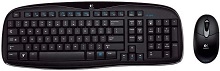
When the keyboard works but the mouse stays still, or the opposite happens, the Logitech Cordless Desktop EX100 Driver is only one part of the diagnosis. This older cordless desktop combines an RF wireless keyboard and optical mouse with a dedicated USB receiver, and Logitech originally provided SetPoint for its extra controls. Connection buttons on the receiver and devices matter because the keyboard and mouse can lose their wireless link independently.
Logitech Cordless Desktop EX100 Windows Driver Download
| Driver Name | Description | Supported OS | File Size | Download |
|---|---|---|---|---|
| SetPoint 64-bit Software | Full 64-bit SetPoint package for offline setup, with controls for mouse buttons, tracking speed, keyboard hot-keys, and device-specific settings. | Windows 11, Windows 10 64-bit, Windows 8 64-bit, Windows 7 64-bit | 80.45 MB | |
| SetPoint 32-bit Software | Full 32-bit SetPoint installer for offline installation, including battery status, Caps Lock and Num Lock indicators, hot-key configuration, and mouse settings. | Windows 11, Windows 10 32-bit, Windows 8 32-bit, Windows 7 32-bit | 78.04 MB | |
| SetPoint Smart Installer | Compact SetPoint installer that downloads the required software components during setup, so an internet connection is required for installation. | Windows 11, Windows 10 32-bit/64-bit, Windows 8 32-bit/64-bit, Windows 7 32-bit/64-bit | 4.61 MB |
Logitech Cordless Desktop EX100 Driver After the Keyboard or Mouse Loses Connection
The EX100 does not pair through Bluetooth, a Unifying receiver, or Logi Bolt. Its original receiver belongs with the cordless desktop set and handles both input devices. That changes the first repair step. If the computer recognizes the receiver but one device remains silent, reconnect that individual device instead of searching Windows for a Bluetooth entry or opening modern receiver software.
The mouse works but the keyboard does not type
Start with the keyboard batteries and then re-establish its wireless link. With the receiver attached, press its connection control and then use the connection control on the keyboard. Give the keyboard a few seconds before typing. This procedure matters after batteries have been removed, the receiver has been unplugged for a move, or the set has spent a long period in storage.
If the keyboard still gives no input while the mouse operates normally, move the receiver to another working USB port and repeat the connection sequence. A functioning mouse proves that part of the receiver is communicating with the computer, but it does not prove that the keyboard currently has a valid wireless link. Testing the keyboard and receiver on another computer can further separate Windows trouble from ageing hardware.
The keyboard responds but the optical mouse is dead
Treat the mouse as a separate cordless device even though both products share one receiver. Check its batteries first, then activate the receiver connection control and the mouse connection control in sequence. Watch for pointer movement rather than expecting a modern pairing screen. This hardware predates the current Logitech pairing methods used by newer wireless products.
A mouse that responds for a short time and then stops deserves a battery test before software changes. Reseat the cells, inspect accessible contacts for dirt, and try known-good replacements. If the mouse works normally after that, changing SetPoint or Windows HID components will not add anything useful.
Reconnect the Original EX100 Receiver Before Changing Software
The dedicated receiver is central to this set. If both the keyboard and mouse stop at the same time, confirm that the computer actually sees something when the receiver enters a USB port. Try a direct computer port rather than assuming a hub or extension still works. Reconnecting the receiver after moving a desktop computer often resolves a failure that initially looks like missing software.
Both devices stopped after the computer was moved
Unplugging the desktop can leave the receiver in a different USB socket when everything gets assembled again. Insert it firmly and allow the operating system to finish detecting the USB hardware. Then reconnect the mouse and keyboard one at a time through their hardware connection controls. Working through the two devices separately makes it easier to see which wireless link fails.
If neither device reacts, use another USB socket before reinstalling anything. A port failure, hub problem, or incomplete USB detection can affect the entire desktop at once. If one input device returns after the port change, continue pairing the other device rather than removing all Logitech components from Windows.
A replacement Logitech receiver does not connect
Do not assume that another Logitech wireless dongle can replace the EX100 receiver. The set comes from an older receiver generation and does not use the Unifying or Bolt systems. A receiver from a newer keyboard or mouse may fit the same USB connector yet have no compatible radio relationship with the EX100 keyboard and optical mouse.
When buying used parts, match the receiver to the EX100 family rather than shopping by logo or USB shape. This becomes particularly important with old cordless sets because keyboards and mice are frequently sold without their original receiver. Installing additional utilities cannot make fundamentally incompatible receiver hardware communicate.
SetPoint, Function Keys, and Older Windows Installations
SetPoint was Logitech’s control software for this generation of keyboard and mouse. Historical releases specifically included Cordless Desktop EX100 support, and the software could expose keyboard function-key customization along with mouse controls. The Logitech Cordless Desktop EX100 Driver package therefore makes most sense when basic typing and pointer movement already work but the expected SetPoint functions are missing.
SetPoint opens but the keyboard section is missing
First prove that the keyboard itself communicates normally. Type in several programs and test ordinary keys before concentrating on the SetPoint panel. If normal typing works but the software does not show the expected keyboard controls, remove a damaged or incomplete SetPoint installation and install a version intended for the operating system and this legacy product generation.
Restart Windows after changing SetPoint so its background components load again. Avoid installing several Logitech configuration programs together in the hope that one will discover the EX100. Newer Logitech applications target newer hardware families and do not turn this legacy cordless desktop into an Options+, Unifying, or Bolt product.
The media or function keys no longer perform their assigned actions
The keyboard includes additional function controls that SetPoint can customize. If ordinary letters and numbers work while one of these controls does nothing, the wireless link is probably not the first suspect. Check the SetPoint assignment for that control and compare its behavior in another application. Some shortcuts also depend on whether the associated program still exists at the path stored in the assignment.
A completely unresponsive keyboard needs connection and battery work first. A keyboard that types correctly but has one wrong shortcut needs software attention. Keeping those symptoms separate prevents an unnecessary receiver re-pair every time an application-specific key stops launching what it used to launch.
The Logitech software installs but basic input becomes unreliable
On an older Windows installation, verify operation before and after adding SetPoint. The EX100 can provide ordinary keyboard and mouse input through the operating system’s USB and HID handling, while SetPoint adds the extra Logitech functions. If basic movement or typing fails immediately after a software change, remove the troublesome installation, restart, and confirm that standard input returns before trying another compatible SetPoint release.
This test is especially useful on machines that have accumulated several generations of mouse and keyboard utilities. Software left from another Logitech product can complicate troubleshooting even though it does not change the EX100 radio connection. Establish normal keyboard and pointer operation first; add the legacy control package only after the hardware behaves consistently.
Lag, Missed Keystrokes, and Pointer Movement That Comes and Goes
Intermittent response is different from a set that never connects. The EX100 uses an RF wireless link, so battery condition, receiver location, nearby electronics, and distance all affect what happens between the desk and computer. A brief delay while typing or a pointer that pauses and then catches up should be tested as a wireless or tracking problem before treating it as a missing Logitech Cordless Desktop EX100 Driver.
Characters arrive late or some keystrokes disappear
Low keyboard battery power can show up as intermittent input before the keyboard quits entirely. Install suitable replacement batteries when delays appear, then reconnect the keyboard if necessary. Also reduce the distance to the receiver during testing. If typing becomes normal at close range, the problem points toward the wireless path rather than a damaged key assignment.
Keep the receiver away from dense bundles of cables and equipment where practical. Another wireless product or nearby electronic hardware can also make an older RF desktop less predictable. Change one factor at a time so you can tell whether battery power, position, or the USB connection actually made the difference.
The pointer hesitates while the keyboard remains normal
The EX100 mouse uses optical tracking, so the surface beneath it matters independently of the radio connection. Test on a plain, opaque surface if movement becomes erratic on glass, glossy material, or a highly patterned desktop. Cleaning the sensor opening gently can also remove dust that disrupts tracking without requiring the mouse to be opened.
If pointer trouble remains on a suitable surface, compare it with keyboard behavior. Simultaneous keyboard delays suggest the receiver path deserves attention. Normal typing with poor pointer movement instead directs attention toward the mouse batteries, optical sensor, mouse connection, or ageing mouse hardware.
Clicks or wheel movement fail while the pointer still moves
A working pointer confirms that the mouse continues to communicate, so reconnecting the whole desktop may not solve a worn click or wheel. Test left click, right click, and scrolling in more than one program. If one control fails everywhere but movement stays normal, the symptom is more consistent with the individual control than a receiver outage.
Remove loose dust around the wheel without pouring cleaner into the mouse. If a single press repeatedly produces two clicks, or dragging releases even while the button stays held, compare the behavior on another computer. Repeated failure across machines points toward mechanical wear rather than SetPoint configuration.
Decide Whether the Fault Is in the Pair, Receiver, or Computer
The quickest way to narrow an EX100 problem is to notice whether one device fails or both fail together. When both disappear, examine receiver detection and the USB connection. When only the keyboard stops, deal with its batteries and wireless connection. When only the mouse misbehaves, separate optical tracking, click, wheel, and mouse power problems instead of rebuilding the entire installation.
Another computer provides a useful dividing line for this ageing cordless desktop. If the original receiver, keyboard, and mouse show the same symptom there after you reconnect them, the fault follows the hardware. If the complete set behaves normally, return to the first computer and examine its USB handling or SetPoint installation rather than purchasing replacement wireless parts.
Use software for the features it actually provides. SetPoint belongs to the EX100 generation and can restore access to supported Logitech controls, but it cannot repair depleted batteries, incompatible replacement receivers, worn switches, damaged USB hardware, or a lost radio link. Matching the symptom to the keyboard, mouse, receiver, or software layer gives this older desktop a much better troubleshooting path than repeatedly reinstalling drivers.