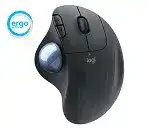
A cursor that drags, stalls, or jumps often sends people looking for the Logitech ERGO M575 Wireless Trackball Driver, although software is only one possible cause. This thumb-operated model connects through Bluetooth Low Energy or its Unifying USB receiver. Logi Options+ adds pointer-speed adjustment and control assignments for the Back and Forward buttons.
Unlike a conventional mouse, the M575 stays in one place while the thumb rotates the exposed ball. Dust collects inside the socket during normal use, especially around the small support points that carry the ball. That buildup can make fine movement feel heavy even when Windows or macOS still detects the trackball without trouble.
Logitech ERGO M575 Wireless Trackball Windows Driver Download
| Driver Name | Description | Supported OS | File Size | Download |
|---|---|---|---|---|
| Logi Options+ Software | Customizes trackball buttons, pointer behavior, scrolling, shortcuts, gestures, and device settings. | Windows 11, Windows 10 32-bit/64-bit | 43.21 MB |
Logitech ERGO M575 Wireless Trackball Mac OS Driver Download
| Driver Name | Description | Supported OS | File Size | Download |
|---|---|---|---|---|
| Logi Options+ Software | Adjusts trackball buttons, pointer movement, scrolling actions, shortcuts, gestures, and other device preferences. | macOS 26, macOS 15, macOS 14 | 19.56 MB | |
| Logi Options+ Software | Manages button assignments, pointer response, scrolling controls, application shortcuts, gestures, and connected-device settings. | macOS 13 | 19 MB | |
| Logi Options+ Software | Configures mouse buttons, cursor behavior, scrolling preferences, custom shortcuts, gestures, and trackball controls. | macOS 13, macOS 12, macOS 11, macOS 10.15 | 19.56 MB | |
| Logi Options+ Software | Sets button functions, pointer sensitivity, scrolling behavior, workflow shortcuts, gesture actions, and device options. | macOS 12 | 18.65 MB | |
| Logi Options+ Software | Controls trackball button mapping, pointer speed, scrolling, shortcut commands, gesture functions, and hardware preferences. | macOS 11 | 17.51 MB |
The ball starts smoothly and then catches
Push the ball out through the opening underneath the device. Wipe the ball with a clean, soft cloth, then remove lint from the socket and the small bearing points. Avoid household polish, harsh solvents, and excessive liquid. A clean ball placed back into a dirty socket rarely changes the movement for long.
Check the optical sensor window while the ball is removed. Loose fibres near that opening can cause sudden cursor jumps or missed movement. Use a dry cotton swab or a brief burst of clean air, taking care not to press against the sensor. Refit the ball and rotate it several times before judging the result.
Fine movement feels difficult after cleaning
Cleaning sometimes leaves the ball and support points unusually dry. Use the trackball normally for a while before applying any substance to it. Skin contact gradually restores a light natural film, while oils or sprays placed directly inside the socket may attract more dust and produce another sticky patch.
Open Logi Options+ and lower the pointer speed when small movements overshoot their target. Raise it gradually instead of making one large change. Windows and macOS also have separate pointer controls, so extreme values in both places can make the thumb movement feel unpredictable.
The cursor shakes even though the ball turns freely
Switch the M575 off, wait several seconds, and turn it on again. Test it through the other connection method when possible. Smooth operation through Bluetooth but not the Unifying receiver points toward the USB path, while the same jitter on both connections suggests dirt, software configuration, or a hardware problem.
Try the trackball on another computer before replacing it. The device does not rely on desk-surface tracking, so changing the mouse pad will not correct ball movement. Repeated shaking across two computers after a full socket cleaning gives stronger evidence of a sensor or internal fault.
Restore the Connection Without Pairing the Wrong Mode
The M575 uses one connection button for two different wireless paths. A blue indicator identifies Bluetooth, while a white indicator identifies the Unifying receiver mode. A quick press changes the selected connection. Holding the button for about three seconds starts pairing and makes the appropriate light blink quickly.
Bluetooth cannot find the M575
First confirm that the indicator flashes blue rather than white. Hold the connection button until the blue light begins blinking rapidly, then open the computer’s Bluetooth device list. A slow flash or steady light does not indicate active pairing, which is why repeatedly pressing Add Device may find nothing.
Remove an existing ERGO M575 entry when the computer keeps trying to reconnect but never completes the process. Restart Bluetooth, place the trackball back into fast blue pairing mode, and add it again. Also turn off Bluetooth temporarily on a nearby computer or tablet that previously used the M575, since that device may reclaim the connection.
The Unifying receiver is present but the pointer stays still
Press the connection button briefly and look for the white light. The trackball will not communicate with its Unifying receiver while blue Bluetooth mode remains selected. Reinsert the receiver into a direct USB port after changing modes, then power-cycle the M575 if Windows does not respond.
Keep the receiver clear of dense cable bundles, large metal computer cases, and busy USB hubs. A short USB extension cable can place it in a less obstructed position. Intermittent motion that disappears when the receiver sits nearer the trackball usually comes from the wireless path rather than pointer-speed software.
A replacement USB dongle does not connect
The standard ERGO M575 uses a Logitech Unifying receiver. An ordinary wireless dongle, a receiver from an incompatible Logitech product, or a Logi Bolt receiver cannot be treated as an interchangeable replacement. Check for the Unifying mark before attempting to pair the trackball.
Use compatible Logitech pairing software when the original receiver has been replaced or its pairing was cleared. Put the M575 into white-light pairing mode during the process. If the utility sees the receiver but not the device, move the receiver to another USB port and repeat the power cycle once.
When Logi Options+ Sees the Device but Changes Nothing
Basic pointing, clicking, and wheel movement normally work through the operating system without a separate package. Install the Logitech ERGO M575 Wireless Trackball Driver software when you need adjustable tracking speed or different actions for the two buttons beside the left click. Use Logi Options+ rather than SetPoint, G HUB, or software intended for Bolt-only hardware.
The trackball works but does not appear in Logi Options+
Quit the application completely, restart the computer, and reopen it after the M575 has connected. Test both Bluetooth and the Unifying receiver because a damaged pairing record may let basic HID input work while the control app fails to identify the product correctly.
Remove older Logitech Options installations when Options and Options+ are both running or have left competing background components. Install the current Options+ package cleanly and allow its background process to launch. On macOS, approve the permissions requested by the app, then restart it so customized actions can reach other programs.
Back and Forward buttons keep their old actions
Select the M575 inside Logi Options+ and check the assignment for each of the two extra buttons. Changes can apply globally or only inside a particular application. An old application-specific profile may override the general assignment whenever that program becomes active.
Choose a plain action first, such as Back or Forward, and test it in a web browser. After confirming that both switches respond, create more specialised assignments. When one button fails with every action and on another computer, the problem is more likely physical than software-related.
Custom actions disappear after an update
Open Options+ and confirm that it still lists the M575 rather than showing an inactive device card. Reconnect the trackball before rebuilding every assignment. A Bluetooth re-pair, changed receiver, or interrupted application update can make the software treat the connection differently even though the pointer continues to move.
Recreate one assignment and test it before restoring the rest. This separates a damaged profile from a broader app failure. On a Mac, lost input or accessibility permission can leave the interface looking normal while preventing its selected commands from running.
Only a few controls appear in the application
The M575 does not provide every feature found on the MX ERGO or newer multi-device products. Options+ should expose its supported pointer-speed and Back or Forward button controls, but it will not create a tilt wheel, rechargeable battery functions, device-channel switching, or hardware that this model does not contain.
Scroll direction and wheel-speed choices may remain under the operating system rather than the M575 device panel. Adjust those values in Windows mouse settings or macOS mouse preferences when Options+ does not show a matching control.
Clicks, Wheel Reversals, and Wake-Up Failures
Connection troubleshooting cannot solve every input fault. The scroll wheel, main switches, AA battery contacts, and internal encoder all wear independently. Test a symptom in several applications and through both wireless methods before deciding whether the Logitech ERGO M575 Wireless Trackball Driver needs replacement or the hardware needs attention.
The wheel moves down and then jumps upward
Erratic direction across browsers, documents, and system menus usually deserves a physical check. Turn off the trackball and blow clean, dry air around the wheel opening while rotating it. Debris near the encoder can interrupt its pulses and make one downward turn produce a brief upward movement.
Compare the result on a second computer with Logi Options+ closed. If the reversal remains on both systems, changing scroll lines or reinstalling software is unlikely to cure it. Persistent backward steps often indicate encoder wear and may require professional repair or device replacement.
The wheel click or one main button stops responding
Check whether the missing click works in another application. Some programs assign special behaviour to the wheel press, while others ignore it completely. Restore the operating system’s normal middle-button action before testing again.
A single switch that fails through Bluetooth and the receiver, with or without Options+, points away from the wireless connection. Rapid unintended double-clicks from one press have the same implication. Adjusting the system double-click interval may make borderline behaviour less noticeable, but it cannot restore a worn switch.
The trackball wakes slowly or loses power
The M575 runs from one AA battery. Replace it when the indicator does not light, the connection drops repeatedly, or the device wakes only after several clicks. Confirm the battery orientation and wipe dirty contacts with a dry cloth before inserting the replacement.
Turn the power switch off and back on after changing the cell. If the trackball appears dead, test both blue Bluetooth mode and white receiver mode because it may have powered up on the connection you were not using. Repeated failure with a known-good battery can indicate a contact or power-switch fault.
Most functions stop but one click still works
A partial response can come from a stalled connection, corrupted software profile, or internal failure. Switch the M575 off, remove the battery briefly, and reconnect through the other wireless method. Test it before launching Options+ so the basic hardware response remains separate from customized commands.
When only one control survives on two computers, further re-pairing offers little value. Clean the trackball socket, verify the battery contacts, and test the switches once more. If the same narrow response remains, the device likely needs service rather than another software installation.
Match the Fix to the Side of the M575 That Failed
Ball resistance belongs to the socket, bearings, and sensor area. Blue or white connection lights point toward Bluetooth or Unifying setup. Missing Back and Forward actions belong in Logi Options+, while scroll reversals and unintended double-clicks often remain after software changes. Keeping those symptoms separate prevents one fault from turning into several unnecessary reinstalls.
Use the Logitech ERGO M575 Wireless Trackball Driver package for customization and supported control access, not as a cure for every mechanical symptom. Clean the ball chamber carefully, select the intended wireless mode, pair only with a compatible receiver, and verify troublesome clicks on another computer. Those checks reveal whether the next useful step belongs in software, wireless setup, or the trackball itself.