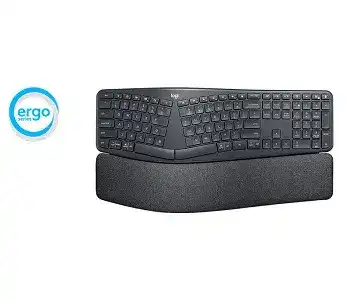
A swapped Command key, a silent number pad, or an Easy-Switch channel that refuses to reconnect can make the keyboard seem defective. The Logitech ERGO K860 Keyboard Driver page covers the software and connection work needed for this split wireless model. The keyboard can use Bluetooth Low Energy or its included Unifying USB receiver, switch among three devices, and run without Logitech Options when only ordinary typing is required.
Logitech Options adds shortcut customization, application-specific actions, device notifications, and Flow support. It does not replace the normal keyboard support built into Windows or macOS. Start by deciding which connection you intend to use. Mixing an old Bluetooth pairing with a newly assigned receiver channel often makes later diagnosis needlessly confusing.
Logitech ERGO K860 Keyboard Windows Driver Download
| Driver Name | Description | Supported OS | File Size | Download |
|---|---|---|---|---|
| Logi Options+ Software | Customizes keyboard shortcuts, function keys, device settings, and application-specific actions. | Windows 11, Windows 10 32-bit/64-bit | 43.21 MB |
Logitech ERGO K860 Keyboard Mac OS Driver Download
| Driver Name | Description | Supported OS | File Size | Download |
|---|---|---|---|---|
| Logi Options+ Software | Configures keyboard shortcuts, function-row behavior, workflow actions, and supported device controls. | macOS 26, macOS 15, macOS 14 | 19.56 MB | |
| Logi Options+ Software | Manages keyboard assignments, productivity shortcuts, application profiles, and device preferences. | macOS 13 | 19 MB | |
| Logi Options+ Software | Provides shortcut customization, function-key controls, app-specific commands, and keyboard settings. | macOS 13, macOS 12, macOS 11, macOS 10.15 | 19.56 MB | |
| Logi Options+ Software | Adjusts supported keyboard controls, custom shortcuts, application actions, and device behavior. | macOS 12 | 18.65 MB | |
| Logi Options+ Software | Enables function-key remapping, shortcut creation, application controls, and keyboard customization. | macOS 11 | 17.51 MB |
The keyboard appears in Bluetooth but does not type
Choose one of the three Easy-Switch keys and hold it until its light blinks rapidly. Remove the existing ERGO K860 entry from the computer’s Bluetooth list before adding it again. Selecting the keyboard without placing that channel in pairing mode may restore an old record rather than create a fresh connection.
When the computer displays a pairing code, type the code on the ERGO K860 and press Enter. Do not enter it on another attached keyboard. A completed Bluetooth entry may remain visible even when the confirmation sequence was never accepted, leaving the device listed but unable to send keystrokes.
An Easy-Switch light blinks without connecting
A rapid blink means that channel is waiting for a new pairing. A steady light usually means it is trying to reach a device already stored on that channel. Hold the chosen Easy-Switch key again to restart discovery, then confirm that Bluetooth is active on the intended computer rather than on a nearby tablet or laptop.
Each numbered key keeps a separate host assignment. Pairing a replacement computer on channel 2 does not remove the machines stored on channels 1 and 3. Press the channel briefly to switch devices; hold it only when you want to overwrite or recreate that channel’s connection.
Bluetooth typing pauses after sleep
Turn the keyboard off for several seconds, switch it on, and press the assigned Easy-Switch key once. If wake delays continue, remove and recreate the Bluetooth pairing. Update the computer’s Bluetooth and operating-system components before changing keyboard software, since Logitech Options does not control the computer’s radio driver.
Wireless congestion can also produce delayed letters or short dropouts. Test closer to the computer and temporarily disconnect unused Bluetooth accessories. A crowded 2.4 GHz environment may affect both Bluetooth and receiver connections, especially when several wireless devices sit beside a dock or router.
Choose the Right Receiver Path for This ERGO Keyboard
The standard retail ERGO K860 includes a Logitech Unifying receiver. It does not pair with a Logi Bolt receiver merely because both plugs come from Logitech. The business edition uses different receiver technology, so check the logo and product version before attempting to combine the keyboard with another Logitech device.
The included receiver is detected but the keyboard is not
Plug the Unifying receiver directly into the computer, open the compatible Logitech pairing utility, and add the keyboard while following the power-cycle prompt. The Logitech ERGO K860 Keyboard Driver software alone cannot complete a receiver assignment when the keyboard and receiver no longer recognise each other.
Try another USB port when the receiver disappears or repeatedly reconnects. Remove it from an unpowered hub, monitor, or unreliable docking port during the test. After Windows or macOS recognises the receiver, run the pairing process again with the keyboard close to the USB plug.
A replacement Logitech receiver will not pair
Match the receiver protocol rather than its physical shape. The retail K860 works with a Unifying receiver identified by the Unifying symbol. A plain nano receiver, a gaming receiver, and a Logi Bolt receiver use different pairing systems and will not become compatible through Logitech Options.
A single Unifying receiver can host several compatible Logitech devices. Pair each product through the Unifying utility instead of assuming that plugging in a receiver from another keyboard will automatically transfer its existing assignments.
Receiver mode lags while Bluetooth works normally
Move the receiver away from crowded USB hardware by changing ports or using a short, well-made USB extension. USB 3 equipment, external drives, docks, and dense cable clusters can disturb nearby 2.4 GHz communication. Bluetooth working normally on the same computer narrows the problem to the receiver path rather than the keyboard matrix.
Keep the receiver within a practical desk distance and remove metal obstructions between it and the keyboard. Do not hide it behind a desktop tower unless the connection remains steady there. Re-pairing will not solve a poor radio position, so test placement before resetting stored channels.
Fix Command, Option, Windows, and Function-Key Mix-Ups
The ERGO K860 uses a multi-OS key layout, and its current operating-system mode changes how several modifier keys behave. A keyboard left in Windows mode may swap Command and Option behaviour on a Mac. Mac mode can make the corresponding keys confusing after moving the same channel back to Windows.
Command and Option are reversed on macOS
Hold Fn and O for several seconds to select the macOS layout. The change takes effect at keyboard level and can resolve the swapped modifiers even when reinstalling Logitech Options does nothing. Check the macOS Modifier Keys panel afterward and remove any manual swaps that were added while diagnosing the problem.
When the keyboard moves back to Windows, hold Fn and P to restore the Windows layout. Apply the layout that matches the operating system assigned to that Easy-Switch channel. Otherwise, the hardware mode and the operating system’s own remapping may work against each other.
The function row controls media instead of F1 to F12
Press Fn and Esc to switch the function-row mode. One mode sends the labelled media and system commands directly, while the other sends standard F-keys without holding Fn. This setting often explains why an application shortcut stops working even though the physical key still changes volume or brightness.
Logitech Options can also define how the top row behaves. Check both the software preference and the keyboard’s Fn-lock state. Changing only one may make the result appear inconsistent after a restart or after switching to another computer.
A shortcut behaves differently in one application
Application-specific assignments in Logitech Options can override the global action of supported shortcut keys. Open the app profile and restore the key to its default task before testing again. If the shortcut works everywhere except one program, inspect that program’s keyboard preferences as well.
The split spacebar and ordinary letter keys are not freely programmable through Logitech Options. Do not expect every physical key to appear in the customization screen. The software focuses on supported shortcut controls, notifications, Flow behaviour, and selected system functions.
Missing Letters, Repeated Keystrokes, and Number-Pad Failures
Connection trouble is only one reason for typing errors. Operating-system accessibility options, an incorrect regional layout, low battery power, debris, or a failing key mechanism can all create similar symptoms. Test the suspect key in a plain document and on a second device before removing software.
One key combination stops working
Turn the keyboard off and back on, then test the individual keys separately. When each key works alone but a combination fails across several computers, reset the keyboard by pressing Esc and O, releasing both, repeating Esc and O, and then pressing Esc and B. The Easy-Switch lights should begin flashing during a successful reset.
After the reset, power-cycle the keyboard and pair the required channels again. This procedure clears stored connection and layout state, so use it after simpler OS-mode and pairing checks. It cannot repair a worn switch or damaged keyboard matrix.
Letters repeat after waking the computer
Repeated characters immediately after sleep can come from a disturbed wireless reconnection. Switch to another paired channel and back, or restart the keyboard. If the problem follows only Bluetooth, recreate that pairing. If it also occurs through the Unifying receiver, replace the batteries and test the keyboard on another computer.
Check the operating system’s key-repeat rate and repeat delay. Extreme values can magnify a brief held input. Return them to moderate positions before judging the hardware. Repeating keys that continue across multiple hosts and connection methods point more strongly toward an internal key fault.
The numeric keypad moves the pointer
On macOS or Windows, an accessibility feature can turn number-pad keys into pointer controls. Disable Mouse Keys in the operating system’s accessibility settings. Num Lock alone may not correct the behaviour because the computer, rather than the Logitech software, is deliberately interpreting the keypad as a mouse.
Also confirm that the selected keyboard language matches the printed layout. The wrong regional setting can move punctuation, symbols, and special characters even though the keyboard connects correctly. Choose the required language and physical layout in the operating system instead of remapping every affected key.
A single key no longer responds
Use a soft brush or compressed air around the key edge while the keyboard is off. Do not pour liquid beneath the keycap or pry apart the low-profile scissor mechanism. Test the key through Bluetooth and the Unifying receiver. The same failure through both methods rules out receiver pairing and points toward contamination or mechanical wear.
If several neighbouring keys stop together, replace the two AAA batteries and run the keyboard reset before concluding that the key matrix has failed. Persistent dead keys on every paired computer require hardware service; installing the Logitech ERGO K860 Keyboard Driver again will not restore a broken contact.
Options Detection, Flow, and Battery Status
The keyboard can type before Logitech Options recognises it. Software detection and wireless connection are separate layers. Close duplicate Logitech utilities, update the compatible control app, and restart the computer with the keyboard already connected through one confirmed method.
Logitech Options cannot find the K860
Remove older or partially migrated Logitech control software before reinstalling the current compatible package. Keep either the supported Options environment or its replacement active rather than running overlapping background services. After installation, reconnect the keyboard and allow the software any Bluetooth or input-monitoring permissions requested by macOS.
When the keyboard works over Bluetooth but remains absent from the app, test the Unifying receiver or recreate the Bluetooth record. An operating-system pairing can remain functional while the Logitech background service fails to identify the product correctly.
Flow does not switch the keyboard with the mouse
Flow requires compatible Logitech devices, the control software on each computer, and network communication between those machines. Enable Flow for the mouse first, then choose the option that makes the keyboard follow it. Pair the K860 to each computer on separate Easy-Switch channels before expecting automatic movement between screens.
A firewall, restricted work network, or mismatched software version can stop Flow while ordinary Bluetooth typing remains unaffected. Test manual Easy-Switch changes first. If the keyboard changes computers correctly by channel, repair the network and application configuration rather than pairing it again.
The power light turns red or the keyboard shuts down
The top power indicator turns red when battery power becomes low. Replace both AAA batteries together and observe their marked polarity inside the compartment. Clean dry contacts gently if stored batteries have left residue, but do not use wet cleaning methods near the electronics.
The battery compartment also provides storage for the Unifying receiver when it is not in use. Check that the receiver has not been left there while you troubleshoot a missing USB connection. After installing fresh batteries, switch the keyboard off briefly and then return to the intended Easy-Switch channel.
Restore the Three-Device Workflow Without Rebuilding Everything
Assign one connection at a time: choose the channel, place it in discovery mode, pair the intended computer, and verify the correct Windows or macOS layout. Then continue with the next Easy-Switch key. This prevents one host from being paired repeatedly while another channel still points to an unavailable machine.
Use Bluetooth where it remains steady and the Unifying receiver where a direct USB link gives better results. Keep receiver protocols separate, set the top-row mode deliberately, and correct operating-system accessibility options before resetting the keyboard. The Logitech ERGO K860 Keyboard Driver and Logitech Options add useful controls, but dependable typing still begins with the right channel, layout mode, batteries, and connection method.