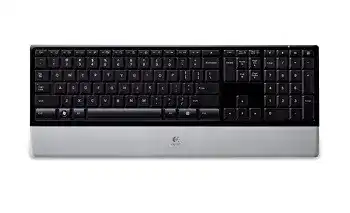
When keystrokes disappear or the media controls stop working, the Logitech diNovo Keyboard Driver restores access to the original SetPoint functions and connection tools. The PC Edition communicates through its supplied USB mini-receiver rather than a modern Unifying or Bolt receiver. Windows may provide ordinary typing without Logitech software, but the enhanced F-keys, shortcut assignments, and FN mode depend on the older package.
This slim cordless keyboard includes a power slider, calculator key, volume controls, mute, disc eject, enhanced F-keys, and separate Caps Lock and low-battery indicators. Four AAA alkaline batteries power the keyboard. Because the model is older, problems often come from receiver communication, depleted batteries, unsupported software combinations, or shortcut functions that no longer match current Windows applications.
Logitech diNovo Keyboard Windows Driver Download
| Driver Name | Description | Supported OS | File Size | Download |
|---|---|---|---|---|
| SetPoint Software 64-bit | Full offline package for configuring keyboard hot-keys, device-specific settings, battery status, Caps Lock, and Num Lock indicators. | Windows 11, Windows 10 64-bit, Windows 8 64-bit, Windows 7 64-bit | 80.45 MB | |
| SetPoint Software 32-bit | Complete offline installer for adjusting hot-keys, tracking speed, button functions, and keyboard status notifications. | Windows 11, Windows 10 32-bit, Windows 8 32-bit, Windows 7 32-bit | 78.04 MB | |
| SetPoint Smart Installer | Small universal installer that downloads the required SetPoint components during setup, so an internet connection is required. | Windows 11, Windows 10 32-bit/64-bit, Windows 8 32-bit/64-bit, Windows 7 32-bit/64-bit | 4.61 MB |
No response after connecting the mini-receiver
Begin with the power slider on the keyboard. Move it fully to the on position and watch the battery indicator. A green light confirms that the keyboard has power at that moment. No light usually points to exhausted batteries, incorrect battery placement, dirty contacts, or a slider that has not reached its full position.
Remove and reinstall the four AAA batteries while following the polarity marks inside the compartment. Wipe dusty contacts with a dry lint-free cloth before closing the cover. Mixed battery brands or a combination of old and new cells can produce enough voltage for the indicator while failing during wireless transmission, so install one matching set.
The receiver appears in Windows but typing fails
Move the USB mini-receiver to another direct USB port. Avoid an unpowered hub during diagnosis. Metal computer cases, monitor stands, cable trays, and other objects between the receiver and keyboard can weaken reception. Place the receiver where it has a clearer path to the desk, then switch the keyboard off and on before testing a few keys.
If Windows makes the USB connection sound but accepts no input, open the Logitech Connection Utility supplied with the compatible SetPoint installation. Follow its connection prompts and power-cycle the keyboard when requested. The Logitech diNovo Keyboard Driver package must include the matching connection component; a generic keyboard entry in Device Manager cannot recreate the receiver link.
Recover the Original Receiver Connection
Use the receiver supplied for this model
The diNovo PC Edition predates Logitech Unifying and Logi Bolt products. Those newer pairing programs do not turn their receivers into replacements for the original mini-receiver. Keep the receiver that came with the keyboard whenever possible. A similarly shaped Logitech dongle may fit the USB port yet use a different wireless protocol and never detect this keyboard.
When buying a used unit, confirm that the receiver belongs to the same product family before spending time on software changes. Receiver compatibility matters more than its physical appearance. If the original receiver is missing, ordinary Windows keyboard updates will not create a wireless connection, and modern Logitech pairing applications may show no compatible device.
Connection Utility cannot find the keyboard
Close other Logitech control programs before running the connection process. Several generations of Logitech software on one computer can compete for the same background services. Remove packages installed for devices you no longer use, restart Windows, and then install the SetPoint release intended for this keyboard and operating-system architecture.
Start the Connection Utility only after Windows finishes detecting the mini-receiver. Keep the keyboard close during the first attempt, switch it off, and turn it back on when the utility requests a connection. If detection still fails, test the receiver on another computer. That separates a receiver fault from damaged Windows USB configuration.
Keyboard disconnects after sleep or restart
A connection that vanishes after sleep often returns after a full power cycle. Turn the keyboard off for several seconds, reconnect the USB receiver, and then turn the keyboard on. Windows sometimes restores the USB controller before the Logitech service becomes ready, leaving the receiver present but the keyboard inactive.
Try a different USB controller when the failure repeats after every restart. Desktop computers often divide front and rear ports between separate controllers. Choose the port that reconnects consistently rather than the one that is merely closest. After changing ports, run the connection tool again so the Logitech diNovo Keyboard Driver can rebuild communication through the new USB path.
Logitech diNovo Keyboard Software for F-Keys and Media Controls
Standard typing may work before SetPoint starts, while the gray F-key functions remain inactive. This is expected because Windows treats the keyboard as a normal input device but does not know the original Logitech assignments. SetPoint adds control for application launch keys, media commands, zoom functions, calculator access, and the selectable FN-key behavior.
Enhanced F-keys perform ordinary F1 to F12 commands
The enhanced action requires FN and the chosen F-key together under the default configuration. For example, the upper row can open web, email, search, messaging, window-switching, zoom, gadget, and media functions. Pressing an F-key alone sends its conventional Windows command unless SetPoint has inverted the FN mode.
Open the keyboard section in SetPoint and check the FN preference. Inverted mode gives direct access to the gray shortcut icons, while holding FN returns the normal F1 to F12 action. Choose the mode that matches your work rather than assuming the top row has failed. A sudden reversal often follows a software reinstall or profile reset.
Media keys do nothing in a newer application
Play, pause, previous track, next track, volume, and mute depend partly on how the active program handles media commands. Test the controls with a Windows media application before changing the keyboard software. A key that works there but not inside another program points to application behavior rather than receiver trouble.
The disc eject key also reflects the computer’s current hardware and Windows support. It may have no visible result on systems without an optical drive. Do not treat that single key as proof that the whole package failed. Compare several controls, including volume and calculator, before reinstalling SetPoint.
Custom F-key assignments disappeared
SetPoint can reassign the enhanced F1 through F9 functions. Holding FN together with the key for about three seconds opens the relevant software area on compatible installations. When that shortcut no longer opens anything, launch SetPoint from Windows and confirm that its keyboard page recognizes the diNovo model.
A Windows update or migration to a new computer may leave ordinary keyboard support intact while removing the saved Logitech profile. Recreate the preferred assignments inside SetPoint instead of copying unknown configuration files from another installation. Older profile data can refer to programs or paths that no longer exist.
Fix Delayed Keys, Repeated Characters, and Missing Shortcuts
Typing pauses or characters repeat
Wireless interruptions can resemble a damaged key switch. First clear the space around the USB mini-receiver and remove nearby metal objects. Then replace all four AAA batteries as one set. Low voltage may show up as delayed typing, missed releases, or a stream of repeated characters before the low-battery indicator stays illuminated.
Test the keyboard at a shorter distance with a plain document open. If the symptom disappears, adjust receiver placement rather than changing Windows repeat speed. If one particular key repeats at every distance and on another computer, the problem is more likely mechanical. Software cannot repair a worn key mechanism or contamination beneath one keycap.
Calculator, email, or browser keys open the wrong program
These shortcuts normally call the default applications registered in Windows. Change the default browser, mail program, or media player in Windows before remapping the key. SetPoint may still contain an older application path, especially after software removal. Open the key assignment and select the current program again when Windows defaults alone do not correct it.
A shortcut that launches nothing may point to an application no longer installed. Assign a current program or restore the original action. Avoid linking keys to temporary installer folders because those paths disappear after cleanup. Keep the assignment simple and verify it immediately from the keyboard.
Caps Lock or low-battery light behaves strangely
The Caps Lock indicator reflects the keyboard state, while the low-battery light warns about available power. If the Caps Lock state changes on screen but its indicator does not follow, restart the Logitech software and reconnect the receiver. Test the keyboard on another computer before deciding that the indicator itself has failed.
A battery light that appears briefly during power-on is not the same as a continuing low-power warning. Install a new matching alkaline set when the warning remains active or the keyboard begins disconnecting. Rechargeable AAA cells may produce different voltage behavior from the alkaline batteries specified for this model, particularly as they approach discharge.
Keep the diNovo Functions Working on a Modern PC
The Logitech diNovo Keyboard Driver belongs to an older software generation, and Logitech no longer maintains SetPoint in the same way as current control applications. Do not assume Logi Options+ supports this keyboard merely because a support page recommends it for newer supported products. For this PC Edition, SetPoint remains the documented software for enhanced functions and F-key customization.
Install only the architecture and Windows version that match the available legacy package. Modern Windows may continue to provide basic typing through its built-in HID support even when SetPoint cannot install every component. In that situation, keep the working standard keyboard entry and avoid forcing unrelated receiver or Bluetooth packages onto the system.
For a dependable result, preserve the original USB mini-receiver, use four evenly matched AAA batteries, and keep the receiver away from signal-blocking objects. Re-run the Connection Utility after changing computers or USB controllers. Once typing remains steady, configure FN mode and shortcuts inside SetPoint rather than repeatedly changing the wireless connection.
The final test should cover more than letters and numbers. Check Caps Lock, calculator, volume, mute, several enhanced F-keys, and media playback. When basic keys work but only one shortcut fails, repair that assignment or its target application. When every control drops together, return to power, receiver placement, USB detection, and the Logitech diNovo Keyboard Driver connection process.