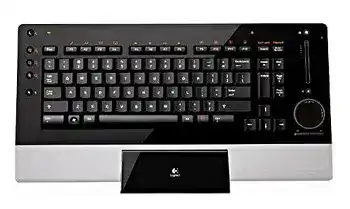
When typing works but the TouchDisc, volume slider, or media controls stay inactive, the Logitech diNovo Edge Driver may be missing or no longer loading its original functions. This rechargeable keyboard communicates through Bluetooth and combines standard keys with a circular touchpad, left and right click controls, backlighting, media shortcuts, and a touch-sensitive volume strip.
The operating system can often detect the diNovo Edge as a normal Bluetooth keyboard without extra software. That basic connection does not guarantee access to every control. Logitech SetPoint supplied the extended key assignments and touch-related preferences, while the Bluetooth stack handled discovery, authentication, and reconnection.
Logitech diNovo Edge Windows Driver Download
| Driver Name | Description | Supported OS | File Size | Download |
|---|---|---|---|---|
| SetPoint 64-bit | Full offline package for configuring keyboard hot-keys, device-specific settings, battery status, Caps Lock, and Num Lock indicators. | Windows 11, Windows 10 64-bit, Windows 8 64-bit, Windows 7 64-bit | 80.45 MB | |
| SetPoint 32-bit | Complete offline installer for adjusting hot-keys, keyboard functions, battery information, and model-specific controls. | Windows 11, Windows 10 32-bit, Windows 8 32-bit, Windows 7 32-bit | 78.04 MB | |
| SetPoint Smart Installer | Small universal installer that downloads the required SetPoint components during setup, so an internet connection is required. | Windows 11, Windows 10 32-bit/64-bit, Windows 8 32-bit/64-bit, Windows 7 32-bit/64-bit | 4.61 MB |
The keyboard appears but will not finish pairing
Remove the existing diNovo Edge entry from the computer’s Bluetooth list before trying again. Turn the keyboard off, restart Bluetooth on the computer, and place the keyboard into discovery mode with its connect control. Select it only after its name returns as a newly found device rather than reusing a saved entry that repeatedly fails.
During authentication, the computer may display a numeric passcode. Type those numbers on the diNovo Edge itself and press Enter. The digits usually do not appear in a text box while you type them. Entering the code on another keyboard or clicking an onscreen confirmation without typing the code leaves the pairing process incomplete.
Windows asks for a PIN but shows no usable code
Cancel the failed request and remove the keyboard from Bluetooth settings. Start the connection again through the option that adds a keyboard or input device. When Windows presents a generated number, enter it promptly on the diNovo Edge. Repeated failed attempts can change the pairing screen into a fixed-PIN request that this keyboard was not expecting.
If that loop continues, restart the Bluetooth Support service or reboot the computer before another attempt. Also disconnect unused Bluetooth adapters. A notebook’s internal radio and an attached USB adapter can both scan for the keyboard, leaving Windows uncertain about which controller owns the new connection.
Charging Dock Problems That Look Like Driver Failure
The Logitech diNovo Edge uses an internal rechargeable battery and rests upright in its charging base. A keyboard that pairs for a few seconds and then shuts down may not have enough stored power to maintain the Bluetooth link. Software changes cannot correct dirty charging contacts, poor dock alignment, or an aged battery that no longer accepts a useful charge.
The charging light does not appear
Lift the keyboard out of the dock and inspect the metal contacts on both pieces. Skin oil and light oxidation can interrupt charging even when the keyboard appears to sit correctly. Turn the equipment off, disconnect power from the dock, and wipe the contact surfaces with a soft, slightly damp cloth. Let them dry fully before restoring power.
Lower the keyboard into the base without twisting it. Its contacts must meet evenly. Check the dock’s power adapter and wall outlet when no charging indication appears. A powered USB connection does not replace the base adapter, and pairing software cannot detect whether the dock itself receives electricity.
The keyboard works only while charging
Leave the diNovo Edge on the powered base long enough for a full charging attempt, then test it away from the dock. Immediate shutdown after removal points toward the internal battery or its connection rather than Bluetooth configuration. A power cycle may briefly restore operation, but it will not recover a battery that has lost most of its capacity.
Long-unused units may need several hours before they respond normally. Clean contacts and verify the adapter first. If the keyboard continues to run for only seconds after a long charge, internal battery service becomes the likely repair. Avoid opening the thin case unless you have suitable tools and experience with delicate battery wiring.
A red light keeps blinking
A repeating red indication commonly deserves a power check before any software work. Reseat the keyboard in the base, clean the contact points, and allow another charging cycle. Then turn the keyboard off for a minute before switching it on away from the dock. This sequence separates a temporary charging-contact problem from a battery that cannot retain energy.
TouchDisc, Volume Strip, and Media Keys Behave Differently
The Logitech diNovo Edge Driver package becomes most relevant after ordinary typing already works. SetPoint adds configuration for the TouchDisc, special keys, media functions, and other enhanced controls. Because this is an older keyboard, recent Logitech applications may not recognize it or may expose fewer options than the original SetPoint release.
The TouchDisc moves the pointer but scrolling fails
Test pointer movement around the full circular surface first. If the cursor responds, the Bluetooth connection and basic pointing function are present. Scrolling may depend on the circular gesture, SetPoint preferences, or the program under the pointer. Open a long document or webpage and trace a controlled circle near the TouchDisc edge instead of swiping straight across it.
Check the touchpad section in SetPoint when circular scrolling remains absent. Restore the default TouchDisc assignment before creating custom actions. Some programs interpret wheel input differently, so compare a browser, File Explorer, and a document window. Failure in only one application usually belongs to that application rather than the keyboard.
The pointer jumps or reacts too slowly
Clean the TouchDisc with a dry microfiber cloth and remove moisture from your fingertip. The touch surface can misread contact when grease collects around its edge. Adjust pointer speed in Windows and any available SetPoint touchpad control, but change one value at a time. Very high acceleration makes small finger movements look like random jumps.
Bluetooth delay can create a different symptom: the pointer pauses, then catches up with several movements at once. Bring the keyboard nearer to the computer and move the Bluetooth adapter away from metal panels or crowded USB equipment. A short USB extension cable can improve the position of an external adapter without changing the keyboard software.
The volume strip lights up but sound does not change
Slide a finger along the volume control rather than tapping one point repeatedly. Confirm that Windows has selected the intended speakers or headset. The strip can send a valid volume command while the user hears no change because audio is playing through another output or the active application has its own muted channel.
Reinstall the compatible SetPoint package when the illuminated strip responds visually but never produces a command. Remove the incomplete installation first, restart Windows, and install one SetPoint edition that matches the operating system architecture. Running several Logitech configuration programs together may hide the older keyboard or leave its special-key service inactive.
Media and shortcut keys launch the wrong program
Open SetPoint and return the affected key to its default action. Test it before assigning another application. When a custom launch command fails, browse directly to the program’s executable file instead of entering only a shortcut name. Modern packaged applications may not expose a traditional executable path that older SetPoint versions understand.
Some media keys follow the active player rather than a fixed application. Start playback, bring that player to the foreground, and try play, pause, previous, and next. If one player works and another does not, examine the player’s media-key preferences. Reinstalling Bluetooth components will not change an application that ignores multimedia commands.
Connection Delays After Sleep, Restart, or System Updates
The first keypress takes several seconds
A brief pause after long inactivity can occur while the Bluetooth link wakes. Press one ordinary key once, wait, and then continue typing. Repeatedly striking several keys during reconnection can produce a delayed burst of letters. A longer pause on every wake may come from aggressive power saving on the computer’s Bluetooth radio.
Open the Bluetooth adapter properties in Device Manager and inspect its power-management options. For testing, prevent Windows from turning off that adapter to save power. Restart the computer and compare wake behaviour. Restore the original option when it makes no difference, since the precise controls vary by Bluetooth hardware and driver.
The keyboard disconnects after every reboot
First remove its saved Bluetooth record and establish a completely new pairing. Do not keep several entries with similar diNovo names. Restart once after successful authentication and confirm that the keyboard reconnects without opening the pairing screen. If it does not, update or reinstall the computer manufacturer’s Bluetooth adapter package rather than repeatedly reinstalling SetPoint.
When using the original Logitech Bluetooth adapter, unplugging and reinserting it may temporarily restore the connection. Try another direct USB port and let Windows finish loading the adapter before turning on the keyboard. A hub or docking station that initializes late can leave the paired keyboard unavailable during sign-in.
An operating system update removed special functions
Check basic typing and TouchDisc movement before changing anything. If those still work, the Bluetooth pairing remains intact and the missing part is probably SetPoint or its background service. Open the installed-app list, repair SetPoint when that option exists, or reinstall the compatible release after a restart.
Do not assume Logi Options+ is a direct replacement for this model. The diNovo Edge belongs to an earlier SetPoint generation, and newer software concentrates on later supported devices. Keep the ordinary Bluetooth connection when it works, then add only the older utility required for enhanced controls.
When Keystrokes Repeat, Vanish, or Arrive Late
Letters appear in groups
Move other 2.4 GHz equipment away from the Bluetooth adapter and keyboard. Wireless routers, headsets, game controllers, and busy USB devices can worsen congestion near the computer. Change the adapter’s position before altering keyboard repeat settings. Input that pauses and then arrives as a group usually indicates connection delay rather than a physically stuck key.
Compare the result on another computer or with another Bluetooth adapter. Pairing the diNovo Edge elsewhere is a useful dividing test: normal typing there points toward the first computer’s radio, driver, or power policy. The same delayed input on both systems brings battery condition and internal keyboard hardware back into consideration.
One key repeats in every program
Turn the keyboard off and use dry compressed air around the affected key. Do not pour liquid beneath the keycaps. Test the key in a plain typing window after cleaning. When only one key repeats while the TouchDisc and all other keys behave normally, Bluetooth software is unlikely to be the cause.
Windows repeat rate can exaggerate a key that lingers slightly. Lower the keyboard repeat speed temporarily and test again. Persistent repetition at the slowest setting suggests wear or debris within the key mechanism. Reinstalling the Logitech diNovo Edge Driver will not repair a damaged switch.
Typing works at sign-in but fails after the desktop loads
A startup utility may take control after Windows opens the user session. Close SetPoint from the notification area and test ordinary keys again. If typing returns, reinstall SetPoint or disable conflicting keyboard-remapping software. Accessibility tools, macro programs, and remote-control applications can also intercept input after sign-in.
Use the onscreen keyboard or a temporary USB keyboard while changing those settings. Keep the diNovo Edge paired during the test so you can separate a software conflict from a lost Bluetooth association. Removing and pairing it repeatedly can obscure the original problem.
Restore the diNovo Edge by Separating Power, Bluetooth, and SetPoint
The quickest route is not a large software overhaul. Charge the keyboard first, confirm that the dock contacts conduct power, and verify that it stays on away from the base. Next, remove failed Bluetooth records and enter the displayed pairing code on the diNovo Edge itself. Only then install the Logitech diNovo Edge Driver software for TouchDisc preferences and special-key control.
This separation also makes old hardware easier to judge. A device that will not retain charge has a power problem. A charged unit that never completes authentication has a Bluetooth problem. Normal typing with missing volume, media, or touch options points toward SetPoint. Treating those three layers individually avoids replacing a distinctive keyboard for a fault that may still have a practical fix.