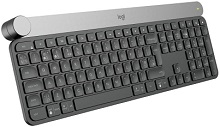
The Crown may turn while its app controls disappear, the backlight may stay dark, or an Easy-Switch channel may stop reconnecting even though ordinary typing still works. The Logitech Craft Wireless Keyboard Driver software layer matters most in these cases because Craft combines normal keyboard input with a touch-sensitive Crown, application profiles, backlighting controls, Bluetooth, a Unifying receiver, and three-device Easy-Switch operation.
Logitech Craft Wireless Keyboard Windows Driver Download
| Driver Name | Description | Supported OS | File Size | Download |
|---|---|---|---|---|
| Logi Options+ Software | Provides keyboard customization, shortcuts, device settings, and supported control options through the newer Logi Options+ interface. | Windows 11, Windows 10 32-bit/64-bit | 43.1 MB | |
| Logitech Options Software | Supports configurable shortcuts, keyboard functions, device preferences, and other customization settings for compatible Logitech hardware. | Windows 11, Windows 10 32-bit/64-bit | 245.76 MB | |
| Logitech Options Software | Offers device-specific keyboard settings and shortcut customization for compatible systems running earlier Windows releases. | Windows 10 32-bit/64-bit, Windows 8 32-bit/64-bit, Windows 7 32-bit/64-bit | 187.71 MB |
Logitech Craft Wireless Keyboard Mac OS Driver Download
| Driver Name | Description | Supported OS | File Size | Download |
|---|---|---|---|---|
| Logi Options+ Software | Enables supported keyboard customization, shortcut assignments, and device settings on current macOS releases. | macOS 26, macOS 15, macOS 14 | 19.54 MB | |
| Logitech Options Software | Provides keyboard controls, shortcut configuration, and device-specific customization across several supported macOS generations. | macOS 15, macOS 14, macOS 13, macOS 12, macOS 11 | 238.52 MB | |
| Logi Options+ Software | Allows compatible keyboard functions and shortcuts to be adjusted through Logi Options+ on macOS 13. | macOS 13 | 19 MB | |
| Logi Options+ Software | Supports keyboard preferences, customizable shortcuts, and related device controls for systems running macOS 12.0. | macOS 12.0 | 18.65 MB |
Logitech Craft Wireless Keyboard Driver When the Crown Loses Its App Controls
Craft can still type normally when its creative dial has stopped doing anything useful. That distinction is important. The Crown depends on Logitech software for contextual functions, while ordinary keys can continue through normal operating-system keyboard support. If touching the Crown brings no useful overlay, turning it changes nothing, or only the press action remains, investigate the control software before disturbing a working wireless connection.
Crown works globally but not inside Photoshop or another profile
Application updates can leave an installed Crown profile out of sync with the program it belongs to. A practical recovery is to close the affected application, remove its existing profile from the Logitech control software, then add or install that profile again. Reopen the program afterward. This targets the application integration rather than resetting the entire keyboard when volume or another global Crown action still works.
The same distinction helps with Photoshop, Illustrator, Premiere Pro, and supported productivity programs. Test a general Crown action first. If the dial changes a global control but loses its contextual command only inside one program, concentrate on that program profile. Re-pairing Bluetooth or changing USB ports is unlikely to repair an isolated application integration problem.
The Crown overlay freezes after touch or press-and-turn
A frozen on-screen Crown display can come from the Logitech control process rather than the dial itself. Quit and reopen the Logitech application, then test touch, tap, and rotation separately. If the problem started immediately after a software or operating-system change, restart the computer after updating the Logitech package. Avoid treating a working press action as proof that every part of the Crown software is still responding.
Craft recognizes three different Crown actions: touch, tap, and turn. Available functions change with the active program and context. When only one action fails, assign a different supported function temporarily. If the new action responds, the hardware still has communication and the fault is more likely tied to the previous command or application profile.
App Profiles and Logitech Craft Wireless Keyboard Software
The keyboard appears, but application profiles will not install
Craft was built around software profiles that add contextual Crown functions to compatible applications. After the Logitech Craft Wireless Keyboard Driver package recognizes the keyboard, open the Craft controls and check whether the required application profile actually appears as installed. Close the target application during profile repair. Repeatedly clicking an installer while the program remains open can leave the same failed state in place.
Also separate device recognition from profile recognition. If the software identifies Craft and lets you change general keyboard or Crown functions, the wireless link already exists. A missing Photoshop or Premiere function is then a profile problem, not evidence that the keyboard needs another Bluetooth pairing or a new Unifying connection.
Older Logitech Options instructions do not match the current screen
Craft documentation spans more than one generation of Logitech customization software. Older guidance refers to Logitech Options, while current getting-started material directs supported Craft installations toward Logi Options+. Do not install several Logitech customization packages simply to make every old screenshot match. Use the package that currently detects Craft on the operating system, then configure Crown behavior from that application.
This difference also explains why menus from an older tutorial may be absent. The underlying Craft features have not changed into unrelated functions just because the interface looks different. Find the keyboard, its application assignments, and its Crown controls in the currently supported application rather than assuming the device has failed because a legacy menu name disappeared.
Easy-Switch Pairing Can Fail in More Than One Way
Craft has three Easy-Switch keys, and each channel can hold a computer connection. It can communicate through Bluetooth or its Unifying receiver. Hold the chosen Easy-Switch key until its indicator flashes rapidly when you want that channel ready for pairing. A short press afterward changes between already configured computers; holding the key again starts a new pairing attempt for that channel.
Craft no longer appears in the Bluetooth device list
First make sure the selected Easy-Switch light is flashing rapidly. If it only gives a brief indication, the keyboard has not entered discovery mode. Remove the old Craft entry from the computer’s Bluetooth list when that entry no longer reconnects, place the desired channel into pairing mode again, and create a new Bluetooth connection. Restarting Bluetooth on the computer can also clear a discovery session that has stalled.
Frequent Bluetooth drops deserve a different check. Low charge, distance, nearby wireless equipment, metal around the work area, or the computer’s Bluetooth adapter can all affect the link. Update the computer’s Bluetooth software when disconnects follow an operating-system change. If Craft remains solid through the Unifying receiver but repeatedly drops through Bluetooth, that comparison points toward the computer’s Bluetooth path rather than the keyboard software profile.
A Unifying receiver is detected but Craft does not type
Craft officially works with a Logitech Unifying receiver, so use a compatible Unifying pairing method when rebuilding that connection. Connect the receiver directly to the computer while troubleshooting rather than through a hub or KVM. Then put Craft on the Easy-Switch channel you want and complete the pairing process. Do not substitute a Logi Bolt receiver; Craft uses the older Unifying connection system.
Lag through the receiver can also change with its physical position. A computer case, nearby radio equipment, or an awkward desk layout can weaken communication. Try another direct USB socket where the receiver has a clearer path to the keyboard. If the delay vanishes, leave the software alone and solve the placement issue instead.
Backlight, Charging, and Function Keys Need Separate Checks
The keys type correctly but the backlight stays off
Craft has full key backlighting. F6 and F7 adjust its brightness, and Logitech software can also disable the lighting. Check both places before assuming the LEDs have failed. Raise the level with the keyboard control, then inspect the device preferences for a disabled-backlighting option. A software setting can leave normal typing untouched while making the board look as though its illumination system has stopped working.
Battery state matters here too. Craft uses a rechargeable battery, and very low power can affect lighting behavior before typing disappears. Connect the charging cable and allow the battery level to recover, then check illumination again. Troubleshooting the lighting while the keyboard is nearly discharged can hide the real cause.
Backlight no longer reacts as expected around the keyboard
The lighting system is intended to illuminate the keys automatically during use and adjust around changing conditions. If automatic behavior seems wrong, first confirm that backlighting itself has not been disabled and that manual brightness control still responds. A manual F6 or F7 change is a useful dividing test: working manual illumination points away from a total lighting failure.
Media or function keys changed behavior
Craft includes function keys that serve both standard F-key roles and additional actions. If F1 through F12 suddenly act differently from what you expect, check the function-key preference in the Logitech application before reinstalling anything. A preference change can make a perfectly connected board seem incorrect, especially after moving between applications or between Mac and Windows computers.
The keyboard includes modifier markings for both operating-system families, so switching computers can also expose a layout or shortcut difference. Confirm which computer the active Easy-Switch channel currently controls. A command that behaves normally on one host but differently on another may reflect the operating system and its shortcut mapping rather than a radio failure.
Recover the Feature That Failed, Not the Whole Keyboard
The Logitech Craft Wireless Keyboard Driver should be treated as the customization layer for a keyboard that has several independent systems. Typing, Bluetooth, Unifying communication, Easy-Switch channels, backlighting, application profiles, function-key preferences, and Crown actions can fail separately. Identify which layer still works before removing pairings or changing software; that prevents a small profile problem from becoming a larger connection problem.
If ordinary keys work but the Crown fails in one creative application, rebuild that application’s profile. If an Easy-Switch channel disappears, place only that channel back into pairing mode. For repeated Bluetooth drops, inspect the computer’s Bluetooth path and battery level; for Unifying lag, examine receiver placement. When illumination alone disappears, check F6, F7, software lighting preferences, and charge state before changing the wireless connection.
Craft is most useful when its specialized features remain tied to the right diagnosis. Test touch, tap, and turn independently on the Crown, keep each Easy-Switch channel associated with the intended computer, and avoid mixing Unifying instructions with newer Bolt hardware. That narrower approach preserves working functions while you repair the part of the Logitech Craft Wireless Keyboard Driver configuration that actually stopped responding.