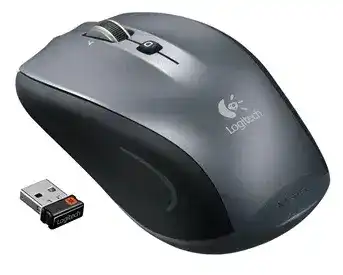
A cursor that disappears after sleep, a receiver that works only after being unplugged, or a wheel that no longer changes scroll mode can make the Logitech Couch Mouse M515 Driver page more useful than a plain download link. This mouse is an older 2.4 GHz Logitech Unifying model built for sofa, bed, carpet, and desk use, so the repair path should begin with the receiver, hand detection, batteries, and scroll-wheel behavior.
The M515 is not a Bluetooth mouse and it does not use Logi Bolt. It connects through a Logitech Unifying USB receiver, runs on two AA batteries, includes receiver storage inside the mouse, and has an on and off switch. Its unusual couch design also matters because the mouse becomes active only when your hand grips it, which can confuse testing when the device is sitting untouched on a desk.
Windows, macOS, Linux, and ChromeOS may load standard pointer movement when the receiver is recognized. Logitech software becomes useful when you need to re-pair the Unifying receiver, recover a lost pairing, restore wheel tilt behavior, change middle-click functions, or correct a software detection problem after an operating system update.
Logitech Couch Mouse M515 Windows Driver Download
| Driver Name | Description | Supported OS | File Size | Download |
|---|---|---|---|---|
| Logitech Unifying Software | Utility for adding or removing compatible Logitech Unifying receiver devices on supported Windows systems. | Windows 11, Windows 10 32-bit/64-bit | 3.96 MB | |
| SetPoint 32-bit Software | Full 32-bit SetPoint package for offline setup with mouse button settings, tracking speed, and device-specific controls. | Windows 11, Windows 10 32-bit, Windows 8 32-bit, Windows 7 32-bit | 78.04 MB | |
| SetPoint 64-bit Software | Complete 64-bit SetPoint installer for offline installation with hot-key control, battery status, and lock-key notifications. | Windows 11, Windows 10 64-bit, Windows 8 64-bit, Windows 7 64-bit | 80.45 MB | |
| SetPoint Smart Installer | Small SetPoint web installer for mouse settings and device options; internet access is required during installation. | Windows 11, Windows 10 32-bit/64-bit, Windows 8 32-bit/64-bit, Windows 7 32-bit/64-bit | 4.61 MB |
Unifying Pairing Problems That Look Like a Dead Mouse
The strongest failure pattern with this model is simple: the receiver is present, the batteries are changed, but the pointer still refuses to move. For the M515, the receiver is part of the real driver story. A working USB port alone does not prove that the mouse and receiver still share the same pairing.
Receiver works after unplugging and reconnecting
When the M515 wakes from sleep or an older computer resumes from standby, the Unifying receiver may need a USB reset. Remove the receiver, wait a few seconds, plug it back into a direct USB port, then grip the mouse and move it. This quick test separates a sleeping receiver from a failed mouse.
If that brings the pointer back every time, install the Logitech Couch Mouse M515 Driver package that includes the Unifying pairing utility rather than only relying on the operating system. The utility can rebuild the connection without replacing the mouse, and it also confirms whether the receiver can still see the M515.
Lost receiver or mixed Logitech dongles
The M515 should be paired with a compatible Logitech Unifying receiver. A different small Logitech receiver may fit the USB port and still be wrong for this model. Look for the Unifying type before spending time on Windows settings, because a non-matching receiver will never behave like a normal replacement.
If the original receiver is missing, pair the M515 to another compatible Unifying receiver with Logitech Unifying Software. Turn the mouse off when the utility asks, turn it on again, and keep your hand on the shell while testing movement. The hand-detection design can make the pairing screen look stuck if the mouse is not being held.
Receiver detected but Logitech software cannot find the mouse
Old Logitech entries can leave Windows with a stale USB input profile. Remove inactive Logitech input devices from Device Manager only when the receiver continues to appear but the utility cannot complete pairing. Restart after cleanup, plug in the Unifying receiver again, then run the pairing tool once.
Avoid stacking several Logitech apps while troubleshooting. For this older model, the useful tools are the Unifying utility and the older mouse control software that matches the download package. Installing every current Logitech app often adds confusion without adding support for the M515.
Logitech Couch Mouse M515 Software for Wheel Modes and Tilt Actions
The scroll wheel on this model is more than a plain wheel. Pressing the wheel changes between faster scrolling and more controlled line-by-line scrolling. Tilting the wheel left or right can act as Internet back and forward on Windows, while macOS handles those tilt actions differently through system assignments.
Fast scroll feels loose or page movement is too sensitive
If a page flies too far with a small wheel movement, press the wheel once before changing drivers. The M515 uses a wheel button to switch scroll feel, so a mode change can look like a driver fault. Test scrolling in a browser and in a document after the wheel press.
When the wheel still scrolls in the wrong direction, jumps back, or ignores small movement, check both software and hardware. Turn off any operating-system smooth-scroll option that makes the response feel delayed. If the wheel has dust around it, clean around the opening gently without spraying liquid into the shell.
Middle click opens nothing
The wheel also acts as a middle button. In many browsers, middle click opens a link in a new tab, so that is a quick practical test. If scrolling works but middle click does not, change the assigned function in Logitech mouse software before assuming the wheel switch has failed.
A hard or inconsistent middle click often comes from wear rather than the download package. Software can restore a missing assignment, but it cannot repair a worn wheel switch. If the click needs unusual force on every computer, treat that as a hardware symptom.
Back and forward tilt behave differently on Mac
The wheel tilt feature is useful, but it is not identical across systems. On Windows, it can behave like browser back and forward. On Mac, the Internet back and forward feature is not handled the same way, so assign the tilt actions through available mouse or system controls instead of reinstalling repeatedly.
Use the Logitech Couch Mouse M515 Driver only where it gives access to the older control panel or pairing tool. If the Mac already tracks, scrolls, and clicks, the remaining tilt behavior may depend on system-level shortcuts rather than a missing low-level driver.
Tracking on Fabric, Desk Surfaces, and the Hand Detection Sensor
The M515 was made for soft surfaces, but that does not mean every blanket, shiny table, or loose cushion gives the same pointer response. Its sealed underside helps it slide across fabric and keeps lint away from the sensor area, yet the tracking still depends on contact, surface texture, and wireless timing.
Pointer moves only while the mouse is gripped
This is normal for the M515. The hand-detection sensor keeps the mouse active when you hold it and helps it sleep when you are not using it. During testing, do not place it on the table and push it with one finger from the side. Hold it normally, then test movement.
That design can also explain wake complaints. If the pointer appears dead after a pause, grip the shell, move it on a firm surface, and then check the receiver. A normal wake delay is different from a lost Unifying pairing, so test the physical grip before changing software.
Fabric tracking skips or drags
A couch cushion can sag under the mouse and make the pointer wander, even though the M515 was built for soft places. Use a flatter section of fabric, a book, or a firm pad when the cursor jumps. The sealed base helps with lint, but it cannot remove every surface problem.
If the pointer behaves well on a desk but not on bedding, the driver is not the main fault. Smooth blankets, deep carpet fibers, and loose fabric can reduce control. Keep the underside clean, avoid pressing the mouse into soft material, and compare movement on two different surfaces.
Cursor lag near TV boxes, hubs, or crowded USB ports
The M515 uses a 2.4 GHz wireless link through its Unifying receiver. When the receiver sits behind a tower, next to a crowded hub, or near other wireless devices, the pointer may hesitate. Change to another direct USB port and keep the receiver away from thick metal panels where possible.
A short USB extension can also help when the computer sits far from the couch. Place the receiver where the wireless path is not blocked, then test the pointer before changing speed settings. If the lag vanishes after receiver placement changes, leave the software alone.
Battery, Power Switch, and Red Light Warnings
The M515 uses two AA batteries, and its battery light turns red when only a small amount of battery life remains. A red light is not a driver message. It is a power warning, and it should be handled before pairing, button control, or wheel settings are changed.
Open the battery area, check both AA cells, and make sure the contacts are clean and not flattened. If the mouse was stored for a long time with batteries inside, inspect for leakage or dull contact points. Clean only with safe, dry contact care and do not scrape the terminals aggressively.
The power switch matters on this model because the hand-detection feature can make the mouse look asleep even when it has power. Turn the switch off, wait briefly, turn it back on, then hold the mouse normally. This small reset often gives better information than another download attempt.
When battery changes do not help, test the Unifying receiver on another computer with the pairing utility. If the receiver is recognized there, the first computer may have a USB driver or software conflict. If neither computer sees the receiver, replacing or re-pairing the compatible Unifying receiver becomes the next practical move.
Where the Driver Download Fits After the Hardware Checks
The Logitech Couch Mouse M515 Driver should be used after the obvious physical checks: two good AA batteries, power switched on, the mouse held normally, and the Unifying receiver tested in a direct USB port. Installing software before these checks can hide the real fault.
Download the package that matches the operating system and the purpose. Use the Unifying utility when the receiver and mouse need pairing. Use compatible Logitech mouse software when wheel tilt, middle click, or scroll behavior needs adjustment. Standard pointer movement may work without extra software once the receiver is properly recognized.
Do not add Bluetooth instructions, Bolt tools, gaming software, charging fixes, or USB-C checks to this model. They do not match the M515 hardware. Keeping the repair path limited to Unifying pairing, AA battery power, hand detection, fabric tracking, and wheel controls makes the page more accurate.
Finish with the receiver, grip, and wheel tests
After installation, confirm the M515 in a practical order. Grip the mouse, move it on a firm surface, test left and right click, press the wheel to change scroll feel, then tilt the wheel in a browser or assigned system action. This proves more than a device name in a settings window.
If the pointer works but special controls do not, reopen the matching Logitech control software and review the wheel assignments. If nothing works, return to the Unifying receiver and battery contacts. For this couch-focused Logitech model, those two areas solve more real failures than repeated driver reinstalling.