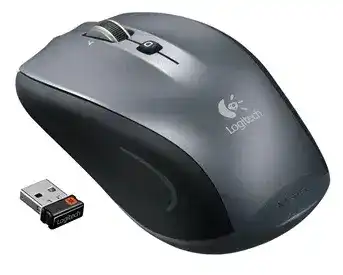
Here you will get the latest Logitech Couch m515 driver and software that support Windows OS.
Logitech Couch m515 Mouse Windows Driver Download
SetPoint
SetPoint lets you customize your mouse buttons, keyboard F-keys and hot-keys, control tracking speed, and configure other device-specific settings. It can also notify you of your device’s battery status, and whether Caps Lock and Num Lock are on.
Smart Installer – Faster setup time, installation starts while components are downloading. Internet connection required during installation. If you’re having trouble with the Smart Installer, try downloading the Full Installer package.
Supported OS: Windows 7 (32-bit ,64-bit) Windows 8 (32-bit ,64-bit) Windows 10 (32-bit ,64-bit)
Logitech Couch m515 Mouse SetPoint Smart Installer
(3.51 MB)Full Installer – Full-sized download, contains the files for all supported devices. Lets you install offline.
Logitech Couch m515 Mouse SetPoint full Installer for windows 32-bit
(75.82 MB)Logitech Couch m515 Mouse SetPoint full Installer for windows 64-bit
(77.85 MB)Flow Scroll
The Logitech Flow Scroll plug-in provides a smooth scrolling experience when you browse the web using Internet Explorer 8, Internet Explorer 9, Firefox 6 and later, and Chrome 14 and later. For Windows 7 only.
Smart Installer – Faster setup time, installation starts while components are downloading. Internet connection required during installation. If you’re having trouble with the Smart Installer, try downloading the Full Installer package.
Logitech Couch m515 Unifying software for windows
(3.92 MB)Full Installer – Full-sized download, contains the files for all supported devices. Lets you install offline.
Logitech Couch m515 Unifying software for windows
(17.38 MB)Onscreen Keyboard
The Logitech Onscreen Keyboard is a virtual keyboard that enables you to enter text using your mouse. It is intended for entering brief phrases, such as search terms and URLs, in situations when a physical keyboard is not available. For example, you can sit on your couch and use a cordless mouse to enter text when your laptop is connected to a TV across the room.
Logitech Couch m515 Onscreen Keyboard for windows
(1.03 MB)Unifying Software for Windows
Logitech Unifying software lets you manage your devices that use a Unifying receiver. You can add or remove devices using the software’s wizard or use advanced mode. Advanced mode also displays the status of your paired devices, battery level and firmware version.
Logitech Couch m515 Onscreen Keyboard for windows
(3.96 MB)The Logitech Unifying app for Chrome lets you manage your devices that use a Unifying receiver.
Logitech Couch m515 Unifying for Chrome
(52.58 kB)The Logitech M515 driver is essential for ensuring that your Logitech M515 wireless mouse operates seamlessly across various operating systems, including Windows 7, Windows 8, and Windows 10. This driver package is designed to maximize the performance of your device by enabling full functionality of all buttons and features. Users can expect enhanced cursor control, accurate tracking, and customizable settings. Additionally, the software often includes advanced features such as battery life monitoring and easy switching between devices. Compatibility with the latest mouse software updates ensures optimal support and functionality for any range of tasks, from basic browsing to complex graphic design applications.
Download Logitech M515 Driver and Software Download Software
The necessary software for the Logitech M515 is available for different operating systems, ensuring users can utilize its full capabilities. The installation package typically contains the essential drivers and utility software needed for configuration. To ensure proper operation, it’s vital to have the correct version that corresponds with your operating system. Always check to see that you are selecting the appropriate software designed explicitly for Windows 7, Windows 8, or Windows 10, which enhances compatibility and performance.
How to install Logitech M515 Driver and Software Download Software on Windows and Mac OS?
Installing the Logitech M515 driver on your system is a straightforward process that varies slightly between Windows and Mac OS. For both platforms, the first step is to locate the installer file that you have saved on your computer. Once found, you will proceed to run the installer followed by following the on-screen prompts to complete the installation. Settings may require adjustment to customize the functionality of the mouse to your preferences. On Windows, user permissions might be prompted during installation, while Mac users may need to reconfigure system preferences post-installation to fully utilize the device’s features.
Installing Logitech M515 Driver and Software Download Software on Windows
- Locate the downloaded installer file on your computer. Typically, it resides in the Downloads folder.
- Run the installer executable by double-clicking on it to initiate the setup process.
- Follow the installation wizard, which will guide you through the setup steps. Accept the license agreement when prompted.
- Configure any additional settings as requested during installation, ensuring preferences align with your usage needs.
- Restart your computer if required, to finalize the installation and enable all features.
- Verify the installation by checking if all mouse functions operate correctly according to your configurations.
Installing Logitech M515 Driver and Software Download Software on Mac OS
- Open the downloaded file by navigating to your designated folder and double-clicking the installer icon.
- Follow the on-screen instructions carefully, accepting any terms and conditions to proceed with the installation.
- Adjust any additional configuration settings as necessary to align with how you plan to use the mouse.
- Close any other running applications during installation to avoid conflicts and ensure smooth operation.
- Check system preferences after installation to enable additional features or customize settings specific to your usage.
Why choose our website for Logitech M515 Driver and Software Download Drivers Downloads?
Our website is committed to providing reliable access to the latest Logitech M515 driver updates, ensuring optimal performance for your mouse. Users can benefit from easily navigable content and direct access to comprehensive resources, including detailed installation guides and troubleshooting tips. We prioritize user experience by focusing on clear and concise information that helps users quickly resolve any setup or operational issues. Additionally, our platform is designed with user feedback in mind, facilitating enhancements and updates that reflect current user needs and technological advances.
Uninstalling the Logitech M515 Driver and Software Download Driver and Software
Uninstalling the Logitech M515 driver can resolve any operational issues or conflicts with newer versions. On Windows, navigate to the Control Panel, select ‘Programs and Features,’ and locate the Logitech software in the list. Right-click and choose the ‘Uninstall’ option, following the prompts to complete the process. For Mac OS, open Finder, go to the Applications folder, locate the Logitech software, and drag it to the Trash. Ensure any residual files are also removed for a clean uninstall. Restart your computer after the process to ensure all changes are applied effectively.
Conclusion about Logitech M515 Driver and Software Download Driver
Technical challenges can often arise when using the Logitech M515 driver, such as unresponsive buttons or connectivity issues. To troubleshoot, consider these resources:
- User Manual: Provides comprehensive setup and operational guidance.
- Troubleshooting Guide: Offers step-by-step solutions for common problems.
- Community Forums: Connect with other users for shared solutions and experiences.
Effective mouse accuracy enhances your overall computing efficiency. Regularly check system preferences and adjust settings to suit your workflow, ensuring your Logitech M515 continues performing optimally over time.