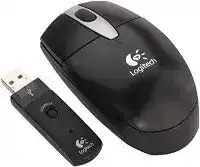
A pointer that remains still after the receiver connects usually points to a lost wireless link rather than a failed USB port. The Logitech Cordless Optical Mouse Driver supplies the legacy software needed for detection, wheel behavior, and standard button control on compatible Windows systems. This model uses a dedicated radio-frequency receiver, optical tracking, a scroll wheel, and two AA batteries. It does not pair through Bluetooth or a modern Unifying receiver.
Modern Windows versions can often load ordinary HID support without extra software. That basic connection may restore left-click, right-click, pointer movement, and vertical scrolling. The downloadable package becomes more useful when the computer shows an unknown device, the receiver and mouse no longer communicate, or an older application expects Logitech control software.
Logitech Cordless Optical Windows Driver Download
| Driver Name | Description | Supported OS | File Size | Download |
|---|---|---|---|---|
| Logitech MouseWare | Provides Windows mouse configuration controls for supported Logitech Cordless Optical devices. | Windows | 4.07 MB |
Logitech Cordless Optical Mac OS Driver Download
| Driver Name | Description | Supported OS | File Size | Download |
|---|---|---|---|---|
| Logitech Control Center | Manages mouse buttons, scrolling behavior, and device-specific controls on compatible Mac systems. | Mac OS X 10.13.x | 16.63 MB | |
| Logitech Control Center | Adjusts supported mouse functions and application-based button actions within Mac OS X. | Mac OS X 10.11.x | 17.06 MB | |
| Logitech Control Center | Configures pointer controls, scrolling preferences, and available button assignments for the connected mouse. | Mac OS X 10.7.x | 17.73 MB | |
| Logitech Control Center | Adds access to compatible Logitech mouse settings and basic device customization options. | Mac OS X 10.5.x | 18.7 MB | |
| Logitech MouseWare | Supplies legacy Mac mouse controls for button functions, pointer movement, and supported device settings. | Mac OS | 3.75 MB |
Reconnect the original receiver and mouse
Older Logitech cordless products commonly have connection buttons on the receiver and the underside of the mouse. Plug in the receiver, wait for Windows to finish detecting it, and then press its Connect button. Press the mouse connection button shortly afterward. The order matters because the receiver listens for the device only during a brief connection period.
Do not substitute a modern Unifying or Bolt dongle. Those receivers use different pairing systems and cannot replace the dedicated receiver supplied with this older cordless model. A receiver from another early Logitech set may also look similar while using a different channel or product identity. Keep the matching mouse and receiver together whenever possible.
The receiver appears but the pointer stays still
Remove both batteries for about thirty seconds before trying the connection sequence again. This clears the mouse’s temporary power state and gives the electronics a complete restart. Reinsert the cells according to the polarity marks, switch the mouse on when an underside switch is present, and repeat the receiver-to-mouse connection process.
Windows may recognize the USB receiver even when the radio link has failed. Check whether the receiver indicator reacts when you click or move the mouse. No reaction usually means the wireless connection or battery supply needs attention. A responding indicator with no cursor movement suggests an operating-system or optical-sensor problem instead.
Restore the Legacy Logitech Cordless Optical Mouse Software
The Logitech Cordless Optical Mouse Driver should match both the Windows version and system architecture listed beside the download. Older SetPoint releases may provide control for supported legacy hardware, while very early units originally used Logitech MouseWare. Install only the package supplied for this product page rather than adding several generations of Logitech utilities at once.
Close active programs before installation and disconnect the receiver only when the installer requests it. After the package finishes, restart Windows and reconnect the receiver directly to the computer. The restart lets Windows rebuild the HID entries and load any Logitech components that did not become active during the first installation session.
Windows lists an unknown USB device
Move the receiver to another direct USB port before changing software. Avoid an unpowered hub, monitor port, keyboard socket, or loose extension lead during this test. Older receivers can behave unpredictably when a shared hub supplies weak power or repeatedly resets the USB connection. A port on the computer gives a clearer diagnosis.
When every port shows the same unknown-device message, remove that failed entry through Device Manager and restart the computer. Reconnect the receiver after Windows returns to the desktop. The operating system should create a new HID record instead of continuing to reuse the damaged or incomplete entry from the previous connection.
SetPoint opens without finding the mouse
A working pointer does not always mean that SetPoint can identify the exact hardware. Windows may operate the device through its standard mouse class while the Logitech panel shows nothing. Confirm that the installed SetPoint release still covers legacy cordless devices, then reconnect the receiver and restart the Logitech service by rebooting Windows.
Remove a newer Logitech control application when it competes with the older package. Options and Options+ target later product families and do not add modern features to this mouse. Keeping several utilities can create duplicate startup services without improving detection. Retain the package that recognizes the model and uninstall unrelated Logitech mouse software.
The installer fails on a newer Windows release
Legacy packages may reject an operating system released long after the mouse. First test the receiver with the standard Windows HID driver because basic movement, clicking, and wheel input may work without SetPoint. Do not force an unsupported installer merely to gain ordinary pointer functions that Windows already handles on its own.
When the download officially lists the installed Windows version, right-click the installer and run it with administrator permission. Clear an incomplete previous installation before trying again. Security software may also block an old setup file, so verify that the download came from the expected package on this page rather than disabling protection for an unknown file.
Fix Delayed Movement, Dropouts, and Optical Tracking
A software reinstall will not correct every wandering or frozen pointer. The Logitech Cordless Optical Mouse Driver can manage supported controls, but physical receiver position, battery voltage, desk material, and radio noise still determine how consistently this early cordless design responds. Test one factor at a time so that a temporary improvement does not hide the actual cause.
Movement becomes jerky near the computer
Place the receiver away from large metal surfaces, stacked cables, external drives, and wireless equipment. A receiver hidden behind a metal computer case may lose more signal than one placed in an open position. A short USB extension cable can improve placement, provided the cable and port maintain a firm electrical connection.
Test the mouse close to the receiver before assuming the sensor has failed. Smooth movement at a shorter distance points to radio conditions rather than damaged optics. Nearby cordless equipment can also occupy similar frequencies, especially with older wireless products. Temporarily turn off nearby devices and repeat the test to identify local interference.
The cursor jumps on a shiny desk
The optical sensor needs a surface with enough visible texture to measure movement. Glass, polished stone, mirrors, and glossy patterns may produce sudden jumps or leave the pointer stationary. Use a plain, non-reflective mouse pad for comparison. Clean the sensor window gently with a dry soft swab and remove any hair crossing the opening.
Do not apply liquid directly to the optical window. Moisture can leave residue or enter the body. When the cursor still moves erratically on a suitable pad and another computer shows the same symptom, the sensor or internal electronics may have reached the end of their service life.
The mouse stops after sitting idle
This cordless design reduces power use when it remains inactive. A brief movement or click should wake it, but weak batteries can make the wake response slow or inconsistent. Remove the cells, inspect the contacts, and install two matching AA batteries. Avoid mixing different brands, charge levels, or battery chemistries in the same device.
Light surface corrosion can interrupt power even when a battery tester shows usable voltage. Wipe accessible contacts with a dry lint-free cloth. Do not scrape deeply or bend the metal tabs. If a contact no longer presses firmly against the battery terminal, intermittent power can resemble receiver failure or a software crash.
Correct Wheel and Click Problems Before Replacing Hardware
The Logitech Cordless Optical Mouse Driver may restore software-level wheel handling and button assignments, but it cannot repair worn switches or a contaminated wheel mechanism. Separate application behavior from hardware trouble by testing clicks and scrolling in more than one program. A symptom limited to one application usually comes from that program’s preferences rather than the mouse.
The wheel scrolls in only one direction
Close the affected application and check scrolling in Windows Settings, a browser, and a plain document. If every program behaves the same way, turn the mouse off, remove the batteries, and clear loose dust around the wheel with gentle air or a soft brush. Rotate the wheel while cleaning so debris does not remain on one side.
Do not pour cleaner through the wheel opening. Liquid may damage the encoder or leave sticky residue. Persistent reverse movement, missed steps, or scrolling without wheel rotation usually indicates encoder wear. Software can adjust the number of lines per notch, but it cannot correct unstable electrical pulses from a failing wheel assembly.
Single clicks become accidental double-clicks
Open the Windows mouse controls and lower the double-click speed enough to test deliberate clicks comfortably. An excessively fast setting can make normal use feel inconsistent, although it rarely creates repeated clicks from one physical press. Check several folders or buttons before deciding whether the setting changed the symptom.
When one press repeatedly opens files twice on another computer as well, the internal switch is probably worn. Reinstalling the Logitech package will not repair that mechanical contact. Replacement of the mouse is the safer choice unless a qualified repair technician handles the switch, soldering, and reassembly.
Middle-click works in one program but not another
The scroll wheel also acts as the third button. Some applications assign their own action to that click, while others ignore it. Test middle-click in a browser tab or another program that clearly uses the function. Review the application’s shortcut settings before changing the global Windows mouse configuration.
If SetPoint recognizes the device, confirm that the wheel button has not received an application-specific command. Return it to the standard middle-button action and restart the affected program. When the click fails everywhere but scrolling remains normal, the wheel switch may have worn independently from the rotary encoder.
Use the download only after the hardware checks
Install the Logitech Cordless Optical Mouse Driver after confirming that the two AA batteries, original receiver, USB connection, and optical surface are sound. That order prevents repeated software changes from masking a weak power contact or broken wireless link. It also makes the final result easier to judge after Windows restarts.
Keep the dedicated receiver with this mouse, place it where the radio path remains open, and use one compatible Logitech package rather than several overlapping utilities. If movement and clicks fail on a second computer after reconnecting the receiver and changing batteries, the fault is probably inside the mouse or receiver rather than Windows.