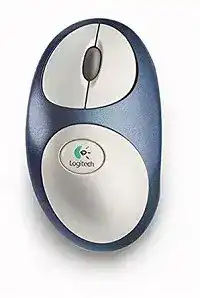
A cursor that stays still while the optical light remains active usually points to the radio link rather than the sensor. The Logitech Cordless MouseMan Optical Mouse Driver adds MouseWare controls on compatible older systems, but software cannot communicate until the mouse and its original cordless receiver share a channel. Restoring that link should come before changing pointer options or reinstalling files.
This model predates Bluetooth, Unifying, Logi Bolt, and today’s compact nano receivers. It uses Logitech’s earlier digital radio system with a separate desktop receiver and an operating range of roughly six feet. Keep the matching receiver with the mouse because a modern Logitech dongle cannot replace it merely because the brand name is the same.
Logitech Cordless MouseMan Windows Driver Download
| Driver Name | Description | Supported OS | File Size | Download |
|---|---|---|---|---|
| Logitech MouseWare | Provides mouse button controls, pointer settings, and device configuration for compatible Windows systems. | Windows | 4.07 MB |
Logitech Cordless MouseMan Mac OS Driver Download
| Driver Name | Description | Supported OS | File Size | Download |
|---|---|---|---|---|
| Logitech Control Center | Manages mouse buttons, tracking behavior, scrolling, and model-specific controls on Mac OS X 10.13.x. | Mac OS X 10.13.x | 16.63 MB | |
| Logitech Control Center | Adjusts button assignments, pointer movement, scrolling preferences, and supported mouse functions on Mac OS X 10.11.x. | Mac OS X 10.11.x | 17.06 MB | |
| Logitech Control Center | Configures mouse controls, cursor response, wheel operation, and available device settings on Mac OS X 10.7.x. | Mac OS X 10.7.x | 17.73 MB | |
| Logitech Control Center | Enables compatible button functions, movement settings, and scrolling adjustments on Mac OS X 10.5.x. | Mac OS X 10.5.x | 18.7 MB | |
| Logitech MouseWare | Adds button assignment and mouse behavior controls for classic Mac OS releases from 8.6 through 9.2.x. | Mac OS 8.6, Mac OS 9.2.x | 3.75 MB |
The receiver is connected but the pointer never moves
Reset synchronization instead of repeatedly restarting the computer. Remove both batteries from the mouse, then hold the receiver’s Connect button for about fifteen seconds. Reinsert the batteries and press the Connect button on the mouse. This sequence clears the receiver’s previous channel state and gives the two parts another chance to recognize each other.
Watch what happens immediately after synchronization. A brief sensor response followed by normal movement means the radio path has returned. When the light reacts but the cursor remains fixed, place the receiver beside the mouse and repeat the process. Failure at very close range suggests depleted batteries, an incompatible receiver, or aging radio hardware.
A replacement receiver will not pair
Receiver compatibility is unusually important with this generation. Logitech sold several cordless systems that looked similar but used different model numbers, frequencies, and channel arrangements. A receiver from another old MouseMan package may still be unsuitable. Check the model markings beneath both pieces rather than choosing a replacement by shape, plug, or case color.
Do not run Unifying Software, the Logi Bolt app, or a Bluetooth pairing screen for this mouse. None of those tools communicates with its original radio system. When the matching receiver has been lost, locating the exact compatible legacy part is generally more practical than trying current pairing utilities.
The connection works only beside the receiver
Start by reducing the distance and clearing objects from the immediate area. The radio signal does not need direct visual contact, but a metal computer case, cable bundle, monitor base, or crowded desk can weaken an already marginal link. Set the receiver in an open position and keep it within the product’s intended range while testing.
Other cordless equipment can add interference, particularly when several older Logitech devices operate in one room. Synchronize the MouseMan again so it can establish another available channel. If the cursor improves after nearby wireless equipment is switched off, restore those devices one at a time and rearrange their receivers rather than stacking them together.
MouseWare and the Limits of a Modern Operating System
The Logitech Cordless MouseMan Optical Mouse Driver originally arrived through Logitech MouseWare. That package supplied button assignments, pointer controls, scrolling preferences, and a battery-status display. Its value is greatest on operating systems from the mouse’s own period. A current Windows installation may provide basic pointer functions while refusing the old MouseWare installer or omitting its custom controls.
Windows detects a mouse but MouseWare does not
Confirm that clicking, movement, and wheel input work before diagnosing the control panel. When those functions respond, Windows has already loaded standard mouse support. MouseWare may fail separately because the release is too old for the operating system. Compatibility mode sometimes starts an installer, but it does not guarantee that its background service will function afterward.
Remove partially installed MouseWare copies before trying another version. Several old releases can leave competing control-panel entries and startup components. Restart after removal, reconnect the receiver, and test the standard Windows mouse settings first. Keep legacy software only when it installs cleanly and provides a control that the system cannot supply itself.
The side control has no assigned action
The sculpted MouseMan design includes an additional thumb control beyond the usual primary buttons and wheel. Standard operating-system support may leave that control inactive or assign a basic action. MouseWare was the original route for changing its function, so a missing assignment on a newer computer may reflect software age rather than a broken switch.
Test the control in several programs before changing anything. Older applications sometimes interpret extra mouse input differently, while newer software may ignore the legacy button message. If MouseWare runs on the target system, assign a simple command and reopen the application. When the button fails on another compatible computer as well, mechanical wear becomes more likely.
The battery indicator is missing
Battery reporting belonged to MouseWare and does not necessarily appear in today’s system menus. The absence of an on-screen level does not stop the mouse from operating. Judge power condition from connection stability, pointer response, and a direct battery test rather than searching for a modern Logitech application that never supported this model.
A legacy MouseWare release may restore the indicator on a period-correct computer. On a newer installation, replacing both cells together is usually a safer diagnostic step. Avoid mixing an older battery with a newly purchased one because the weaker cell can pull the pair below the radio’s working voltage.
Power Behaviour That Can Be Mistaken for Failure
The Logitech Cordless MouseMan Optical Mouse Driver does not keep the sensor at full brightness continuously. The mouse uses several power modes and changes optical activity as it sits unused. A dim or inactive light during rest can therefore be normal. Move the mouse firmly before assuming that it has shut down or lost its software.
New batteries produce only a brief flash
Check the polarity marks inside the compartment and confirm that both AA cells sit firmly against their contacts. A battery can look correctly placed while one end rests beside a terminal instead of against it. Remove the pair, inspect the springs for dirt or corrosion, and wipe accessible surfaces with a dry lint-free cloth.
After reinserting the cells, synchronize the receiver again. Removing power can break the established radio association on older cordless hardware. If the sensor flashes but never changes when the mouse moves, try another matched pair from a known working device. A package marked new can still contain a weak or damaged cell.
Battery life has become much shorter
The original design managed power automatically and was promoted for extended operation from two standard AA batteries. Severe drain after many years can come from poor contacts, batteries of unequal condition, or electronics that no longer enter their lower-power modes correctly. Confirm the symptom with a matched alkaline pair before blaming software.
Observe whether the optical light changes after the mouse remains untouched. Constant high activity may indicate that vibration, a moving patterned surface, or internal deterioration keeps waking the sensor. Store the mouse on a steady desk and remove the batteries during lengthy periods without use. This model has no rechargeable system that benefits from remaining connected.
The pointer takes a moment to respond after resting
A short wake delay fits the mouse’s staged power management. Move it slightly and allow the radio link to resume before pressing several buttons. Repeated input during that pause can make the delay feel worse. A long wait, frequent loss of synchronization, or the need to reconnect every time is not normal and deserves a battery and receiver check.
Tracking, Scrolling, and Clicking Without Guesswork
Optical hardware removed the roller ball and much of the cleaning associated with older mechanical mice, yet surface choice still changes pointer behaviour. The Logitech Cordless MouseMan Optical Mouse Driver can alter speed and acceleration, but it cannot recover detail that the sensor fails to read. Diagnose the desk surface before making aggressive software adjustments.
The cursor jumps or misses small movements
Place the mouse on plain matte paper and compare its response with the normal desk. Highly reflective material, clear glass, intense repeating patterns, and polished finishes can confuse an early optical sensor. Better movement on paper confirms a surface problem. Use a conventional mouse pad rather than increasing pointer speed to hide the skipped readings.
Low power can create a similar symptom, especially when the cursor first becomes uneven and then stops. Replace both batteries and retest near the receiver. If tracking remains erratic on a suitable surface at close range, clean dust from the sensor opening with a soft brush and check that no label or debris blocks the light path.
The wheel turns but the page does not scroll
Try the wheel in another program first. An individual application can disable scrolling, capture the pointer, or use its own navigation controls. When every window ignores the wheel, inspect the gap around it for hair and compacted dust. Use short bursts of air or a soft brush without forcing liquid into the housing.
MouseWare scrolling options may also conflict with software that expects ordinary wheel messages. Return unusual scrolling assignments to a standard setting and restart the affected program. If the wheel click still works while rotation never registers on a second computer, the internal encoder may be worn rather than misconfigured.
One press opens items twice
Move the operating system’s double-click speed toward its middle position and test with folders or icons. An extreme threshold can make a deliberate single action difficult to distinguish from two presses. This adjustment changes timing only; it will not cure a switch that electrically bounces after years of use.
Compare the left and right controls, then try the mouse on another compatible system. Repeated double input from one physical button across both computers indicates wear inside that switch. Reinstalling MouseWare will not alter the mechanical contact, although swapping primary-button roles can provide a temporary diagnostic comparison.
Decide Whether the Fault Follows the Mouse or the Computer
Use a period-compatible computer when possible for the final comparison. Connect the original receiver, insert a tested AA pair, perform the full synchronization sequence, and work within a short distance. Check all primary clicks, the thumb control, wheel rotation, wheel press, optical tracking, and recovery after several minutes of inactivity.
When the complete Logitech Cordless MouseMan Optical Mouse Driver package works on that computer, the difficulty on a newer machine comes from operating-system compatibility rather than the radio hardware. Basic movement may still remain possible through standard mouse support, even when MouseWare customization does not.
Failure on two computers after battery, channel, surface, and receiver checks changes the diagnosis. At that point, the most likely causes sit inside the aging mouse or its matched receiver. Keeping the original pair together matters more than searching for a current utility, because this early cordless system depends on its own receiver generation and synchronization method.