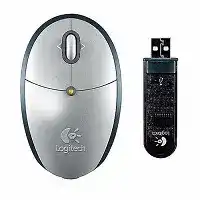
A tiny receiver that sits in a laptop bag, a single AA battery that drops power, or a tilt wheel that scrolls only up and down can make the Logitech Cordless Mini Optical Mouse Driver worth checking carefully. This compact Logitech mouse uses RF wireless with a USB mini-receiver, optical tracking, one AA battery, a battery indicator, and a tilt wheel with side-to-side scrolling plus zoom support.
The model is a portable USB receiver mouse, not a Bluetooth mouse. That matters because pairing through Windows Bluetooth will never find it. The computer needs the matching USB mini-receiver first, then Logitech mouse software can handle the wheel and extra functions that basic Windows detection may leave limited.
Many problems start after the receiver has been carried separately, stored inside the mouse, or moved between laptops. A normal pointer may work for a while, then stop after the notebook wakes. In other cases, the wheel scrolls vertically but ignores sideways movement because the software layer no longer controls the tilt functions.
Logitech Cordless Mini Optical Mouse Windows Driver Download
| Driver Name | Description | Supported OS | File Size | Download |
|---|---|---|---|---|
| SetPoint Full Installer 64-bit | Full SetPoint package for offline setup with mouse button settings, tracking speed, and device-specific options. | Windows 64-bit | 77.85 MB | |
| SetPoint Full Installer 32-bit | Offline SetPoint installer for 32-bit Windows with battery status, hot-key settings, and mouse configuration controls. | Windows 32-bit | 75.81 MB | |
| SetPoint Smart Installer | Small SetPoint installer for mouse settings and device options; internet access is required during installation. | Windows | 3.5 MB | |
| Flow Scroll Full Installer | Full Flow Scroll installer for adding smoother scrolling behavior on supported Logitech mouse setups. | Windows | 17.38 MB | |
| Flow Scroll Smart Installer | Compact Flow Scroll installer for supported scrolling features, intended for online installation. | Windows | 3.91 MB |
Logitech Cordless Mini Optical Mouse Mac OS Driver Download
| Driver Name | Description | Supported OS | File Size | Download |
|---|---|---|---|---|
| Logitech Control Center | Mac Control Center software for configuring supported Logitech mouse buttons and device-specific settings. | Mac OS X 10.13.x | 16.63 MB | |
| Logitech Control Center | Control Center package for Mac mouse customization, including button behavior and supported device options. | Mac OS X 10.11.x | 17.06 MB | |
| Logitech Control Center | Mac software package for adjusting Logitech mouse controls and maintaining model-specific settings. | Mac OS X 10.7.x | 17.73 MB | |
| Logitech Control Center | Older Mac Control Center release for supported Logitech mouse setup and button configuration. | Mac OS X 10.5.x | 18.7 MB | |
| Connect Utility | Mac connection utility for pairing or restoring communication with the supported Logitech Cordless Mini receiver. | Mac OS X 10.4.x | 160.36 KiB |
The Mini-Receiver Is the First Part to Check
This mouse was made for travel, so the receiver design is part of the setup. The small USB receiver can snap into the mouse for transport. That storage feature helps prevent loss, but it also creates confusion when the receiver sits inside the mouse and the laptop has nothing plugged in.
The mouse has power but no cursor appears
Check the receiver before changing any driver file. Remove it from the storage slot and plug it into a direct USB port on the computer. Wait for Windows to detect the USB device, then turn the mouse over and make sure the power switch and battery compartment both look settled.
If the receiver has been inside the mouse for months, inspect the USB plug for dust or pocket debris. A small obstruction can stop full contact in the port. Try another port on the same computer before deciding that the mouse has failed.
A different Logitech receiver does not work
The Logitech Cordless Mini Optical Mouse Driver cannot make an unrelated receiver communicate with this mouse. Older Logitech RF receivers were not always interchangeable, and a receiver from a newer Logitech mouse should not be treated as a guaranteed replacement. The safest match is the original mini-receiver that came with this model.
When the computer detects a USB receiver but the pointer never moves, receiver mismatch becomes a serious possibility. Look for the exact receiver that belongs to the mouse, especially if several old Logitech devices share the same drawer.
The receiver works on a desktop but not on a laptop
Notebook USB ports can sit close to metal edges, docking hardware, and other wireless equipment. Plug the receiver directly into the laptop, not through a loose hub, during testing. If the mouse wakes only when very close to the receiver, the cordless link may have poor range from that position.
This compact model was advertised for short-range portable use, so desk layout matters. Keep the receiver within normal working distance and avoid placing the laptop behind thick monitor stands, external drives, or metal trays while testing movement.
Single AA Battery Issues That Look Like Software Failure
A one-battery travel mouse can behave strangely when voltage drops. The light may still appear, yet the pointer stutters, stops after idle time, or returns for a few minutes after the battery door is touched. Check power early because software cannot fix an unstable battery contact.
The battery indicator warns too often
The battery indicator gives a useful clue, but it cannot tell you whether the battery is old, mixed from another device, or making weak contact. Fit one known-good AA battery and avoid testing with a cell that has already powered a camera, toy, or remote control.
Remove the battery and check the printed polarity marks inside the compartment. Travel mice often get opened quickly, and one reversed cell ends the test before Windows or Logitech software has any role. Close the cover firmly after the new battery goes in.
The mouse cuts out when lifted
A loose battery cover can break power for a split second when the mouse is picked up or dropped into a bag. Hold the mouse still, move the pointer slowly, and then lift it slightly. If the cursor vanishes or pauses at that moment, inspect the battery door and spring contact pressure.
Clean light residue from the contacts with a dry cloth. Avoid scraping or bending the metal aggressively. If the battery shifts inside the compartment, the connection may fail even though the battery itself still has charge.
Wake from idle feels slow
Short wake delay can happen on cordless mice, but a long delay usually points to low power, USB sleep, or a receiver position issue. Change the AA battery first, then unplug and reconnect the mini-receiver after the computer is fully awake.
If the mouse returns after the receiver is reinserted, check laptop power settings for USB selective power behavior. Portable computers may reduce power to USB devices during sleep or battery-saving modes, which can make an older receiver slow to return.
Tilt Wheel and Zoom Controls Need the Right Software Layer
The compact wheel is not only for vertical scrolling. This model included tilt-wheel side-to-side scrolling and zoom support, which basic operating-system mouse handling may not expose. That is where the Logitech Cordless Mini Optical Mouse Driver matters most after the receiver and battery are stable.
Side-to-side scrolling does nothing
First test vertical scrolling in a plain document. If up and down scrolling works, the wheel is alive. Then open software that can use horizontal scrolling, such as a wide spreadsheet or a large image view, and test the tilt action. Some apps simply ignore side-to-side wheel commands.
Install the matching Logitech mouse software when the wheel only behaves like a basic wheel. After installation, restart the computer and check the mouse control panel for wheel options. Do not expect newer Logitech apps to support every older travel mouse feature.
Zoom works in one program but not another
Zoom behavior depends heavily on the active application. A picture viewer, browser, and office document may use different shortcuts. If zoom fails in one program, test another before changing the driver package. The button may send a command that the current app does not accept.
When Logitech software offers wheel assignments, choose one function and test it before changing the next. This avoids a common mistake: remapping several controls and then losing track of which change broke the original wheel behavior.
The wheel jumps or scrolls backward
Dust around a small wheel can cause jumpy scrolling. Turn the mouse off, remove the AA battery, and clear the wheel area with gentle air. Roll the wheel several times while the mouse has no power, then test it in a local settings window or document.
If cleaning improves the wheel for a short time but the problem returns, the wheel encoder may have wear. Software can change scroll speed and assignments, but it cannot rebuild worn internal contacts.
Optical Tracking Problems on Desks, Bags, and Small Workspaces
Because the mouse is small and travel-focused, people often use it on hotel desks, glossy tables, tray tables, or notebooks. Optical tracking can work well on many surfaces, but shine, glass, deep patterns, and dust near the sensor can make the pointer look unstable.
The pointer skips on glossy surfaces
Move the mouse to a plain matte mouse pad or a sheet of white paper. If the pointer becomes steady, the surface was the problem. Do not raise pointer speed to hide tracking trouble, because that usually makes small movements harder to control.
Clean the sensor window gently with a dry, lint-free cloth. A travel mouse can collect bag lint near the sensor opening, and that small amount of dirt can create uneven movement even when the battery and receiver are fine.
Small hand movements feel inaccurate
The compact shape can make the mouse easy to carry but harder to control for long sessions. Slow the pointer speed slightly in Windows and test short movements across icons or text. This helps separate sensor trouble from a grip issue caused by the small body.
If the pointer remains uneven after surface and speed changes, test the mouse on another computer with the same receiver and battery. A repeated problem across computers points back to the mouse, receiver, or power contact rather than the operating system.
Clicks work, but movement pauses
When clicks register but movement pauses, do not assume the driver has failed. The button switches may still respond while the optical sensor or RF link struggles. Check the sensor opening, receiver distance, and battery contact before reinstalling the Logitech Cordless Mini Optical Mouse Driver.
Also remove any heavy object near the receiver path during testing. Metal laptop stands, external drives, and thick USB docks can change the signal path enough to affect an older RF mouse.
Use the Download Only After the Hardware Path Looks Right
Driver work should come after the travel hardware checks. The Logitech Cordless Mini Optical Mouse Driver is useful for restoring the older mouse software layer, especially wheel tilt and zoom behavior, but it cannot replace a missing receiver, a weak AA battery, or a dirty optical sensor.
Start each test with the original mini-receiver, one fresh AA battery, and a plain surface. Then check vertical scrolling, tilt action, and zoom support in applications that actually respond to those commands. That order keeps the repair focused on the part that is failing.
For a compact cordless mouse, the small details matter more than a long reinstall cycle. Keep the receiver stored with the mouse, clean the wheel and sensor after travel, and use the Logitech utility only when the basic connection already works. That gives this older portable model the best chance of staying usable on a modern computer.