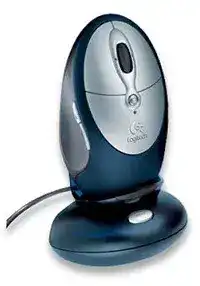
A mouse that runs briefly and then goes dark may have a charging problem rather than a software fault. The Logitech Cordless Click Plus Rechargeable Optical Mouse Driver manages its programmable controls, while the powered base station handles both wireless reception and battery charging. Check the stand, rechargeable cells, and contact points before changing software on the computer.
This older 27 MHz optical model uses its original receiver base instead of Bluetooth, a Unifying dongle, or a Bolt receiver. The base connects through USB or the supplied PS/2 adapter and also needs power from its AC adapter. Losing any part of that arrangement can leave the mouse unusable even when Windows still shows a pointing-device entry.
Logitech Cordless Click Plus Rechargeable Windows Driver Download
| Driver Name | Description | Supported OS | File Size | Download |
|---|---|---|---|---|
| SetPoint Software (64-bit) | Full offline package for configuring mouse buttons, tracking speed, hot-keys, device settings, and battery status. | Windows 11, Windows 10 64-bit, Windows 8 64-bit, Windows 7 64-bit | 80.45 MB | |
| SetPoint Software (32-bit) | Complete offline installer for adjusting button functions, pointer tracking, keyboard hot-keys, and device-specific controls. | Windows 11, Windows 10 32-bit, Windows 8 32-bit, Windows 7 32-bit | 78.04 MB | |
| SetPoint Smart Installer | Compact setup tool that requires an internet connection to download the necessary SetPoint components during installation. | Windows 11, Windows 10 32-bit/64-bit, Windows 8 32-bit/64-bit, Windows 7 32-bit/64-bit | 4.61 MB |
Logitech Cordless Click Plus Rechargeable Mac OS Driver Download
| Driver Name | Description | Supported OS | File Size | Download |
|---|---|---|---|---|
| Logitech Control Center | Manages mouse button assignments, scrolling behavior, pointer response, and model-specific controls on supported Mac systems. | Mac OS X 10.14, Mac OS X 10.13, Mac OS X 10.12, Mac OS X 10.11 | 16.89 MB | |
| Logitech Control Center | Provides access to programmable controls, cursor movement settings, scrolling adjustments, and connected mouse preferences. | Mac OS X 10.11, Mac OS X 10.10, Mac OS X 10.9, Mac OS X 10.8 | 17.06 MB |
The mouse does not charge in the stand
Seat the mouse fully in the cradle and watch for the charging indication. If nothing changes, lift it out and place it back with the rear contacts aligned against the stand. Years of desk dust can prevent a firm electrical connection. Wipe the exposed metal areas with a dry, lint-free cloth and check that neither contact remains stuck below its normal position.
Confirm that the AC adapter reaches the base and the wall socket supplies power. The receiver cable alone does not provide the complete charging arrangement on this model. Try another known-working outlet before blaming the rechargeable cells. A loose adapter plug at the rear of the station can also interrupt charging whenever the cable moves.
A full charge lasts only a short time
The original rechargeable batteries may no longer hold useful capacity after many charge cycles. Remove them and inspect the compartment for leakage, corrosion, or weakened springs. Replace both cells as a matched pair of rechargeable AA batteries with the polarity shown inside the compartment. Do not combine an old cell with a new one because the weaker battery will limit the pair.
Allow a newly fitted pair to charge completely before judging its runtime. If the mouse still stops quickly, test whether the cradle actually replenishes the cells. Batteries that work after charging in an external charger but fail after sitting in the Logitech stand point toward worn cradle contacts, a failing adapter, or damaged charging electronics.
The charging light stays on but the mouse remains dead
A light at the base confirms some electrical activity, but it does not prove that current reaches both batteries. Remove and reinstall the cells, making sure each end touches its terminal. Then use the underside power control and reconnect the wireless link. A mouse with charged batteries can still appear lifeless when it has lost synchronization with the receiver.
Restore the Original Base-Station Connection
The Logitech Cordless Click Plus Rechargeable Optical Mouse Driver cannot communicate through an unrelated modern Logitech dongle. This device was paired with a dedicated 27 MHz receiver and charging station. Keep the matching base whenever possible. Another receiver that looks similar may use a different channel, product family, or connection protocol.
The receiver appears connected, but the pointer does not move
Reconnect the mouse by using the channel or connect controls on the base and underside of the device. Start with the receiver, then press the mouse control while both units sit close together. Give the link several seconds to form before moving the pointer. Repeating both controls rapidly can restart the process before synchronization finishes.
Check the batteries immediately when the connection will not hold. The optical light may still flash even when the available power is too low for steady radio transmission. Recharge the fitted cells or try a known-good matched pair, then repeat the connection sequence. Test the receiver directly in the computer rather than through a passive hub.
The cursor freezes when the base sits behind the computer
The station works best in an open position away from metal computer cases, monitor bases, power bricks, and dense cable bundles. Its 27 MHz radio does not behave like a current nano receiver. Place the base on the desk with a clear path to the mouse and keep some distance from other electrical equipment.
If movement improves when the station comes forward, leave it there instead of reinstalling software. Nearby cordless equipment can also disturb the link. Temporarily switch off other wireless peripherals to identify the source. A short operating range usually points to placement, interference, low battery power, or aging radio hardware.
USB detection fails on an older computer
Shut down the computer before changing between USB and PS/2 connections. A PS/2 port normally detects hardware only during startup, and connecting it while the system runs may produce no response. Attach the correct adapter to the receiver cable, connect it to the mouse port, and then start the computer.
For USB use, remove the PS/2 adapter and connect the receiver directly. Try another native port if Windows does not react. Avoid assuming that a charging light means the data connection works; the base can receive power while its USB path remains loose, damaged, or unrecognized.
SetPoint, Extra Buttons, and Application Switching
Basic movement and primary clicks may work through the operating system’s standard mouse support. The Logitech Cordless Click Plus Rechargeable Optical Mouse Driver becomes more relevant when the side controls, wheel functions, or application-switch button no longer behave as expected. Logitech listed this model with SetPoint, although present-day support pages no longer provide a current product download.
SetPoint installs but cannot identify the mouse
Establish the receiver connection before opening SetPoint. The utility cannot configure a device that has not synchronized with its base. Once ordinary pointer movement works, restart Windows and open the control panel again. If the model remains absent, the installed SetPoint release may not cooperate with that Windows version.
Do not run SetPoint alongside several newer Logitech control applications in the hope that one will claim the device. This mouse predates Options, Options Plus, Unifying software, and the Bolt app. Remove utilities meant only for newer hardware when they add duplicate services or confusing startup errors, then keep standard system control if legacy SetPoint proves unstable.
The thumb controls no longer move backward and forward
First try the buttons in a web browser and a file window. Some modern applications ignore older navigation commands or assign their own shortcuts. When the controls work in one program but not another, examine that program’s preferences rather than reconnecting the receiver.
SetPoint can assign supported actions on compatible Windows releases. Open its mouse-button page and confirm that the correct device profile appears before changing assignments. A generic profile may expose only the left button, right button, and wheel. Without a compatible SetPoint installation, the extra controls may retain default actions or provide limited response.
The application-switch control opens the wrong action
The button near the wheel was intended for switching between open applications. An altered SetPoint assignment can turn it into another command, while a missing utility may leave Windows to interpret it generically. Restore the button’s default action inside SetPoint and test with several ordinary desktop windows open.
When pressing it produces repeated or erratic input, check for physical sticking. Release the button from every angle and remove loose debris around its edge with a soft brush. Software cannot correct a switch that remains mechanically depressed. Avoid pouring cleaner through the button opening.
Separate Wheel and Sensor Wear from Software Errors
Installing the Logitech Cordless Click Plus Rechargeable Optical Mouse Driver again will not clear lint from the wheel or make a worn click switch recover. Test each symptom before removing working software. Physical trouble usually follows the mouse to another compatible computer, whereas a local assignment or speed problem stays with one system.
Scrolling jumps, reverses, or stops
Turn the wheel slowly in a long document. If the page moves in both directions during one steady rotation, dirt may be interrupting the internal wheel encoder. Switch off the mouse, remove loose material around the wheel with a dry brush, and rotate it during cleaning. A deeper repair requires opening the casing and should be left to someone comfortable handling small electronic parts.
When scrolling fails only in one program, close and reopen that application. Also check its zoom and navigation preferences because older wheel commands can be interpreted differently. Reliable scrolling elsewhere means the receiver link and wheel sensor are probably still functioning.
The pointer skips on polished or patterned surfaces
Move the mouse onto plain matte paper or a conventional mouse pad. The optical sensor can lose detail on glass, glossy paint, reflective laminates, and strong repeating patterns. Clean the sensor window gently with a dry swab and remove any hair crossing the opening. Do not press against the lens.
Adjust Windows pointer speed only after confirming the surface. Excessive acceleration can make small interruptions feel worse, but it cannot restore lost optical tracking. When the cursor remains erratic on a suitable pad, move the receiver station closer and verify that the batteries maintain a full charge.
One click produces two actions
Set the operating system’s double-click speed near the middle and test again. A very slow threshold can mistake two deliberate presses for one pair, while a very fast threshold can make folder opening inconsistent. If a single physical press still creates two clicks on another computer, the internal switch has probably worn.
Watch whether the unwanted second click affects only one main button. Receiver interference usually disturbs movement or several controls together. A repeat limited to the left or right switch points more strongly to mechanical bounce. Reinstalling SetPoint rarely changes that pattern.
The mouse stops after being lifted or placed in the cradle
Movement can disturb weak battery terminals or cradle-worn contacts. With the device switched off, inspect the battery springs and make sure each cell sits firmly. If operation returns when pressure is applied to the battery cover, the problem lies inside the compartment rather than in Windows.
After charging, reconnect the wireless channel if the pointer does not resume. The base may continue supplying power while the radio association has dropped. Restore synchronization close to the station, then test sleep, lifting, wheel input, and every button before returning it to regular desk use.
Decide Which Original Parts Are Still Serviceable
This system depends on several aging pieces working together: the rechargeable cells, AC adapter, cradle contacts, receiver electronics, connection controls, and mouse switches. Test them in that order rather than treating every failure as a missing Logitech Cordless Click Plus Rechargeable Optical Mouse Driver. The result will show whether a software change, a battery replacement, or a hardware repair makes sense.
Keep the original powered base with the mouse because modern Logitech receivers cannot substitute for it. Position the station away from metal and electrical clutter, charge a matched battery pair fully, and reconnect the channel before checking the extra controls. When those steps restore movement but not charging or clicking, the remaining fault belongs to the older hardware rather than the computer.