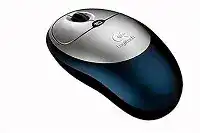
A silent cursor after startup often points to the wireless link rather than a failed sensor. The Logitech Cordless Click Optical Mouse Driver works with this model’s mini-receiver, SetPoint controls, tilt wheel, and application-switch function on compatible systems. The original package also included a desktop USB stand and a USB-to-PS/2 adapter, so the connection method may differ between older computers.
This is a radio-frequency receiver model, not a Bluetooth, Unifying, or Logi Bolt device. It must communicate with its original-style receiver through the connect controls on the hardware. Modern pairing apps for newer Logitech receivers do not normally recognize it. Keep that distinction in mind before downloading software or buying a replacement dongle.
Logitech Cordless Click Windows Driver Download
| Driver Name | Description | Supported OS | File Size | Download |
|---|---|---|---|---|
| SetPoint Software 64-bit | Full offline package for configuring mouse buttons, tracking speed, hot-keys, battery status, and device-specific settings on 64-bit systems. | Windows 11, Windows 10 64-bit, Windows 8 64-bit, Windows 7 64-bit | 80.45 MB | |
| SetPoint Software 32-bit | Complete offline installer for adjusting mouse controls, pointer tracking, hot-keys, Caps Lock, Num Lock, and battery information on 32-bit systems. | Windows 11, Windows 10 32-bit, Windows 8 32-bit, Windows 7 32-bit | 78.04 MB | |
| SetPoint Smart Installer | Small web installer that downloads the required SetPoint components during setup, so an active internet connection is required. | Windows 11, Windows 10 32-bit/64-bit, Windows 8 32-bit/64-bit, Windows 7 32-bit/64-bit | 4.61 MB |
Logitech Cordless Click Mac OS Driver Download
| Driver Name | Description | Supported OS | File Size | Download |
|---|---|---|---|---|
| Logitech Control Center | Provides Mac controls for assigning mouse buttons, changing pointer behavior, and managing supported Logitech device settings. | Mac OS X 10.14, Mac OS X 10.13, Mac OS X 10.12, Mac OS X 10.11 | 16.89 MB | |
| Logitech Control Center | Enables button assignments, cursor adjustments, scrolling preferences, and model-specific controls on older Mac OS X releases. | Mac OS X 10.11, Mac OS X 10.10, Mac OS X 10.9, Mac OS X 10.8 | 17.06 MB |
The receiver lights up but the pointer stays still
Reconnect the wireless channel before changing Windows files. Press the connect button on the receiver, then press the small connect button underneath the mouse. Keep the two units close together during this process. A receiver can remain visible to the computer while its radio link with the mouse has been lost.
When the device came from a keyboard-and-mouse desktop set, use the connect control associated with the mouse. Pressing several keyboard and mouse buttons in random order can produce another failed synchronization. Complete one connection at a time, wait for the receiver response, and then check whether pointer movement has returned.
Windows does not react when the receiver is inserted
Connect the mini-receiver directly to another USB socket. Avoid an unpowered hub during diagnosis because an aging hub may supply unstable power or fail to enumerate older USB equipment. Listen for the Windows connection sound and inspect Device Manager. No reaction in several ports suggests a receiver, adapter, or USB-controller problem rather than a SetPoint preference.
The supplied USB-to-PS/2 adapter belongs to computers that provide a compatible mouse port. Shut down the computer before connecting through PS/2, since many older systems detect that port only during boot. Do not hot-plug the PS/2 connection. Use direct USB instead when the machine offers a working native socket.
A replacement receiver will not pair
Matching the Logitech name is not enough. This mouse predates Unifying and Bolt technology, and receivers from those systems use different protocols. Even another old Logitech receiver may belong to a separate product family or channel arrangement. Look for the receiver originally bundled with the mouse or a specifically compatible replacement rather than assuming that every cordless dongle can be synchronized.
Recover Better Reception Before Reinstalling the Software
The original package included a desktop USB stand for a practical reason. It places the receiver away from the computer case and closer to the mouse. Use that stand when movement becomes irregular, clicks arrive late, or the connection disappears at the far side of the desk. A metal tower beneath the table can weaken the radio path considerably.
The pointer pauses or moves in short jumps
Position the receiver on the desk with a clear path toward the mouse. Keep it away from the rear of a metal computer case, large power adapters, and crowded cable bundles. The Cordless Click generation was intended for a relatively short working range, so a layout that works for a newer wireless product may be too demanding for this older radio system.
Next, test the optical sensor on plain paper or a conventional mouse pad. Highly reflective desks, glass, polished stone, and strong repeating patterns can interrupt tracking even when the receiver link remains healthy. When paper restores accurate movement, retain the existing software and change the working surface instead.
Movement becomes worse when other equipment is active
Temporarily separate the receiver from nearby wireless hardware and powered USB accessories. Older cordless equipment can react to local radio noise or electrical interference around a computer. The desktop stand gives more freedom than plugging the receiver straight into the case. Shift its position by a modest distance and test real movement rather than judging only by the receiver light.
If the fault begins when a particular hub, external drive, or wireless device starts working, disconnect that item briefly. A clear improvement identifies an environmental conflict. Repositioning either device often solves the problem without changing the mouse package, Windows installation, or receiver channel.
The cursor feels fast on one computer and heavy on another
Check the operating system’s pointer-speed and acceleration controls. SetPoint can also hold movement preferences on systems that recognize this model, so two control panels may influence the result. Return both to moderate values before fine-tuning. Extreme speed or acceleration can make an otherwise accurate optical sensor feel unstable.
Do not judge tracking while a remote desktop session, virtual machine, or game changes pointer handling. Test on the normal desktop first. If the cursor behaves well there but poorly in one program, adjust that application instead of repeatedly reconnecting the receiver.
Logitech Cordless Click Optical Mouse Software for the Tilt Wheel and Quick Switch Button
Basic movement and left or right clicks may operate through the standard system mouse service. The Logitech Cordless Click Optical Mouse Driver becomes more relevant when the tilting wheel, horizontal movement, wheel click, or Quick Switch application button does not perform its original task. SetPoint supplied the feature assignments for compatible Windows versions.
The installation guide lists SetPoint for Windows 98, Windows ME, Windows 2000, and Windows XP, with mouse software also supplied for contemporary Mac OS X systems. That age matters. A current operating system may provide ordinary pointer functions while rejecting the original utility or leaving its extra controls unavailable.
SetPoint installs but shows no Logitech mouse
Confirm that the cursor already moves through the receiver before opening SetPoint. The utility cannot configure a device whose radio channel has not been established. Synchronize the receiver and mouse, restart Windows, and then reopen the control panel. Connecting the receiver only after SetPoint starts can also leave some older releases unaware of the hardware until the next login.
Remove unrelated modern Logitech control applications when they create duplicate mouse panels or conflicting startup services. Logi Options and Options Plus target later product generations and do not turn this receiver into a newer platform. On an unsupported Windows version, standard system control may work better than forcing several generations of Logitech utilities to run together.
The wheel scrolls vertically but not sideways
This model uses a tilting wheel for horizontal movement. Push the wheel left or right and hold it briefly while viewing a document with a horizontal scroll bar. Sideways movement may remain invisible in narrow pages, programs without horizontal content, or software that ignores tilt-wheel messages.
Open SetPoint on a compatible installation and inspect the wheel assignment. Restore horizontal scrolling if another command has replaced it. Test in a spreadsheet or a wide image window. When tilt input fails in every suitable program but vertical scrolling still works, dirt or wear inside the wheel mechanism becomes more likely than a receiver fault.
The Quick Switch button does nothing
The application-switch control depends more heavily on Logitech software than the main clicks. SetPoint must recognize the mouse and assign the intended switching action. Open two ordinary desktop programs before testing it. Pressing the button with only one active window can make a functioning assignment appear inactive.
Some current Windows releases reserve or reinterpret older commands, and the historic SetPoint build may not integrate fully with their window-management system. In that situation, basic mouse functions can remain usable even when Quick Switch cannot be restored. Do not substitute an unsupported newer Logitech app and expect it to expose this legacy button.
The middle click requires too much force or misses presses
Separate wheel rotation from the downward wheel click. Test the click on a browser tab or another program that responds clearly to middle-button input. Then review its SetPoint assignment. If the command appears only when pressed firmly, the issue may come from mechanical wear rather than the selected action.
Dust around the wheel can also restrict movement. Turn the mouse off, remove loose debris around the opening with a dry soft brush, and rotate the wheel gently. Avoid liquid cleaners and do not force the wheel sideways. A damaged internal switch requires hardware repair or replacement; reinstalling the package will not change its physical travel.
Battery Contact, False Double Clicks, and Age-Related Faults
The mouse uses AA alkaline batteries, and poor power delivery can imitate a receiver problem. Weak cells may cause pauses, lost synchronization, or a device that reconnects only after being moved. Install two matched batteries according to the markings in the compartment. Mixing old and new cells can produce erratic behavior before either battery looks completely exhausted.
New batteries do not bring the mouse back
Remove both batteries and inspect the terminals for dirt, leakage residue, or flattened contact points. Clean only dry accessible surfaces and follow proper battery-leak precautions when corrosion is present. Reinsert the cells firmly, then repeat the receiver-to-mouse connection process. Replacing power does not automatically rebuild a lost radio channel.
Check whether the optical light or receiver response changes when the mouse is moved. No sign of power with several known-good battery pairs points toward the compartment contacts, internal wiring, or electronics. At that stage, a software download offers little value because the transmitter itself is not starting.
One press opens items twice
Reduce confusion from an overly sensitive Windows setting first. Move the double-click speed toward the centre and test folder selection again. A software setting usually affects how quickly two separate presses count as a double click; it does not normally create two electrical signals from one physical press.
Try the mouse with its receiver on another compatible computer. When a single press repeatedly becomes two there as well, the button switch has probably worn with age. The Logitech Cordless Click Optical Mouse Driver cannot remove switch bounce. A practical decision then depends on whether safe hardware servicing is worthwhile for an older device.
The wheel reverses direction or skips lines
Compare scrolling in several programs and lower the number of lines selected per wheel notch. An application with accelerated or custom scrolling can exaggerate a minor input irregularity. When every program reverses or misses movement, rotate the wheel while clearing dry debris from its edges.
Uneven wheel signals alongside normal pointer movement usually concern the wheel encoder, not the radio connection. Re-pairing may help only when several controls fail together. If vertical scrolling alone remains erratic after cleaning and cross-computer testing, internal wear is the stronger explanation.
The mouse stops responding after long inactivity
Move the mouse and allow a brief moment for its power-saving state to end. When it remains inactive, press one main button once, then reconnect the radio channel if necessary. Rapid repeated clicks can obscure whether the device is waking or repeatedly losing contact.
Persistent failures after idle periods often combine weak batteries with marginal receiver placement. Put the receiver on its desktop stand, renew both AA cells, and test through several sleep cycles. This checks the power and radio sides together without adding another software layer.
Decide Whether the Download or the Hardware Needs Attention
Use symptoms to separate the two. Missing tilt-wheel or Quick Switch functions on an otherwise responsive mouse point toward SetPoint compatibility or assignments. Total silence, intermittent power, repeated double clicks across computers, or a wheel that fails everywhere points more strongly toward batteries, contacts, switches, the receiver, or aged internal parts.
For an older compatible Windows installation, the Logitech Cordless Click Optical Mouse Driver can restore the intended control panel and extra-button behavior. On a modern system, basic USB mouse support may be the realistic limit. Preserve the original mini-receiver, use the desktop stand when reception weakens, and avoid pairing tools made for Unifying or Bolt products.