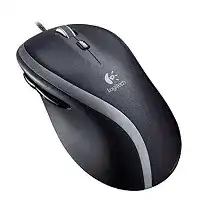
The scroll wheel may still move a page while its tilt actions, middle click, or thumb controls do nothing. The Logitech Corded M500 Mouse Driver gives compatible Logitech software access to functions that the standard operating-system profile may leave unassigned. This wired USB model also has a mechanically selected free-spinning wheel mode, click-to-click scrolling, horizontal tilt, and browser navigation buttons.
Basic movement does not require a separate pairing process or wireless utility. Plug the cable directly into a working USB port and let the computer load its normal HID components. Install Logitech software when you need supported button assignments, horizontal scrolling, or better control over functions beyond left click, right click, and ordinary vertical wheel movement.
Logitech Corded Mouse M500 Windows Driver Download
| Driver Name | Description | Supported OS | File Size | Download |
|---|---|---|---|---|
| Logi Options+ Software | Customizes mouse buttons, pointer behavior, scrolling, shortcuts, gestures, and other device settings. | Windows 11, Windows 10 32-bit/64-bit | 43.21 MB | |
| SetPoint Software 64-bit | Full offline package for configuring mouse buttons, tracking speed, hot-keys, and device-specific settings on 64-bit systems. | Windows 11, Windows 10 64-bit, Windows 8 64-bit, Windows 7 64-bit | 80.45 MB | |
| SetPoint Software 32-bit | Complete offline installer for adjusting tracking speed, mouse button actions, hot-keys, and supported status indicators. | Windows 11, Windows 10 32-bit, Windows 8 32-bit, Windows 7 32-bit | 78.04 MB | |
| SetPoint Smart Installer | Downloads the required SetPoint components during installation for mouse controls, device settings, and status features; internet access is required. | Windows 11, Windows 10 32-bit/64-bit, Windows 8 32-bit/64-bit, Windows 7 32-bit/64-bit | 4.61 MB |
Logitech Corded Mouse M500 Mac OS Driver Download
| Driver Name | Description | Supported OS | File Size | Download |
|---|---|---|---|---|
| Logi Options+ Software | Manages mouse button assignments, pointer movement, scrolling behavior, shortcuts, gestures, and compatible device preferences. | macOS 26, macOS 15, macOS 14 | 19.56 MB | |
| Logitech Options Software | Provides controls for button customization, pointer response, scrolling, application shortcuts, gestures, and mouse-specific settings. | macOS 15, macOS 14, macOS 13, macOS 12, macOS 11 | 238.52 MB | |
| Logi Options+ Software | Enables configurable mouse buttons, scrolling preferences, pointer behavior, gestures, shortcuts, and supported device controls. | macOS 13 | 19 MB | |
| Logi Options+ Software | Adjusts mouse functions such as button commands, cursor response, scrolling, gestures, shortcuts, and general hardware preferences. | macOS 12 | 18.65 MB | |
| Logitech Control Center Software | Configures supported mouse buttons, scrolling behavior, cursor settings, and device-specific controls on compatible Mac systems. | macOS 11, macOS 10.15, macOS 10.14, macOS 10.13 | 17.76 MB |
The wheel spins too freely
The button behind the wheel changes its physical scrolling mode. Press it once when the wheel rolls without clear steps or continues spinning after your finger leaves it. This action engages click-to-click scrolling for shorter pages and careful movement. Press it again when you want rapid travel through a long document or website.
Software cannot repair a wheel that refuses to stay in either mode. If the mode button moves but the wheel remains permanently loose, debris or wear may have affected the internal selector. Clear dust around the wheel and button with gentle air. Avoid pushing liquid cleaner through the openings because it can reach the encoder and switches.
Horizontal tilt produces no action
First test wheel tilt inside a wide spreadsheet, image editor, or document that actually has a horizontal scroll bar. Many websites and narrow windows have no sideways content, so tilting appears ineffective even when the input works. Hold the wheel briefly to the left or right rather than making a very quick tap.
Open the compatible Logitech control utility when horizontal movement still fails. Confirm that left tilt and right tilt retain their horizontal-scroll assignments instead of unrelated shortcuts. Close and reopen the test application after changing them. Some programs read mouse commands only when they start and may ignore a newly changed assignment until the next session.
The wheel button opens the wrong command
A middle click can open browser links in new tabs, activate automatic scrolling, or perform an application-specific command. When it launches something unexpected everywhere, inspect the wheel-button assignment in the Logitech software. Return it to the standard middle-button function, apply the change, and test it in a program with a known middle-click action.
One troublesome application may override the global choice. Review that program’s shortcuts before altering every mouse control. If the wheel rotates normally but never registers a press on another computer, the switch beneath it may have worn out. Reinstalling software cannot restore a mechanical click that no longer closes the electrical contact.
Set Up Logitech Corded M500 Mouse Software Without Conflicting Utilities
The Logitech Corded M500 Mouse Driver should match the operating system and package description shown with the download. The original M500 has appeared in legacy Logitech software support, including SetPoint on Windows and Logitech Control Center on older macOS releases. Later Logitech Options releases also added support for the M500, although current operating-system compatibility varies by software version.
Do not install every Logitech application merely because each one mentions mouse controls. Choose the package intended for this model and your operating system. Multiple background services can produce blank control panels, duplicate assignments, or a device that works normally while the wrong utility claims it cannot find any compatible hardware.
The control panel opens without showing the M500
Disconnect the mouse, close the Logitech application, and restart the computer. After the desktop loads, connect the cable to a direct USB port and wait for pointer movement before opening the utility. This sequence lets the operating system create the wired HID entry before Logitech software scans for supported devices and extended controls.
If the pointer works but the application stays empty, confirm that the installed software version includes the original M500 rather than only the later M500s. Similar names do not guarantee identical application support. Remove an unsuitable package, restart, and then install the version listed for the exact product and operating system.
SetPoint and Options both try to manage the mouse
Keep the application that detects the M500 and provides the controls you use. Remove the other package through the normal application-uninstall screen, then restart Windows. Leaving two generations of Logitech software active can make a button assignment appear in one panel while another background process applies a different command after sign-in.
Before uninstalling, note any custom thumb-button or wheel assignments you want to reproduce. A newer interface may use different command names and will not necessarily import an older SetPoint profile. Recreate only the assignments you need instead of restoring an entire obsolete configuration with entries for programs no longer installed.
Changes disappear after Windows restarts
Apply the assignment and close the Logitech panel normally rather than ending its process immediately. Then check whether its startup component remains enabled in Windows. Button choices may revert when the control service does not launch after sign-in, even though the system still handles movement and ordinary clicks through its built-in mouse support.
A damaged user profile can also prevent preferences from saving. Test one simple change, such as assigning a thumb button to Back, and restart. If it resets again, remove the Logitech package, reboot, and install it under an administrator account. Avoid importing old configuration files until a new setting survives a full restart.
USB Detection, Cable Movement, and Pointer Faults
A corded mouse removes batteries, radio interference, and receiver compatibility from the diagnosis. When the Logitech Corded M500 Mouse Driver cannot see the device, start with the USB path and cable rather than wireless procedures. The M500 connects through its fixed cable and should begin ordinary pointer operation after the system loads a standard USB input profile.
Nothing happens after plugging in the cable
Move the plug to another port on the computer and wait several seconds. Skip keyboard sockets, passive hubs, docking stations, and monitor ports during this test. A direct connection removes extra hardware from the path. Restart the computer with the mouse attached when Windows does not react to any insertion or removal.
Check Device Manager if another USB mouse works in the same ports. Remove only the failed or unknown mouse-related entry, disconnect the M500, and restart Windows. Plug it back in after sign-in so the operating system can rebuild the input record. Do not delete unrelated keyboard or USB-controller entries while navigating without a mouse.
The pointer disconnects when the cable moves
Place the mouse on the desk and gently change the cable angle near the front of the shell and near the USB plug. An immediate disconnect sound, frozen cursor, or repeated reconnection points to cable damage rather than a missing application. Stop flexing the wire once the symptom appears because continued movement can worsen a broken conductor.
Try another computer to separate a physical cable fault from one loose USB socket. When the same cable position interrupts both systems, software changes will not solve it. Replace the mouse or use professional repair service. Opening the shell and replacing a fixed cable requires safe disassembly, correct wiring, and strain relief.
The pointer jumps or stalls on part of the desk
The original M500 uses laser tracking, but highly reflective glass, mirrors, and irregular glossy patterns can still confuse movement detection. Test it on a plain cloth mouse pad before changing pointer-speed values. Clean loose dust from the sensor opening with a dry soft swab, without pressing against the lens or applying fluid directly.
When movement becomes steady on another surface, keep the software unchanged and replace the desk covering. If it jumps on several suitable surfaces and repeats the fault on another computer, the sensor may be failing. A control utility can alter pointer behavior, but it cannot correct unstable tracking data produced inside damaged hardware.
Movement feels delayed after waking the computer
Unplug the M500 for several seconds and reconnect it after the system fully wakes. This forces a new USB input session without requiring a full software installation. If the delay returns after every sleep cycle, test another direct port and update the computer’s USB or chipset components through the computer manufacturer’s supported update method.
Windows power management may suspend a USB hub too aggressively. Review the relevant hub’s power-saving option only after confirming which hub hosts the mouse. Change one setting at a time and restore it when the result does not improve. Broadly disabling USB power management can increase power use without fixing a defective cable or port.
Separate Button Wear From Assignment Problems
The M500 includes two thumb controls commonly used for Back and Forward, plus the wheel press and tilt inputs. Logitech Corded M500 Mouse Driver settings can change what supported controls do, but they cannot eliminate switch bounce, restore a collapsed button, or remove debris trapped beneath a mechanical part.
Back and Forward work in one program only
Test both thumb buttons in a web browser with several pages already opened. File managers, media programs, and business applications may interpret those controls differently or ignore them. When the browser responds correctly, review the affected application’s shortcut support instead of repeatedly changing the global mouse package.
If neither button works anywhere, assign each one a simple keyboard command in the Logitech utility and test again. A successful custom command confirms that the physical input reaches the software. No response with default and custom assignments suggests a hardware problem or an application that does not recognize this M500 revision.
A single press becomes two clicks
Adjust the operating system’s double-click speed to a comfortable middle value and test the left button in several folders. This setting changes how quickly two separate presses must occur, but it does not truly cure switch bounce. A file opening twice from one deliberate press on multiple computers usually indicates wear inside the primary switch.
A temporary improvement after firmer clicking does not prove that the fault has gone. Worn contacts often behave inconsistently before failing more often. Avoid risky software patches or scripts that suppress rapid clicks because they can hide legitimate input. Hardware replacement gives a more dependable result when the same double action follows the mouse to another system.
Dragging releases before the button is lifted
Try moving a file slowly while holding the left button. When the object drops without your finger releasing pressure, repeat the test on another computer. The symptom usually follows an unstable click switch, though an unsuitable ClickLock setting can create confusing drag behavior. Check that accessibility feature before judging the hardware.
Remove visible dirt around the button edge with a soft brush while the mouse remains unplugged. Do not pour solvent into the gap or strike the button. If click-and-hold continues to break, the safest answer is replacement or qualified switch service rather than another driver installation.
The cursor speed changes but tracking quality does not
Pointer speed controls the distance travelled on screen for a given hand movement. It does not repair lost sensor readings. Return acceleration and speed to ordinary values, test a consistent surface, and compare the M500 with another wired mouse. This keeps a software preference from being mistaken for a laser-tracking defect.
Very high acceleration can make small movements look erratic, especially near screen controls. Lower it gradually instead of switching between extremes. When the cursor pauses or teleports regardless of speed, focus on the sensor opening, desk surface, cable condition, and USB connection rather than sensitivity alone.
Match Each Symptom to the Part That Controls It
Use the Logitech Corded M500 Mouse Driver for supported wheel assignments, horizontal tilt, thumb controls, and application commands. Let the operating system handle the initial wired USB connection. This division makes diagnosis clearer: missing custom actions point toward software, while repeated disconnections, false clicks, and failed wheel mechanics usually remain with the hardware.
Finish by testing the mouse on a second computer with no imported Logitech profile. Check ordinary clicks first, then wheel rotation, wheel mode, tilt, thumb controls, dragging, and cable movement. That sequence shows whether the fault follows one application, one computer, or the M500 itself without ending the page with another unnecessary reinstall.