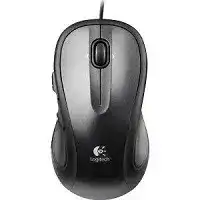
When the pointer and main clicks work but the extra controls do nothing, the Logitech Corded M318e Mouse Driver adds the Logitech functions that Windows does not load through its standard USB profile. The mouse can operate immediately after connection, yet SetPoint is needed for button assignments, side-to-side scrolling, and Application Switcher access on compatible Windows systems.
The M318e uses a fixed USB cable, so it has no wireless receiver, pairing mode, battery compartment, or Bluetooth connection to troubleshoot. Its direct connection makes fault-finding simpler. Start by separating basic USB detection from optional software features. A mouse that cannot move the pointer needs a port, cable, or Windows check before any button assignment changes will matter.
Logitech Corded M318e Windows Driver Download
| Driver Name | Description | Supported OS | File Size | Download |
|---|---|---|---|---|
| SetPoint Software (64-bit) | Full offline package for configuring mouse buttons, tracking speed, hot-keys, and device-specific settings on 64-bit systems. | Windows 11, Windows 10 64-bit, Windows 8 64-bit, Windows 7 64-bit | 80.45 MB | |
| SetPoint Software (32-bit) | Complete offline installer for adjusting mouse controls, pointer tracking, button assignments, and supported lock-key notifications. | Windows 11, Windows 10 32-bit, Windows 8 32-bit, Windows 7 32-bit | 78.04 MB | |
| SetPoint Smart Installer | Small setup program that downloads the required SetPoint components during installation and therefore needs an internet connection. | Windows 11, Windows 10 32-bit/64-bit, Windows 8 32-bit/64-bit, Windows 7 32-bit/64-bit | 4.61 MB |
Side buttons keep their default action
Open SetPoint and select the M318e before changing a button command. The utility may display several Logitech devices when an older keyboard or another mouse has also used SetPoint on the computer. Confirm that the picture or product entry matches the corded mouse, choose the required side control, save the assignment, and reopen the program where you intend to use it.
Some applications override global mouse commands with their own shortcuts. Check the side buttons in a web browser and then in another program. When they work in one place but not another, the M318e and its USB connection are functioning. Review the affected application’s navigation or shortcut preferences instead of repeatedly removing the Logitech package.
Application Switcher does not open
Application Switcher depends on the Logitech software rather than the normal Windows mouse class. Reassign the chosen control in SetPoint and make sure the utility still starts with Windows. Sign out and back in after saving the change because an existing desktop session may continue using the earlier command until Logitech’s background process reloads.
Windows security tools or a startup-cleaning program may disable the SetPoint process while leaving ordinary clicks untouched. Check the Windows startup list for the Logitech entry before reinstalling anything. Restore it, restart the computer, and test Application Switcher again. If SetPoint closes immediately after opening, repair or reinstall the matching release from a complete installer.
Get USB Detection Working Before Changing SetPoint
The Logitech Corded M318e Mouse Driver cannot communicate with hardware that Windows never detects. Connect the plug directly to a USB port on the computer and wait for the default system driver to finish loading. Avoid a dock, passive hub, monitor socket, or keyboard pass-through during the first test because those connections can complicate power and device enumeration.
No pointer movement after plugging in
Unplug the mouse, restart Windows with the device disconnected, and try a different direct USB port after the desktop appears. Give the system several seconds to create the mouse entry. A front port and a motherboard port provide useful comparisons. When one connection works consistently and another does not, the computer port or attached hub is the likely source.
Test the M318e on another computer when every local port gives the same result. Immediate movement elsewhere shows that the cable and internal electronics still function. Return to the original machine and remove any failed or unknown USB mouse entry through Device Manager, restart Windows, and reconnect the mouse so the operating system builds a fresh record.
The mouse disconnects when the cable moves
A brief Windows disconnect sound while the cable bends near the plug or enters the mouse points to a physical cable fault. Keep the cable still and gently change its position without pulling it. Repeated dropouts at the same point will not improve through a software update, USB power adjustment, or button reassignment.
Inspect the cable for flattening, sharp bends, exposed insulation, or strain near either end. Do not continue using it when conductors or shielding are visible. The M318e has an attached cable rather than a replaceable charging lead, so a damaged connection usually requires professional cable replacement or replacement of the mouse.
Windows shows an unrecognized USB device
Shut down the computer fully rather than using sleep, disconnect unnecessary USB accessories, and start again with the M318e attached to a direct port. This clears temporary controller states that can survive a normal reconnect. After Windows loads, check whether the unknown entry changes to a standard HID-compliant mouse before installing Logitech software.
An unrecognized message on several computers suggests a fault inside the plug, cable, or mouse circuit. SetPoint cannot repair that condition because it relies on the USB device completing its initial identification first. When another known mouse works in the same ports, stop changing Windows settings and concentrate on the M318e hardware.
Correct Wheel Movement and Horizontal Scrolling
Vertical wheel movement belongs to the basic mouse functions that the system driver should provide. Side-to-side scrolling uses the M318e wheel’s tilt action and may require SetPoint plus application support. The Logitech Corded M318e Mouse Driver therefore matters most when ordinary scrolling works but horizontal movement, wheel-button commands, or custom wheel behavior remains unavailable.
The page jumps upward while scrolling down
Check several programs before changing Windows scroll speed. A problem found only in one document viewer or browser may come from that application’s scrolling mode or an extension. When the direction reverses everywhere, disconnect the mouse and clear dry dust from the gaps around the wheel with a soft brush or brief controlled air.
Rotate the wheel while cleaning, but do not pour alcohol, lubricant, or household cleaner through the opening. Erratic movement that continues on a second computer usually indicates wear or contamination inside the wheel encoder. Changing the number of lines per notch may alter distance, though it cannot correct false signals from a worn component.
Side-to-side scrolling has stopped
First confirm that SetPoint recognizes the M318e and that the tilt directions still have horizontal scrolling assigned. Test the feature in a wide spreadsheet, image editor, or document with a visible horizontal bar. Some programs ignore tilt-wheel commands or use them for another action, which can make a working control appear inactive.
Reset only the wheel assignments when vertical scrolling and clicks still work. Removing every Logitech component is unnecessary for one changed command. If neither tilt direction responds in any compatible program after the default assignment returns, test on another Windows computer with SetPoint. Failure there suggests wear in the tilt mechanism rather than a damaged profile.
Middle-click no longer responds
Press the wheel straight down without tilting it to either side. A diagonal press may trigger a horizontal command instead of the middle button. Restore the wheel-click assignment in SetPoint and test it by opening a link in a new browser tab or closing a tab, where the expected response is easy to recognize.
Scrolling can remain normal even after the wheel’s push switch wears out. When the middle command fails across applications and on another computer, software changes have reached their limit. Avoid striking the wheel or forcing cleaner inside it, as those actions can damage the tilt mechanism and encoder as well.
Resolve Click Timing and Pointer Accuracy
Click trouble and movement trouble often look like driver faults because they appear during normal Windows use. The fixed USB connection removes battery and radio variables, leaving software timing, the desk surface, cable condition, and internal switch wear as the main areas to check. Change one item at a time and repeat the same test after each adjustment.
A single press opens files twice
Open the Windows mouse controls and adjust the double-click speed toward a comfortable middle position. Use the built-in test area before returning to folders or desktop icons. A setting that is too slow can interpret two separate presses as one double-click, while an extremely fast setting can make intentional double-clicking difficult.
Mechanical switch wear produces a different symptom: one physical press generates two signals. Check the same button on another computer without installing SetPoint. If the duplicate click follows the mouse, reinstalling the Logitech Corded M318e Mouse Driver will not restore the switch. Replace the mouse or arrange qualified microswitch service rather than attempting an unsafe temporary repair.
Dragging releases before the button is lifted
Open a window and drag it slowly across the screen while holding the left button with steady pressure. An unexpected release may come from a worn switch, but Windows ClickLock can also change how dragging feels. Turn ClickLock off during testing unless you intentionally use that accessibility feature.
Repeat the drag with the right button in a program that supports it. One failing button with the other remaining steady makes a USB communication problem less likely. When both release together and Windows also plays a disconnect sound, return to the cable and port checks rather than changing click-speed values.
The pointer hesitates on part of the desk
Move the M318e onto a plain, matte mouse pad before adjusting pointer speed. Reflective glass, glossy patterns, and uneven surfaces can disturb tracking even when the USB connection remains solid. Clean the sensor opening with a dry soft swab and remove hair or lint that crosses the light path.
Compare movement with and without enhanced pointer precision in Windows. That setting changes acceleration rather than repairing tracking, so keep the version that feels more predictable. If the cursor freezes at the same physical cable position, watch for a disconnect notification because the apparent sensor problem may actually come from an intermittent wire.
Pointer speed changes after another utility starts
Remove overlapping mouse utilities that continue applying their own acceleration or button profiles. A gaming control suite, accessibility tool, remote-desktop program, or older Logitech package can alter pointer response after sign-in. Keep SetPoint for the confirmed M318e functions and disable unrelated utilities one at a time until the unwanted speed change stops.
After removing conflicting software, restart Windows and set pointer speed from one location. Test movement in an ordinary desktop program before opening games or remote sessions, since those programs may capture the pointer or apply separate sensitivity values. A consistent desktop result shows that the base USB and Windows configuration is stable.
Match the Download to What the Mouse Actually Needs
Use the Logitech Corded M318e Mouse Driver when compatible SetPoint controls are required, especially for button assignments, Application Switcher, and horizontal wheel commands. For left-click, right-click, pointer movement, and normal vertical scrolling, Windows can load its default mouse driver after the USB plug is connected.
Keep the installation focused on this corded model. Do not search for Bluetooth pairing tools, wireless receiver utilities, battery fixes, Bolt software, or Unifying applications because the M318e does not use those connection methods. A direct USB test, a working cable, the Windows HID entry, and one suitable SetPoint installation provide the clearest route to accurate diagnosis.
When basic actions fail on several computers, treat the issue as hardware rather than an installer problem. When only the additional controls are absent, repair the SetPoint installation and restore their assignments. This distinction avoids unnecessary downloads and shows whether the next useful action belongs in Windows, the Logitech utility, or the physical mouse.