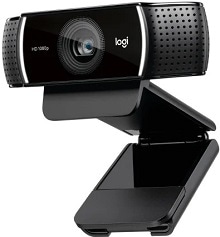
A black preview, soft focus, or a stream stuck below the expected frame rate can make the Logitech C922 Pro Stream Webcam Driver look like a separate device package that needs replacing. The C922 actually uses native operating-system webcam support through USB, while Logitech software adds access to camera controls. Its hardware supports 1080p video at 30 fps, 720p at up to 60 fps, autofocus, automatic low-light correction, and built-in dual stereo microphones.
Logitech C922 Pro Stream Webcam Windows Driver Download
| Driver Name | Description | Supported OS | File Size | Download |
|---|---|---|---|---|
| Logi Options+ Software | Provides device customization options for supported controls, shortcuts, and webcam-related settings. | Windows 11, Windows 10 32-bit/64-bit | 43.1 MB | |
| Logi Tune Software | Manages compatible webcam settings and provides controls for video adjustments and device configuration. | Windows 11, Windows 10 32-bit/64-bit | 195.9 MB | |
| Logitech G HUB Software | Offers configuration tools for compatible Logitech gaming and streaming devices, including supported camera controls. | Windows 11, Windows 10 32-bit/64-bit | 67.75 MB |
Logitech C922 Pro Stream Webcam Mac OS Driver Download
| Driver Name | Description | Supported OS | File Size | Download |
|---|---|---|---|---|
| Logi Options+ Software | Enables supported device settings and customization through Logitech’s current Options+ application. | macOS 26, macOS 15, macOS 14 | 19.54 MB | |
| Logi Tune Software | Provides webcam configuration features for adjusting compatible video, camera, and device preferences. | macOS 26, macOS 15, macOS 14, macOS 13, macOS 12, macOS 11, macOS 10.15 | 315.89 MB | |
| Logitech G HUB Software | Configures supported Logitech streaming and gaming hardware through the G HUB control interface. | macOS 26, macOS 15, macOS 14 | 12.43 MB | |
| Logi Options+ Software | Supports customization of compatible device behavior and available application-specific controls on macOS 13. | macOS 13 | 19 MB | |
| Logitech G HUB Software | Supplies G HUB management features for compatible Logitech hardware running on macOS 13. | macOS 13 | 10.43 MB | |
| Logi Options+ Software | Allows supported control, shortcut, and device-setting customization for systems running macOS 12.0. | macOS 12.0 | 18.65 MB |
Logitech C922 Pro Stream Webcam Driver When the Camera Has No Picture
When the C922 does not appear at all, deal with the USB connection before changing exposure, focus, or streaming software. Disconnect the webcam, close programs that may be using it, and connect its USB cable directly to another port on the computer. The camera uses USB 2.0 and does not require a separate proprietary driver simply to produce video.
The webcam appears in Windows but the preview stays black
A black window often happens when another program already controls the camera. Close video meeting software, browser tabs with camera permission, recording tools, and streaming applications, then open only one camera application. If that restores the picture, the USB connection was working and two programs were competing for the video feed rather than the webcam losing its system driver.
Windows camera privacy controls can produce a similar symptom. Check that camera access is enabled for the account and that desktop applications have permission to use the webcam. After changing permission, close and reopen the affected application instead of leaving its old camera session running in the background.
G HUB does not detect the C922
The Logitech C922 Pro Stream Webcam Driver may already be functioning even when G HUB does not show the camera. Confirm this by opening the operating system’s camera application. If video works there, reconnect the C922 directly to another USB port, restart G HUB, and make sure the software itself is current. This separates an application-detection fault from a complete webcam failure.
If the C922 disappears from both G HUB and the operating system, test it on another computer. A webcam that works on the second machine points back to USB detection, permissions, or software on the first computer. If neither computer recognizes it, software adjustments become much less likely to solve the problem.
Fixing Soft Video, Hunting Focus, and Unexpected Exposure
The C922 uses a Full HD glass lens with multi-step autofocus, so constantly shifting sharpness is not necessarily a resolution problem. Autofocus can react to hands moving toward the lens, changing light, a bright monitor behind the subject, or objects that sit closer to the camera than the face. Improving the scene often produces a bigger difference than changing the resolution.
Autofocus keeps moving in and out
For a fixed streaming position, manual focus can be more predictable than continuous autofocus. Open a compatible Logitech camera control panel, turn autofocus off, and adjust focus until the normal seating position looks sharp. Leave some distance between the face and the lens while setting it. This prevents the camera from chasing small foreground movements during a stream.
If autofocus normally works but suddenly becomes unusually soft, reset the camera controls before assuming the lens has failed. Exposure and focus changes saved by camera software can affect later applications. Reopen the video after resetting or adjusting the controls so the program reads the updated camera state.
The image looks grainy even at 1080p
Resolution alone cannot overcome poor lighting. The C922 includes automatic low-light correction, but increasing brightness electronically can make shadows look noisy. Add light in front of the subject rather than relying on a bright monitor or a lamp behind the chair. A well-lit 720p image can look cleaner than poorly lit 1080p video that needs aggressive exposure correction.
Also check what the recording application is actually requesting from the camera. Selecting a 1080p canvas does not guarantee that the webcam source itself is running at 1080p. Set the source resolution deliberately when the application provides that control, then judge sharpness at normal viewing size instead of relying only on an enlarged preview.
Logitech C922 Pro Stream Webcam Software for 60 FPS and Flicker Problems
The C922 reaches its highest 60 fps rate at 720p, not at 1080p. Full HD recording tops out at 30 fps. This matters when a streaming program lists several combinations of resolution and frame rate because choosing 1080p and demanding 60 fps creates a mode the camera does not provide.
OBS or another streaming app will not hold 60 fps
Set the webcam source to 1280 x 720 before selecting 60 fps. If the application continues to fall back to another mode, remove the source and add it again after closing other programs that might have opened the C922. A second application can lock the camera into a different video format while the streaming program tries to request 720p60.
The Logitech C922 Pro Stream Webcam Driver is not a way to unlock 1080p60 because that frame-rate combination is outside the camera’s specification. Use 1080p30 when image detail matters more, or 720p60 when smoother motion is the priority. That distinction avoids spending time reinstalling software for a hardware mode that the webcam cannot produce.
Indoor lights create bands or visible flickering
Flicker may come from the relationship between camera exposure and the frequency of artificial lighting rather than from a damaged sensor. LED and fluorescent lights can pulse quickly enough for the camera to capture alternating brightness. In a camera-control application, try the available anti-flicker or exposure controls and match them to the local lighting environment where possible.
Manual exposure can also help when automatic exposure keeps changing under mixed lighting. Recent G HUB webcam controls provide more direct exposure options for supported Logitech cameras, including the C922. After finding a stable result, avoid running several camera-control utilities at once because one application may overwrite values that another has just applied.
Microphone, USB, and App Conflicts During Streaming
The C922 contains dual stereo microphones, so the operating system may show a Logitech webcam microphone as well as the video device. Camera video can work while audio still comes from a laptop microphone, headset, or another USB device. Streaming and meeting applications often remember their own input choice instead of automatically following the system default.
The picture works but the C922 microphone is silent
Open the application’s audio input menu and select the webcam microphone explicitly. Then check operating-system microphone privacy permission if the input meter still shows nothing. Close any program that may have taken exclusive control of the microphone, reopen the target application, and check the input meter again before changing additional software.
If the webcam microphone sounds very quiet, confirm that the application has not reduced its input level and that noise suppression is not cutting normal speech. Compare the result with a basic recording application. Good audio there points toward the conferencing or streaming program rather than the C922 hardware.
The camera freezes or disconnects after working for a while
Intermittent video deserves a direct USB test. Bypass an unpowered hub, dock, keyboard USB socket, or long extension cable and connect the C922 straight to the computer. Then try another port. A direct connection removes several possible sources of unstable power or USB communication without changing any video configuration.
If the failure happens only inside one application, lower the camera source to a confirmed mode such as 1080p30 or 720p60 and test again. High processing load, multiple video sources, filters, virtual backgrounds, and simultaneous recording can make an application freeze even while the physical webcam remains connected to the operating system.
Camera controls change when another program opens
Exposure, focus, and other webcam controls can appear inconsistent when several applications try to manage the same C922. Set the picture in one Logitech utility or one streaming application and close unnecessary camera-control programs afterward. If settings suddenly change at launch, check whether the newly opened program applies its own automatic exposure or autofocus values.
This is also useful when webcam options in G HUB appear unavailable. Close OBS, browser camera tabs, conferencing software, and other preview windows, reconnect the camera, and then open G HUB by itself. Once the controls respond, save or adjust the required values before reopening the streaming program.
Separate Camera Limits From Software Faults
Before changing the Logitech C922 Pro Stream Webcam Driver again, compare the symptom with the camera’s actual limits. The C922 provides a 78-degree diagonal field of view, 1080p30 and 720p60 recording modes, autofocus, automatic low-light correction, USB 2.0 connectivity, and integrated stereo microphones. Software can control these functions, but it cannot add a wider optical view or create 1080p60 capture.
A useful final test is deliberately simple: connect the webcam directly, close every streaming utility, and open one ordinary camera application. Check picture first, then microphone input, then focus. If those three work, rebuild the streaming configuration around a supported video mode. This approach exposes application conflicts and saved camera settings without turning every C922 problem into a driver reinstall.
When video remains absent across different USB ports and another computer, the problem has moved beyond ordinary application configuration. When only focus, exposure, frame rate, or audio behaves incorrectly, work on that specific control instead. The C922 has enough independent camera and microphone functions that treating each symptom separately usually gives a clearer answer than resetting every part of the streaming system at once.