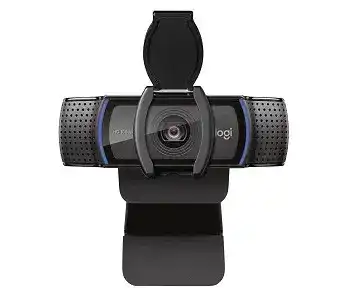
A camera can appear in the meeting app while its microphone stays missing, so the Logitech C920e Business Webcam Driver page needs to cover more than video detection. The C920e uses a fixed USB-A cable, records up to Full HD 1080p at 30 frames per second, and works through standard USB video support. Logi Tune adds camera adjustments, firmware management, and the control needed to activate the built-in microphones.
Logitech C920e Business Webcam Windows Driver Download
| Driver Name | Description | Supported OS | File Size | Download |
|---|---|---|---|---|
| Logi Options+ Software | Customizes compatible device settings, shortcuts, controls, and other supported functions. | Windows 11, Windows 10 32-bit/64-bit | 43.21 MB | |
| Logi Tune Software | Manages webcam framing, image adjustments, microphone controls, and meeting-related device preferences. | Windows 11, Windows 10 32-bit/64-bit | 195.9 MB |
Logitech C920e Business Webcam Mac OS Driver Download
| Driver Name | Description | Supported OS | File Size | Download |
|---|---|---|---|---|
| Logi Options+ Software | Adjusts supported device behavior, shortcuts, controls, and personalized settings on newer macOS releases. | macOS 26, macOS 15, macOS 14 | 19.56 MB | |
| Logi Tune Software | Provides camera setup, video framing, picture controls, microphone adjustments, and meeting-device management. | macOS 26, macOS 15, macOS 14, macOS 13, macOS 12, macOS 11, macOS 10.15 | 315.89 MB | |
| Logi Options+ Software | Configures compatible controls, shortcuts, device preferences, and supported customization options on macOS 13. | macOS 13 | 19 MB |
Logitech C920e Business Webcam Driver When Video Works but Audio Does Not
The C920e has two built-in omnidirectional microphones, but Logitech ships this business model with those microphones deactivated by default. This can make a new webcam seem partly defective. Video appears normally, yet Windows, macOS, Teams, or Zoom may show no C920e microphone. Installing another generic USB camera package will not switch the microphones on.
Activate the microphones through Logi Tune
Connect the webcam directly to the computer, open Logi Tune, and select the C920e. Open its settings and enable the built-in microphone option. Follow the on-screen request until the change finishes. Close and reopen the meeting application afterward because programs that were already running may not refresh their audio-device list immediately.
Once enabled, choose the C920e microphone inside the calling program rather than relying on its automatic selection. A laptop may continue using its internal microphone even after the webcam audio becomes available. Check the operating-system input panel as well, speak at a normal level, and confirm that the input meter moves before joining a live call.
The microphone vanished after changing USB ports
Disconnect the camera, exit the conferencing program, and attach the cable to another direct USB port. Give the operating system time to rebuild both the camera and audio portions of the device. Reopen Logi Tune and confirm that the microphone remains enabled. This port change often clears an incomplete USB profile where video loads but the audio interface does not.
Privacy controls can create the same symptom. Windows and macOS manage camera and microphone access separately, so camera permission does not automatically grant audio access. Review both permissions for the affected application. Corporate computers may apply these controls through an administrator policy, in which case the microphone can remain unavailable even after Logi Tune activates it.
Restore a Missing or Frozen Camera Feed
The computer does not detect the C920e
The Logitech C920e Business Webcam Driver is normally supplied through the operating system because this webcam follows USB Video Class standards. Begin with the physical connection rather than searching for a separate conventional driver. Unplug the cable, wait several seconds, and reconnect it to a USB port on the computer. Avoid a dock or monitor hub during this test.
Open the system camera application before testing Teams, Zoom, or another service. If the preview works there, the USB connection is active and the remaining fault sits inside the meeting software. Select the C920e manually in that application’s video settings. Some programs retain the laptop camera as their preferred source after an update or after the webcam has been disconnected.
A black picture is not always a driver failure
Check the detachable privacy shutter before changing software. When it covers the lens, applications can still identify the C920e and may show an active camera indicator, but the preview remains dark. Slide or lift the shutter fully away from the lens. Also inspect the front glass for packaging film, fingerprints, or dust that can make a dim image look like a sensor problem.
A second application may already control the webcam. Browsers, recording programs, virtual-camera tools, background meeting clients, and camera preview utilities can hold the video stream after their windows disappear. Exit them completely, including any tray process, and reopen only one camera application. Restart the computer when the webcam stays busy after every visible program has closed.
The picture freezes after sleep or docking
A computer can wake with the C920e listed but unable to produce a new frame. Disconnect the webcam after the computer wakes, reconnect it directly, and reopen the video application. When the fault follows a dock, test without the dock or move the camera to another port. Power-saving behaviour and incomplete USB reconnection often matter more here than image settings.
Update Logi Tune when it repeatedly stops responding after the computer wakes. Then restart both the utility and the meeting program. Do not keep several Logitech camera applications open together while testing. Each utility may request camera access, and overlapping control can leave the preview frozen or prevent exposure and focus changes from reaching the device.
Logitech C920e Business Webcam Software for Focus and Lighting Problems
Autofocus keeps searching
The C920e uses autofocus, which can shift between a face and objects in the background. Move a hand close to the lens for a moment, remove it, and let the camera focus again. Clean the lens carefully and improve the light on your face. Low contrast, reflections, patterned backgrounds, and objects near the camera can make autofocus change position repeatedly.
For a fixed desk position, open Logi Tune and turn off autofocus after the image becomes clear. Adjust manual focus until facial details look sharp at the normal sitting distance. Manual focus works well when the camera and chair remain in the same place, but it will need another adjustment if the webcam moves closer or farther away.
The image looks soft despite correct focus
Confirm the resolution inside the application. The webcam can deliver 1080p at 30 frames per second, but a meeting service may select 720p or a lower mode to reduce bandwidth. Some services also soften the preview, apply portrait effects, or lower quality during a weak connection. Compare the result in the system camera app before blaming the lens.
Digital enlargement reduces detail because the C920e has only limited software zoom. Return zoom to its normal position, place the webcam closer, and frame the subject with its 78-degree field of view. A cropped 1080p image can look less precise than an uncropped one, especially when the conferencing service compresses it again before transmission.
Brightness changes during the call
RightLight 2 adjusts the picture as room conditions change. A bright window behind the user can make the face appear dark, while a monitor displaying white pages can cause repeated exposure shifts. Place the main light in front of the face, reduce strong backlighting, and avoid rapidly changing screen brightness. Balanced lighting gives the automatic correction less work to do.
Logi Tune can provide control over exposure, brightness, contrast, white balance, focus, and framing, depending on the installed version. Change one control at a time and check the result in the actual meeting application. Aggressive exposure changes may brighten the face but also lower the effective frame rate or add visible grain in a dark room.
Stop Flicker, Glitches, and Reduced Frame Quality
Indoor lights create horizontal bands
LED and fluorescent lighting can pulse at the local electrical frequency even when the room appears steady to the eye. The camera may record that pulse as bands, flashing colour, or a continuously changing image. In Logi Tune or the application’s camera controls, select the anti-flicker value that matches the local power frequency when that option is available.
Changing the light source can work better than forcing exposure settings. Test with daylight or another lamp and switch off the suspected LED fixture briefly. Increase the light falling on the face so the camera does not need a long exposure. When flicker appears only in one room, the lighting system is a stronger suspect than the Logitech C920e Business Webcam Driver.
The lower part of the picture tears or flashes
Random blocks, brief tearing, or a damaged strip across the frame can come from the USB path. Attach the C920e directly instead of routing its fixed cable through an unpowered hub, keyboard port, display, or adapter chain. Disconnect other high-bandwidth USB devices for one test. External drives, capture devices, and several cameras can compete for the same controller.
Lower the selected resolution temporarily. A stable 720p preview can reveal a bandwidth or application issue when 1080p glitches. Update the meeting software and graphics driver, then restore 1080p and test again. Hardware acceleration inside a browser or conferencing client can also affect rendering, so compare its enabled and disabled states when only one program shows corruption.
Video becomes grainy in a dark office
The camera can raise exposure and sensor gain to reveal a poorly lit face, but that produces noise and motion blur. Add a soft light in front of the user rather than placing a bright lamp behind the monitor. Move closer to the light and reduce deep shadows. Software cannot recover fine facial detail that the sensor never received.
Keep the lens at about eye level and angle the adjustable clip toward the face. A camera aimed downward may include a bright desk or monitor that changes automatic exposure. The universal clip can sit on a laptop or external display, while the tripod thread offers another position when the monitor edge places the camera too high or too low.
Settle Application Conflicts Before the Next Meeting
Open Logi Tune first when you need to enable the microphones, change framing, manage focus, or check for device updates. Close its camera preview before opening the conferencing service if the second program cannot obtain video. Then select the C920e separately under the application’s camera and microphone menus. Video and audio may default to different devices.
Browser meetings also require site-level permission. A browser can have operating-system access while a particular meeting site remains blocked. Review the camera and microphone icons near the address bar, permit the C920e, and reload the page. Test in another supported browser when the desktop camera app works but the website still shows a black preview or no audio.
Before an important call, check the detachable shutter, direct USB connection, microphone activation, selected input source, and room lighting. The Logitech C920e Business Webcam Driver tools are most useful for configuration and firmware rather than basic detection. A short preview in the exact meeting program will catch a muted microphone, competing application, wrong camera choice, or lighting flicker before anyone joins.