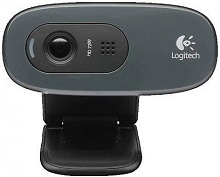
When Windows sees the camera but a video app shows a black preview, the Logitech C270 HD Webcam Driver is only one part of the path worth checking. The C270 is a corded USB 2.0 webcam with a fixed-focus lens, 60-degree field of view, built-in noise-suppressing microphone, activity light, and video capture up to 720p. Those details matter because focus, microphone, USB, privacy, and application problems need different fixes.
Logitech C270 HD Webcam Windows Driver Download
| Driver Name | Description | Supported OS | File Size | Download |
|---|---|---|---|---|
| Logi Options+ Software | Customizes supported device settings, shortcuts, controls, and other available Logitech Options+ preferences. | Windows 11, Windows 10 32-bit/64-bit | 43.1 MB |
Logitech C270 HD Webcam Mac OS Driver Download
| Driver Name | Description | Supported OS | File Size | Download |
|---|---|---|---|---|
| Logi Options+ Software | Manages supported Logitech device settings, shortcuts, controls, and other customization options on newer macOS releases. | macOS 26, macOS 15, macOS 14 | 19.54 MB | |
| Logi Options+ Software | Adjusts available Logitech device preferences and provides access to supported customization features on macOS 13. | macOS 13 | 19 MB |
Logitech C270 HD Webcam Driver When the Preview Turns Black
A black picture does not always mean Windows has lost the webcam. The C270 activity light can come on while an application receives no usable picture. First close every program that might already have camera access, including meeting software, browser tabs, recording tools, and the Windows Camera app. Open only one camera program afterward. Two programs competing for the video stream can leave one of them waiting or showing nothing.
The green light comes on but there is no picture
Check Windows camera privacy access before changing the device software. Windows can recognise the USB hardware while blocking applications from receiving video. Open the camera privacy controls and allow camera access for the programs you actually use. Desktop applications have their own permission control on current Windows releases, so inspect that option too when a browser works but desktop meeting software does not.
If permissions already look right, unplug the C270, restart the computer, and connect it directly to another USB-A port. Skip an unpowered hub during this test. Open the built-in Camera app before launching any third-party program. A picture there usually means the camera itself is communicating and the remaining problem lies with the application, its selected video source, or its permissions.
Windows lists the camera as USB Video Device
The C270 can operate through the standard USB video class path used by modern operating systems. Seeing a generic USB Video Device entry therefore does not automatically prove that the hardware has failed. Check whether the video and built-in microphone actually work before trying several old packages. If a recent change left the preview broken, Device Manager can also reload the compatible camera device after you disconnect and reconnect the webcam.
Current Logitech download pages may not provide a separate package for every operating-system version even though older C270 material refers to Logitech Webcam Software. That makes endless installation of unrelated Logitech applications a poor first response. Use the Logitech C270 HD Webcam Driver resources that match your system, but judge the connection by whether Windows detects the camera and microphone and whether a basic camera application receives video.
Microphone Problems Can Exist Even When Video Looks Normal
The built-in microphone has its own audio path, so a clear picture does not prove that voice capture is configured properly. When other people cannot hear you, open the operating system microphone controls and speak while watching the input meter. If the meter responds, the webcam microphone is working at the system level and the problem probably sits inside the calling or recording application.
The C270 microphone is missing from an app
Open that program’s audio controls and select the Logitech webcam microphone rather than leaving the choice on an unrelated default input. Laptops often have an internal microphone, and headsets add another option, so a meeting program may quietly stay on the wrong source. Close and reopen the application after changing the input if it keeps using the earlier microphone.
If the C270 microphone does not appear anywhere in Windows, reconnect the webcam through another USB port and inspect Device Manager. The camera carries both video and microphone functions over its USB cable. A missing audio component alongside unstable video therefore deserves a USB detection test before you change conferencing software. The Logitech C270 HD Webcam Driver path should expose the webcam without warning symbols when Windows has loaded the device normally.
The microphone appears but records silence
Microphone privacy permission can produce this exact symptom. Windows may show the input device while denying microphone access to a particular program. Allow microphone access for the required application, then test with the operating system’s own recorder. If that recording contains your voice, return to the problem application and choose the C270 input there rather than changing camera software again.
Image Quality Problems Need Camera-Specific Fixes
The C270 uses fixed focus. There is no normal autofocus control to repair and no focus slider that can bring a subject at any distance into sharp detail. If your face looks soft, change the distance between you and the webcam before hunting for a focus option. Keep the lens clean with a suitable dry lens cloth, improve the room lighting, and compare the picture again.
The picture looks blurry even though the camera works
Sitting unusually close to a fixed-focus webcam can produce a softer image that software sharpening will not truly fix. Move back gradually and watch the preview. Also make sure the camera sits firmly on the monitor instead of pointing through an angle that puts the main subject too close. The C270’s fixed-focus design means physical distance is a more relevant check than autofocus troubleshooting.
Video becomes grainy or smeared in a dark room
More light is often the most effective correction. Low illumination forces a webcam to work with less image information, which can make faces noisy and movement look blurred. Place a soft light in front of you or brighten the room rather than relying on a bright window behind your chair. The C270 includes Logitech’s RightLight 2 image processing, but software cannot fully replace adequate light reaching the sensor.
Backlighting deserves special attention. A bright window or lamp behind you can leave the face much darker than the background. Turn toward the light or move the bright source out of the frame. If one application still looks much darker than another, inspect that application’s own camera controls because a program may handle exposure differently from the preview you saw elsewhere.
The image is clear in one program but poor in another
That difference points away from the lens. Compare resolution, aspect ratio, exposure controls, network conditions, and video processing inside the affected program. The C270 can capture widescreen video up to 720p, but a calling service may lower transmitted quality when bandwidth or application settings demand it. A locally recorded picture that looks good gives you a useful reference before blaming the webcam hardware.
C270 USB Detection, App Freezes, and Interrupted Video
A webcam that vanishes during a call, freezes an application, or repeatedly reconnects needs a simpler USB test. Disconnect other unnecessary USB devices for a moment, plug the C270 directly into a different computer port, and restart the affected program. The cable is attached to the webcam, so there is no detachable camera-side lead to reseat. Check the cable for obvious damage or severe bends instead.
A program freezes when it tries to open the webcam
Close the frozen program and check the C270 in another camera application. If the second application opens normally, reset or update the first program and confirm that it has selected the Logitech camera. If every camera program hangs, reboot with the webcam disconnected, reconnect it after Windows finishes loading, and test the built-in Camera app before installing additional utilities.
Testing on a second computer is particularly useful here. If the same black picture, application freeze, or missing microphone follows the webcam to another machine, software on the original PC becomes a weaker explanation. If the C270 works immediately elsewhere, return to the first computer and concentrate on its USB controller, privacy access, camera entry, and applications.
The camera works until another program starts
Video applications can hold camera access even after their main window disappears. Exit communication and recording programs from their taskbar or background controls, then reopen only the program you need. Browser users should also close tabs that have camera permission. When this restores the picture, there is little reason to replace the Logitech C270 HD Webcam Driver merely because two applications were competing for the same video source.
The activity light stays on unexpectedly
The green indicator is an activity light and normally comes on when software is using the camera. If you are not intentionally recording or calling, close camera-enabled applications and browser pages until the light goes out. Then inspect application permissions if necessary. Treat an unexpected light as a reason to find which program has camera access, rather than looking for a setting that disables the indicator itself.
Separate a Windows Problem From a Failing Webcam
Some C270 failures look like software faults because Windows still makes the USB connection sound and may even illuminate the activity light. A practical dividing line is whether the same fault survives several independent tests. Use another USB port, the operating system camera application, a second video program, and, when possible, another computer. These comparisons reveal more than cycling through multiple unrelated Logitech packages.
A camera that produces normal video on another computer points back to the first system. A unit that gives the same blank or corrupted picture everywhere, while its microphone or USB identification behaves inconsistently, deserves more suspicion at the hardware level. Do not strike, open, bend, or dismantle the webcam as a troubleshooting method even if informal fixes suggest doing so.
Use the Logitech C270 HD Webcam Driver page as the software starting point, but keep the diagnosis tied to the symptom. Black video calls for camera access and USB checks; silent audio calls for microphone selection and permissions; blur calls for distance and lighting; app-only failure calls for that program’s video controls. That separation keeps a small webcam problem from turning into a long cycle of unnecessary software changes.