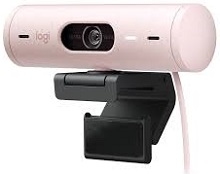
A black preview or a webcam that never appears can make a software problem seem more complicated than it is. The Logitech BRIO 505 Business Webcam Driver setup begins with its USB-C connection, since the camera is a plug-and-play USB device while Logi Tune handles its extra video controls and updates. Checking the connection path first prevents camera permissions, autofocus, framing, and microphone problems from becoming mixed together.
Logitech BRIO 505 Business Webcam Windows Driver Download
| Driver Name | Description | Supported OS | File Size | Download |
|---|---|---|---|---|
| Logi Options+ Software | Customizes supported device settings, shortcuts, gestures, and related controls through the Logi Options+ application. | Windows 11, Windows 10 32-bit/64-bit | 43.1 MB | |
| Logi Tune Software | Provides webcam controls for adjusting camera settings and managing supported video-call device features. | Windows 11, Windows 10 32-bit/64-bit | 195.9 MB | |
| Logitech G HUB Software | Manages compatible Logitech hardware settings and gives access to device configuration through G HUB. | Windows 11, Windows 10 32-bit/64-bit | 67.08 MB |
Logitech BRIO 505 Business Webcam Mac OS Driver Download
| Driver Name | Description | Supported OS | File Size | Download |
|---|---|---|---|---|
| Logi Options+ Software | Configures supported device settings, shortcuts, gestures, and other customization options on newer macOS releases. | macOS 26, macOS 15, macOS 14 | 19.54 MB | |
| Logi Options+ Software | Offers device customization controls for supported Logitech hardware running on macOS 13. | macOS 13 | 19 MB | |
| Logi Tune Software | Adjusts webcam image settings and manages supported camera features for video meetings and calls. | macOS 26, macOS 15, macOS 14, macOS 13, macOS 12.0, macOS 11, macOS 10.15 | 315.89 MB | |
| Logitech G HUB Software | Provides Logitech hardware configuration and device-management controls for compatible products on current macOS versions. | macOS 26, macOS 15, macOS 14 | 12.43 MB | |
| Logitech G HUB Software | Runs G HUB device configuration tools for compatible Logitech hardware on macOS 13. | macOS 13 | 10.43 MB | |
| Logitech G HUB Software | Supports G HUB hardware management and configuration functions on systems using macOS 11. | macOS 11 | 5.02 MB |
Logitech BRIO 505 Business Webcam Driver When the Camera Is Not Detected
The BRIO 505 has an attached USB-C cable and needs a USB-C connection that carries both power and data. This detail matters when a computer has no suitable USB-C socket and an adapter or docking station sits between the camera and the computer. An adapter that supplies power without the required data connection can leave the webcam completely absent from video applications.
The webcam disappears through an adapter or dock
Connect the camera directly to a working USB-C port when possible. If direct connection works but a dock or adapter does not, the intermediate hardware is the likely cause. Use an adapter whose USB-C connection handles data as well as power. Simply seeing power at the port does not prove that the computer has a usable video path to the webcam.
A direct-port test is also useful when the camera appears only sometimes after waking the computer. Disconnect it, close any meeting program that was using video, reconnect the USB-C cable, and then reopen the application. This gives the operating system another chance to enumerate the plug-and-play camera without the dock or conferencing program holding an earlier connection.
The computer sees the camera but an app shows no picture
Check camera privacy permissions before changing Logitech software. Windows can recognize a webcam while blocking applications from opening it. Camera access, application access, and access for desktop programs need to match the program you are using. On macOS, the video application also needs Camera permission under the system privacy controls.
One physical detail is easy to miss: the BRIO 505 has an integrated privacy shutter. Rotate the shutter open if the application identifies the webcam but the picture remains blocked. Because the shutter covers the lens in hardware, exposure changes, application restarts, or a Logitech BRIO 505 Business Webcam Driver reinstall cannot reveal an image while it remains closed.
Fix a Soft Image Before Changing Meeting Apps
Autofocus stays blurry after you sit down
The BRIO 505 uses autofocus, and occasionally the image can remain soft instead of settling on the face. Put a hand in front of the lens briefly and then remove it. That large change in distance can trigger autofocus again. Give the camera a moment to settle before deciding that the lens or video application has failed.
If autofocus still refuses to settle, Logi Tune provides another route. Turn autofocus off in the webcam controls and adjust focus manually with the focus control. This is particularly useful for a fixed desk position where the distance between the camera and your face rarely changes. Updating the webcam firmware through Logi Tune is also worth doing when focus behavior remains abnormal.
Zoom makes a previously sharp picture look softer
The camera provides digital zoom rather than an optical zoom lens. Magnifying the frame therefore reduces visible detail as the zoom level rises. If the image looks clear at the normal view but noticeably softer after cropping closely, reduce the zoom rather than repeatedly changing focus. Moving the webcam physically closer can preserve more detail when the desk arrangement permits it.
Field of view can also change how much digital enlargement you need. The BRIO 505 offers 90, 78, and 65 degree views through its supported controls. A narrower framing choice may give the composition you want without pushing digital zoom as hard, especially for a single person seated directly in front of the display.
Logitech BRIO 505 Business Webcam Software for Framing and Video Controls
Logi Tune is the main configuration utility listed for this business webcam. It provides access to webcam adjustments and device updates rather than acting as a requirement for every basic video call. The Logitech BRIO 505 Business Webcam Driver connection can provide plug-and-play camera operation first, while Tune becomes useful when you need autofocus changes, field-of-view adjustments, framing features, or firmware management.
Auto-framing keeps changing the composition
BRIO 505 includes RightSight auto-framing, which can keep the person centered as position changes during a call. That behavior may look like unwanted camera movement when a fixed composition is preferred. Open the supported Logitech controls and turn auto-framing off for a stationary view. Leave it active when moving around during presentations or conversations is more important than holding one crop.
Do not troubleshoot RightSight as if the camera itself were disconnecting. If the video continues without interruption while the crop moves or recenters, the USB link is still active. Change the framing feature first. A genuine connection problem normally affects the availability of the camera or the video stream itself rather than merely shifting the picture around the face.
Show Mode does not behave as expected
Show Mode is intended for pointing the webcam downward to present an object or document on the desk. The feature depends on supported Logitech software behavior, so first make sure the camera appears properly in the control application and that the software is current. Do not confuse Show Mode with ordinary pan, zoom, or a failure of autofocus when the camera changes toward a desk-facing view.
ChromeOS needs a different expectation. The BRIO 505 works with ChromeOS as a webcam, but Logi Tune is not offered there. That means the absence of Tune controls on a Chromebook is not evidence of a missing webcam driver. Use the controls exposed by the conferencing platform and ChromeOS rather than trying to reproduce every Windows or macOS Tune feature.
When Video Quality Changes Between Apps
1080p video runs at 30 fps instead of 60 fps
The BRIO 505 reaches Full HD 1920 x 1080 at 30 frames per second. Its 60 fps mode is associated with 1280 x 720 video. If an application does not offer 1080p at 60 fps, that is not necessarily a software fault. Choose between the greater resolution of 1080p/30 and the higher frame rate of 720p/60 according to the meeting or recording task.
Meeting platforms may also choose their own working resolution according to bandwidth, processor load, account settings, or call conditions. A webcam capable of Full HD does not force every call to remain at 1080p. Compare the image in another camera application before treating a lower-resolution conference stream as a hardware failure.
The picture changes brightness during a call
RightLight 4 with HDR automatically adjusts the BRIO 505 image for changing light. Strong daylight behind the user, a bright monitor, or a lamp entering the frame can therefore alter how the face is exposed. Before making aggressive software adjustments, place the main light in front of you and keep bright windows from dominating the background.
If one program looks markedly different from another, check whether that program is applying its own portrait, low-light, background, or camera enhancement. Video meeting applications can process the feed after it leaves the webcam. Compare the plain camera preview with the meeting preview to find out whether the change comes from BRIO 505 controls or from the calling software.
Microphone Problems Can Be Separate from the Camera Feed
Video works but nobody can hear you
The BRIO 505 contains two built-in noise-reducing microphones, so a working picture does not automatically mean the meeting program has selected those microphones. Open the application’s audio controls and choose the BRIO 505 microphone input rather than a laptop microphone, monitor audio device, or headset that was selected during an earlier call.
System privacy controls can block microphone access independently from camera access. On Windows, confirm that microphone access is enabled for applications and desktop programs. On macOS, check Microphone permission for the meeting application. Changing video resolution or reinstalling camera software will not correct an audio permission that prevents the program from receiving the webcam’s microphone signal.
Your voice becomes faint when sitting farther away
The specified microphone pickup range is up to about 1.22 metres. If speech becomes weak while you move farther across the room, test again from normal desk distance before adjusting every application control. BRIO 505 is built primarily as a personal business webcam, not as a room microphone intended to capture speakers seated far from the computer.
Background-noise reduction can also make the microphone sound different from an untreated microphone. Check the selected input and physical speaking distance first. If another headset or laptop microphone is active, the apparent BRIO 505 audio problem may actually be coming from a completely different input device.
Separate Camera Hardware from Software Before Another Download
When several symptoms appear at once, reduce the system to the camera, one suitable USB-C connection, and one video application. Confirm that the privacy shutter is open and that the program has permission to use both camera and microphone. Once the basic stream works, bring Logi Tune back into the picture for autofocus, field of view, RightSight, Show Mode, and firmware adjustments.
The Logitech BRIO 505 Business Webcam Driver page is most useful when the download matches the problem you actually have. A power-only adapter needs different attention from a blurred autofocus image, and a microphone permission problem has little to do with digital zoom. Keeping those faults separate makes it much easier to decide whether you need a USB connection change, an operating-system permission, a meeting-app adjustment, or the Logitech control software.