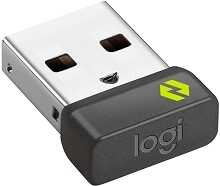
When a compatible keyboard or mouse works through another connection but refuses to appear through the small USB adapter, the trouble is often pairing, port placement, or receiver compatibility rather than the peripheral itself. The Logitech Bolt USB Receiver Driver works with the operating system and Logitech pairing software so supported Logi Bolt devices can communicate through the receiver. A few checks can separate a pairing failure from a USB detection problem.
Logitech Bolt USB Receiver Windows Driver Download
| Driver Name | Description | Supported OS | File Size | Download |
|---|---|---|---|---|
| Logi Bolt App | Logi Bolt App manages compatible Logi Bolt devices and receiver connections from Windows. | Windows 11, Windows 10 32-bit/64-bit | 33.11 MB |
Logitech Bolt USB Receiver Mac OS Driver Download
| Driver Name | Description | Supported OS | File Size | Download |
|---|---|---|---|---|
| Logi Bolt App | Logi Bolt App provides Mac users with tools for connecting and managing compatible Logi Bolt devices. | macOS 12, macOS 11, macOS 10.15 | 54.96 MB |
Logitech Bolt USB Receiver Driver When Pairing Does Not Start
A new or replacement Bolt receiver does not automatically take control of every nearby Logitech product. The keyboard or mouse must specifically support Logi Bolt, and a replacement receiver normally needs to be paired with that device. Logi Options+ now provides the main software path for connecting supported Bolt products, while Logi Web Connect can also handle receiver pairing in supported situations.
The receiver appears, but no device is found
Begin with the wireless product itself. Put the compatible keyboard or mouse into its active connection mode before searching for it in the pairing utility. On many Bolt products this involves holding the connection control until its indicator starts blinking rapidly. If the device leaves discovery mode before the utility finds it, start that mode again and repeat the search rather than unplugging everything at once.
The Logitech Bolt USB Receiver Driver cannot make an incompatible peripheral appear. Look for the Bolt mark on the keyboard or mouse before spending time on software changes. A device built only for Logitech Unifying cannot be paired to a Bolt receiver. The two receiver systems use different wireless technologies and are not interchangeable, even though their USB adapters can look similar at first glance.
A replacement Bolt adapter will not connect
A replacement receiver may be perfectly functional yet remain unused until you add the keyboard or mouse to it. Open Logi Options+, choose the option to add a device, select the Bolt receiver, and follow the pairing prompts for the compatible product. Keep only the device you intend to add in active pairing mode if several Logitech products are nearby.
If the software repeatedly returns to the search screen, power the peripheral off and back on, enter its connection mode again, and restart the pairing attempt. For keyboards, complete any verification sequence shown by the software carefully. An incorrect verification entry prevents the pairing from finishing, even when the keyboard has already appeared in the device search.
USB Detection Can Fail Before Pairing Even Begins
Windows does not see the receiver
If Logi Options+ cannot find the adapter at all, check whether Windows can detect the USB hardware first. Insert the receiver directly into another USB port and give the operating system time to enumerate it. When the adapter appears only in one port, the original USB port, hub path, chipset software, or power state deserves more attention than the Bolt pairing process.
Device Manager can also expose a failed USB entry. Disconnect the receiver, restart the computer, and reconnect it directly after Windows loads. If Windows continually produces a USB recognition error with the same receiver across several ports, test the adapter on another computer. Detection on the second machine points back toward the first computer rather than a failed receiver.
A dock or hub sees other USB devices but not Bolt
Receiver problems sometimes appear only through docks, USB switches, extenders, or hubs. A flash drive working through the same dock does not prove that the Bolt connection will behave identically. During diagnosis, place the adapter in a USB port on the computer itself. This removes the extra USB hardware and power-management layer from the connection.
If direct connection fixes the problem, the dock rather than the Logitech Bolt USB Receiver Driver is the likely weak point. You can then test another dock port, restart the dock, check its firmware or host software, or use a suitable direct adapter when the computer lacks the receiver’s USB connector type. Avoid repeated pair-and-unpair cycles while the USB path itself remains unstable.
One USB port creates lag while another works normally
A receiver can remain detected yet deliver poor wireless performance in one physical position. Try a different port when the keyboard misses keystrokes or the pointer pauses. On desktop computers, placing the adapter where there is less metal between it and the wireless device may make a noticeable difference. Nearby radio equipment and busy USB hardware can also worsen an otherwise healthy link.
Logitech Bolt USB Receiver Software and Compatibility Checks
Software choice matters because older Logitech utilities were created for different generations of receivers. Current Bolt pairing functions have moved into Logi Options+, so installing Unifying Software, SetPoint, or an unrelated receiver utility does not turn an incompatible adapter into a Bolt receiver. Use software that explicitly offers Logi Bolt when adding or removing devices.
Logi Options+ opens but the receiver is missing
First confirm that the computer recognizes the USB adapter outside the application. If it does, close and reopen Logi Options+ after reconnecting the receiver. Installing the current release can also resolve situations where the operating system detects the adapter but an older application build does not refresh its hardware list correctly.
When reinstalling becomes necessary, remove the application normally, restart the computer, and then install a current copy before reconnecting the receiver. Do not repeatedly remove Windows USB components if the receiver already works in another application. The aim is to repair application detection without disturbing a USB connection that the operating system already handles correctly.
A Unifying device is being paired by mistake
This is an easy mismatch to overlook when several Logitech peripherals share a desk. Bolt and Unifying receivers are separate systems. Check the identifying mark on the peripheral and receiver before opening the pairing screen. A Unifying-only keyboard or mouse needs its compatible connection method; it cannot be converted into a Bolt product through a driver update.
The reverse is also worth checking after a receiver is lost. Buying a small Logitech USB adapter that physically resembles the missing one is not enough. Match the receiver technology to the device before attempting pairing. This single check can prevent a long cycle of unsuccessful software installs, USB changes, and device resets.
Multiple Devices, Wake Problems, and Intermittent Response
Adding a second device removes confusion around spare receivers
One Logi Bolt USB receiver can hold pairings for up to six compatible Bolt wireless mice and keyboards. That makes it possible to reduce the number of USB adapters on a computer. Add each supported device through the pairing software rather than assuming that placing a second Bolt peripheral near the computer will connect it automatically.
If one device works and another does not, treat their pairings separately. Confirm that the missing keyboard or mouse appears in the utility and enters pairing mode when requested. The working product proves that the receiver and USB port have some functionality, but it does not prove that the second device has been paired to that adapter.
The keyboard or mouse disappears after sleep
When a Bolt-connected peripheral fails after the computer wakes, unplugging and reinserting the receiver can reveal whether the problem lies in USB resume behavior. If that immediately restores communication, investigate USB power management, dock sleep behavior, or the specific port. A complete new pairing should not be the first response every time the computer resumes from sleep.
With a receiver attached through a dock, also compare wake behavior with a direct computer connection. Some intermittent cases involve the dock restoring other USB hardware while the small wireless adapter remains unavailable. Keeping that comparison simple makes it easier to see whether the fault follows the Bolt receiver or stays with the dock.
macOS sees the USB accessory but the Logitech app does not
Recent macOS versions can ask for permission when a new USB accessory connects. If that approval is denied or ignored, the receiver may fail to communicate normally with the software. Reconnect the adapter and check the system’s accessory security controls, then allow the receiver when macOS presents the request. Reopen Logi Options+ afterward so it can scan the USB connection again.
Improve the Wireless Path Before Replacing the Receiver
Pointer lag or missed keystrokes increase with distance
Intermittent response does not always mean the adapter has failed. Move the compatible device closer to the receiver and compare the result. If performance improves sharply, concentrate on receiver position and nearby interference. A port hidden behind a metal desktop case can create a poorer radio path than a more exposed USB position even though both ports detect the adapter correctly.
Keep strong wireless equipment and unnecessary electronic devices away from the immediate receiver area while testing. The goal is not to redesign the desk, but to remove obvious sources of interference long enough to see whether response improves. Once the connection becomes steady, restore other equipment one piece at a time if you need to identify the source.
The receiver works on another computer
This test is especially useful before buying another adapter. A receiver that pairs and operates normally on a second computer has already demonstrated that its USB hardware and radio can function. Return to the original computer and examine its port, dock, operating-system USB state, security permissions, and Logitech software rather than assuming that another receiver will solve the problem.
If the adapter fails to appear on several computers and direct USB ports, while other USB devices work in those same ports, the evidence points more strongly toward receiver hardware failure. Pairing software cannot repair a receiver that never enumerates as USB hardware. At that point, replacing the adapter and pairing the compatible Bolt devices to the replacement is the practical route.
Keep Pairing and USB Detection as Two Separate Tests
The most useful distinction with the Logitech Bolt USB Receiver Driver is whether the computer can detect the adapter before Logitech software tries to pair anything. A missing USB receiver calls for port, dock, system, or hardware checks. A receiver that appears normally but cannot find a peripheral calls for Bolt compatibility, pairing mode, and software checks instead.
That separation also prevents unrelated fixes from piling up. Do not install Unifying tools for a Bolt-only pairing problem, and do not repeatedly reset a keyboard when the computer cannot see the USB adapter at all. Match the remedy to the failing part of the path: USB detection first, compatible Bolt pairing second, then receiver position and interference if the connection works but response remains uneven.