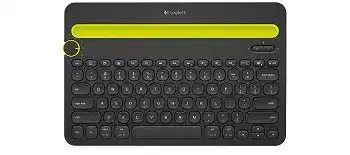
A channel that flashes without completing the connection often means the selected device still holds an expired Bluetooth record. The Logitech Bluetooth Multi Device Keyboard K480 Driver page covers the software, pairing method, and practical fixes needed when switching among a computer, tablet, and phone. This keyboard connects directly through Bluetooth and stores up to three pairings behind its numbered selection dial.
The K480 does not use a USB receiver, Unifying dongle, or Logi Bolt receiver. Its dial chooses channel 1, 2, or 3, while the PC and i buttons place the selected channel into the appropriate pairing mode. Two AAA batteries supply power, and the mixed operating-system key labels serve Windows, macOS, ChromeOS, Android, iPadOS, and iOS layouts.
Logitech Bluetooth Multi-Device Keyboard K480 Windows Driver Download
| Driver Name | Description | Supported OS | File Size | Download |
|---|---|---|---|---|
| Logi Options+ Software | Customizes keyboard shortcuts, device settings, and supported key functions through the newer Logitech interface. | Windows 11, Windows 10 32-bit/64-bit | 43.21 MB | |
| Logitech Options Software | Manages keyboard assignments, shortcuts, and other device-specific customization settings. | Windows 11, Windows 10 32-bit/64-bit | 245.76 MB |
Logitech Bluetooth Multi-Device Keyboard K480 Mac OS Driver Download
| Driver Name | Description | Supported OS | File Size | Download |
|---|---|---|---|---|
| Logi Options+ Software | Configures supported keyboard shortcuts and device controls on the latest compatible macOS releases. | macOS 26, macOS 15, macOS 14 | 19.56 MB | |
| Logitech Options Software | Adjusts keyboard functions, application shortcuts, and device preferences across several macOS versions. | macOS 15, macOS 14, macOS 13, macOS 12, macOS 11 | 238.52 MB | |
| Logi Options+ Software | Provides keyboard shortcut customization and device setting controls for macOS 13 installations. | macOS 13 | 19 MB | |
| Logi Options+ Software | Handles supported key assignments and keyboard preferences on systems running macOS 12. | macOS 12 | 18.65 MB | |
| Logi Options+ Software | Enables compatible shortcut controls and device-specific keyboard settings under macOS 11. | macOS 11 | 17.51 MB |
The keyboard never appears in the Bluetooth list
Turn the dial to the channel you want to store, then hold the PC button for Windows, Android, or ChromeOS. Hold the i button for macOS, iPadOS, or iOS. The nearby light must blink rapidly. A brief flash usually means the key was tapped rather than held, so repeat the action until the channel remains discoverable.
Keep the Bluetooth page open on the computer or mobile device while entering pairing mode. Remove any older K480 listing before searching again. An operating system may continue showing a saved name even though its security information no longer matches the keyboard, which prevents a fresh connection from completing.
The pairing code appears but fails
When the screen displays a numeric code, type that code on the K480 and press Enter on the keyboard. Do not enter it with an on-screen keyboard or another attached keyboard. The digits may not appear in a visible text field while you type them; Bluetooth still receives the sequence.
Restart the pairing attempt if the code expires before Enter is pressed. Delete the unfinished K480 entry first, return the dial to the same channel, and hold the matching PC or i button again. Repeating the old code rarely works because the device creates a new code for each attempt.
Windows shows paired but accepts no keystrokes
A saved connection can remain marked as paired after Windows loses its active keyboard profile. Remove the K480 from Bluetooth settings, restart Bluetooth, and create the pairing again. Also check that the computer is not in airplane mode and that its Bluetooth adapter appears normally in Device Manager.
The Logitech Bluetooth Multi Device Keyboard K480 Driver does not replace the Windows Bluetooth stack. Windows supplies the standard keyboard connection, while compatible Logitech software adds supported preferences. A Bluetooth adapter error, disabled service, or outdated computer adapter must be corrected before Logitech software can recognize an active keyboard.
Stop the Dial from Returning to the Wrong Screen
The selector dial does not search for nearby devices each time it turns. Every position remembers one Bluetooth pairing. Channel 1 may belong to a laptop, channel 2 to a tablet, and channel 3 to a phone. Turning the dial to an unused or incorrectly paired position leaves the keyboard blinking or apparently inactive.
One dial position keeps opening the old device
Overwrite that position instead of trying to edit it from another channel. Turn the dial to the unwanted number and hold the correct pairing button until its light flashes rapidly. Pair the replacement computer, phone, or tablet while the dial remains on that number. The other two stored positions should remain unchanged.
Remove the old K480 listing from the previous host as well. Otherwise, that device may continue attempting to reconnect whenever Bluetooth is active and the dial returns to its former channel. Clearing both sides avoids confusing connection messages during later switching.
Turning the dial does not move typing to another device
First click a writable field on the destination screen. The K480 changes its Bluetooth host, but it cannot move the text cursor or open an application. A tablet may reconnect successfully while showing no visible response because no document, search box, or message field currently has focus.
Allow a few seconds after moving from one operating system to another. If the channel light keeps blinking, that position has not reconnected. Open the destination device’s Bluetooth page and check whether the K480 is listed as connected. Re-pair only the failing position rather than deleting all three channels.
All three channels have become unreliable
Start with a full keyboard reset when several saved connections fail together. Turn the K480 off and back on. Press and release Esc plus O twice, then press and release Esc plus B. After the indicator response, power-cycle the keyboard again and pair each channel from the beginning.
A reset clears the stored host relationships, so the computer, tablet, and phone must also forget their previous K480 records. Rebuild the channels one at a time. Confirm typing on the first host before moving the dial and assigning the next one. This avoids saving two devices against the same selector position by mistake.
Wrong Symbols, Shortcuts, and Function-Key Behaviour
The keycaps combine labels for several operating systems, which can make a layout error look like damaged hardware. The Logitech Bluetooth Multi Device Keyboard K480 software cannot correct a mismatched language selected inside Windows, macOS, Android, or iPadOS. The physical keyboard layout and the operating-system input language must agree.
The at sign, question mark, or quotation marks are misplaced
Check the active keyboard language before resetting Bluetooth. A US-layout K480 paired with a UK, German, French, or another regional software layout produces different symbols from those printed on the keys. Select the matching hardware layout and remove unused input languages that can be triggered accidentally by a shortcut.
On Windows, watch the language indicator near the taskbar when the problem starts. On mobile devices, inspect the physical keyboard language rather than only the on-screen keyboard language. Test several punctuation keys after the change. If every symbol now matches, the Bluetooth link and key switches were not at fault.
Command, Alt, Start, and modifier shortcuts seem reversed
The K480 prints several operating-system names on shared keys. Windows uses Start and Alt combinations, while Apple systems use Command and Option positions. Pairing with the wrong button can leave the keyboard using behaviour intended for another platform, so rebuild that channel with PC for Windows or Android and i for Apple devices.
Also review any modifier-key remapping inside macOS or third-party keyboard utilities. A previous external keyboard may have left Command, Control, Option, or Caps Lock reassigned. Restore the normal mapping before judging the K480 layout. Changing both the operating-system map and the physical pairing mode at once makes the original cause harder to identify.
F1 to F12 trigger media actions instead
The upper row carries shortcuts for tasks such as home, application switching, search, media playback, and volume. Hold Fn when an application needs the traditional F-key command. Where supported, Logitech Options can change whether the top row favours standard function keys or printed shortcut actions.
If that preference changes after moving to a phone or tablet, remember that each operating system handles external keyboard functions differently. A desktop software preference does not necessarily travel through the keyboard to every channel. Test Fn directly on the affected host instead of assuming the Windows or macOS choice controls all three devices.
Copy and paste work on one system but not another
Use the modifier expected by the active operating system. Windows and many Android applications use Ctrl with C or V, while Apple systems generally use Command. Some mobile applications intercept shortcuts or offer only limited external-keyboard commands, so test the same combination in another editable application before changing the pairing.
Accessibility features can alter shortcut handling as well. On an iPad, Full Keyboard Access assigns additional navigation commands and may change how certain combinations behave. Review that setting when ordinary text shortcuts stop working after an operating-system change.
Typing Delay, Repeated Letters, and Android Input Problems
The first keystrokes disappear after a pause
Bluetooth devices enter low-power states when idle. Press one key and allow the connection to wake before beginning a long sentence. If recovery takes many seconds or happens every few characters, replace both AAA batteries together and remove the saved pairing before reconnecting the affected channel.
Keep the keyboard within a reasonable distance of the host during diagnosis. Busy wireless areas, crowded desks, and weak computer Bluetooth adapters can increase delays. Temporarily disconnect other unused Bluetooth accessories to see whether responsiveness improves. This test matters more than installing several unrelated Logitech packages.
Letters repeat or rapid double presses go missing
Open a plain document and type slowly, then at normal speed. If repeated presses fail only in one Android application, try another editor. Some mobile input services process hardware-keyboard events differently and can suppress fast duplicate characters even though the Bluetooth connection remains active.
Check the selected Android on-screen keyboard service. Backspace and repeated-key anomalies have occurred when a third-party software keyboard handles the physical K480 input. Change temporarily to the system keyboard or the physical-keyboard entry, then repeat the test. Keep the service that processes backspace, Shift combinations, and repeated letters correctly.
Backspace removes unusual amounts of text
This symptom often belongs to the active mobile input method rather than the K480 itself. Close predictive-text overlays and test Backspace in a basic note field. If the problem stops after changing the Android keyboard service, leave the Bluetooth pairing intact because rebuilding the connection will not repair the application-level input rule.
Also check whether a modifier key remains logically active. Press and release Shift, Ctrl, Alt, and the operating-system modifier once, then try Backspace again. A missed key-release event can turn one command into a selection or navigation action until the modifier state refreshes.
Battery Power and Software Detection Without a Receiver
The K480 uses two AAA batteries beneath its battery cover. Install both cells according to the marked direction and move the side power switch fully on. When the keyboard flashes briefly but cannot hold a connection, test a matching new pair rather than combining batteries with different ages or charge levels.
Logitech Options cannot find the keyboard
Bluetooth must already show the K480 as connected before the control software can communicate with it. Pair the keyboard through the operating system first, then open Logitech Options. Do not search for a USB receiver or use Unifying or Bolt pairing tools because this model has no receiver connection.
Close and reopen the utility after changing the selector channel. The application can lose sight of the keyboard when it moves to another host. The Logitech Bluetooth Multi Device Keyboard K480 Driver package should match the operating system in use, but basic typing still depends on the system Bluetooth connection rather than an added receiver driver.
The keyboard works after power cycling, then fails again
Inspect the battery contacts for dust or residue and wipe them with a dry cloth. Confirm that the battery cover does not let the cells move when the keyboard is turned or lifted. An intermittent power contact can resemble a lost Bluetooth pairing because the active channel light disappears and the host retains an apparently valid record.
Test one channel with one nearby device for a longer session. Leave the other two positions unused during that test. If the connection remains steady, add the other hosts again. If it fails with new batteries on every channel and with more than one host, the fault is likely within the keyboard rather than its stored pairings.
Rebuild Each Channel Instead of Reinstalling Everything
Work on the failing selector position first. Forget the K480 on that host, turn the dial to its assigned number, and start pairing with the correct PC or i button. Enter any displayed code on the physical keyboard and press Enter. Confirm ordinary typing before adjusting language, modifier, or function-key preferences.
When all channels fail, reset the keyboard and remove every stale K480 Bluetooth record before assigning the three positions again. Use one channel per device and write down the arrangement until it becomes familiar. This approach preserves a clear relationship between the dial and each host without mixing old connection information into a new pairing.
Finish by checking symbols, Backspace, modifier shortcuts, media controls, and rapid typing on each operating system. A problem limited to one host usually points to its Bluetooth record, keyboard language, accessibility controls, or input service. A fault that follows every dial position deserves battery-contact testing and a second-host comparison before another software installation.