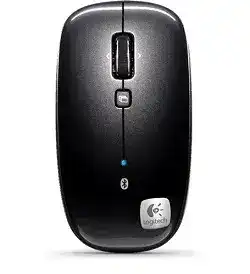
A blinking blue light that never finishes pairing is the usual reason to look for the Logitech Bluetooth M555B Mouse Driver. This portable Logitech mouse connects directly through Bluetooth, not through a USB receiver, so the first repair should focus on discovery mode, old Bluetooth entries, notebook power saving, and the older Logitech software made for this generation.
The M555B uses Bluetooth wireless technology, laser tracking, two AA batteries, a low-battery indicator, a Bluetooth connection button, a tilt wheel, and a wheel that switches between Hyperfast and click-to-click scrolling. It does not use a Unifying receiver, Logi Bolt, USB-C charging, gaming profiles, or modern multi-device switching.
Because it is a Bluetooth-only model, a computer can show the mouse in the Bluetooth list even when the pairing is no longer healthy. That stale entry is often the difference between a quick reconnect and a frustrating loop where the mouse appears, disappears, and then asks to be added again.
Logitech Bluetooth M555B Windows Driver Download
| Driver Name | Description | Supported OS | File Size | Download |
|---|---|---|---|---|
| SetPoint Software 64-bit | Full offline SetPoint package for configuring mouse buttons, tracking speed, battery status, and device-specific settings. | Windows 11, Windows 10 64-bit, Windows 8 64-bit, Windows 7 64-bit | 80.45 MB | |
| SetPoint Software 32-bit | Complete 32-bit SetPoint installer for adjusting button actions, pointer movement, hot-keys, and lock key alerts. | Windows 11, Windows 10 32-bit, Windows 8 32-bit, Windows 7 32-bit | 78.04 MB | |
| SetPoint Smart Installer | Small SetPoint web installer for mouse customization and status features, requiring internet access during installation. | Windows 11, Windows 10 32-bit/64-bit, Windows 8 32-bit/64-bit, Windows 7 32-bit/64-bit | 4.61 MB |
Logitech Bluetooth M555B Mac OS Driver Download
| Driver Name | Description | Supported OS | File Size | Download |
|---|---|---|---|---|
| Logitech Control Center Software | Mac customization software for managing mouse controls, scrolling behavior, button assignments, and Logitech device settings. | macOS 11.0, macOS 10.15, macOS 10.14, macOS 10.13 | 17.76 MB | |
| Logitech Control Center Software | Logitech Control Center build for Mac systems needing mouse button mapping and device preference adjustments. | Mac OS X 10.13, Mac OS X 10.12, Mac OS X 10.11 | 17.15 MB | |
| Logitech Control Center Software | Older Mac OS X package for setting Logitech mouse functions, scroll options, and connected device preferences. | Mac OS X 10.11, Mac OS X 10.10, Mac OS X 10.9, Mac OS X 10.8 | 17.06 MB |
Remove the Old Bluetooth Entry Before Pairing Again
Start with the Bluetooth list, not the download page, when the M555B refuses to pair. Remove the existing Logitech mouse entry from the computer first. Then turn the mouse off and on, press the Bluetooth connection button on the bottom, and wait for the top light to blink blue before searching again.
If the pairing screen asks for a passkey, use 0000. Older Bluetooth mice sometimes still trigger that prompt, especially on older Windows and Mac systems. A blank passkey attempt may fail even though the mouse itself is working.
Blue light blinks but the computer does not finish setup
When the blue light keeps blinking, the mouse has entered discovery mode but the computer has not completed the handshake. Turn Bluetooth off on the computer, turn it back on, and search again while the LED is still blinking. Keep the mouse close to the laptop during this part.
Do not try to pair through a Logitech receiver utility. The M555B has no receiver pairing path. The operating system’s Bluetooth panel handles the connection, while Logitech software is mainly useful later for supported button and scrolling options.
Mouse was paired with another computer
A Bluetooth mouse can hold on to the last computer it trusted. If the M555B worked on another laptop, remove it from that machine’s Bluetooth list or turn Bluetooth off there before pairing it again. This prevents the old computer from grabbing the connection while the new one is searching.
After that, power-cycle the mouse and press the Bluetooth button again. If the new computer still shows a failed entry, delete that entry and repeat pairing from a clean Bluetooth scan. Reusing the failed listing usually repeats the same error.
Windows Bluetooth Power Saving Can Break the Connection
The Logitech Bluetooth M555B Mouse Driver can restore older Logitech control features, but Windows Bluetooth power management may still drop the connection. This issue usually appears after several minutes of idle time, after sleep, or when a notebook tries to save battery by shutting down the Bluetooth radio.
Open Device Manager, check the Bluetooth adapter properties, and review the power management option that lets Windows turn off the Bluetooth device to save power. Clearing that option often stops repeated disconnects on older Windows laptops. Restart the computer after changing it so the Bluetooth stack reloads cleanly.
Pointer freezes after sleep
If the pointer stops only after the computer wakes, the mouse may not be the weak part. Turn the M555B off, wait briefly, turn it back on, and click once. If that works, the Bluetooth wake path needs attention before you reinstall software.
A full restart can clear a stuck Bluetooth session better than closing the lid again. Once the mouse reconnects, test it for several minutes without opening extra Logitech tools. This tells you whether the operating system link is stable on its own.
Bluetooth adapter driver is too old
Older laptops often rely on manufacturer Bluetooth drivers rather than only the mouse software. If the M555B connects and then drops again, update the computer’s Bluetooth adapter driver from the laptop maker or through the operating system’s update tool. The mouse driver cannot fix a weak Bluetooth radio driver.
This is especially relevant on older Windows systems where Bluetooth support depended on specific stacks. The mouse was built for standard Bluetooth operation, but a poor adapter driver can make discovery, sleep wake, and reconnect behavior unreliable.
Wheel Switching, Tilt Scrolling, and Missing Middle Click
The M555B wheel can surprise users because pressing and releasing the scroll wheel switches between Hyperfast and click-to-click scrolling. A page that suddenly races down a long document may not need repair. The wheel may simply be in its faster mode.
Press the wheel once and test scrolling again in a document or web page. If the wheel becomes controlled again, the driver was not the cause. Use the fast mode for long pages and click-to-click movement for forms, menus, and shorter text areas.
Horizontal scroll does not work everywhere
The M555B has a tilt wheel for horizontal scrolling, but applications do not all respond the same way. A spreadsheet or wide document is a better test than a plain web page. If tilt works in one program but not another, the problem sits with app behavior or assignment, not with the Bluetooth link.
On Mac, older Logitech mouse software or system preferences may affect what the extra wheel actions do. If pointer movement and normal scrolling work, review the assigned wheel action before removing the mouse from Bluetooth again.
Middle button opens nothing
The wheel button may act differently depending on software assignment. In a browser, try clicking the wheel on a link and check whether it opens a new tab. If that works, the physical switch is responding and the missing action in another program is likely app-specific.
If the wheel press fails on every computer, the switch may be worn. Software can change a function, but it cannot repair a worn internal click. A stiff, uneven, or silent wheel press points more toward hardware wear than a missing package.
Laser Tracking and Surface Problems That Look Like Bluetooth Lag
Laser tracking gives the M555B better control on many surfaces that trouble basic optical mice, including some polished or wood-grain tables. It still cannot make every glossy, glass, dusty, or uneven surface behave perfectly. Before changing Bluetooth settings, test the mouse on a plain matte surface.
If the pointer improves immediately on a different surface, keep the Bluetooth setup as it is. Clean the sensor opening gently and avoid using liquid near the underside. A tracking surface problem can feel like wireless delay because the cursor hesitates, jumps, or moves in small bursts.
Pointer speed feels wrong after reconnecting
After a fresh Bluetooth pairing, Windows or macOS may apply default pointer speed. Adjust pointer speed in the operating system first. Then open the older Logitech control software only if you need button assignments or wheel behavior that the system panel does not expose.
Do not install gaming software for this model. The M555B is a portable Bluetooth laser mouse, not a gaming mouse. It does not need DPI profiles, lighting controls, onboard memory tools, or polling-rate settings.
Cursor jumps while the mouse is close to other Bluetooth devices
Bluetooth congestion can cause short pauses, especially on crowded desks with headphones, keyboards, phones, and older laptop radios. Move other active Bluetooth devices away for a quick test. If the M555B becomes steadier, reduce nearby interference or reconnect the mouse after the other devices settle.
A metal laptop stand or a dock placed between the mouse and computer can also weaken the path. Place the mouse and computer so the Bluetooth signal has a clearer route, then retest before making software changes.
Battery Light, AA Cells, and Software Choice
The red light on this Logitech mouse signals low battery power. Install two good AA cells before spending time on driver changes. Weak batteries can allow pairing to start but fail during normal movement, which makes the problem look like a driver or Bluetooth fault.
Check the battery direction inside the compartment and make sure the contacts are not dull or bent. If the mouse has been stored for months, remove old cells and inspect for leakage. A clean power path matters because Bluetooth discovery draws more power than quiet idle use.
For older Windows setups, SetPoint-era software is the more realistic match than modern Logitech apps. On Mac, older Logitech control tools or system settings may cover the available actions. The Logitech Bluetooth M555B Mouse Driver should match the operating system version and the feature you are trying to restore.
If the mouse already pairs, moves, clicks, and scrolls, do not install extra software only because it is available. Add the Logitech package when you need wheel assignments, button changes, battery information, or a repair path for a Bluetooth connection that the basic system panel cannot stabilize.
Use the download after the Bluetooth test passes
A good final test is simple. Pair the mouse, confirm the blue light stops blinking, move the pointer on a matte surface, try normal scroll, press the wheel to change scroll mode, and test tilt in a wide document. Then install the Logitech Bluetooth M555B Mouse Driver only for the remaining controls.
That order keeps this older Bluetooth mouse from being treated like a receiver model. When the connection, batteries, and wheel mode are verified first, the driver download becomes a targeted fix instead of another guess.