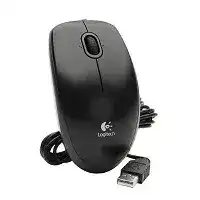
A lit optical sensor with no cursor response can make a simple wired mouse surprisingly difficult to diagnose. The Logitech B100 Optical USB Mouse Driver normally comes through the operating system because this three-button, 800 DPI model uses standard USB plug-and-play support. Logitech does not provide a separate downloadable control application for the B100, so connection faults, damaged system entries, cable wear, and surface tracking deserve attention before extra software.
The B100 connects through a fixed USB cable and works without a receiver, Bluetooth pairing, batteries, or wireless utilities. Its basic controls include left-click, right-click, vertical scrolling, and a clickable wheel. Windows, macOS, Linux, and compatible ChromeOS systems can operate these functions through their built-in USB mouse support.
Logitech B100 Optical USB Mouse Windows Driver Download
| Driver Name | Description | Supported OS | File Size | Download |
|---|---|---|---|---|
| SetPoint Software 64-bit | Full offline package for configuring mouse buttons, tracking speed, and device-specific settings on 64-bit systems. | Windows 11, Windows 10 64-bit, Windows 8 64-bit, Windows 7 64-bit | 80.45 MB | |
| SetPoint Software 32-bit | Complete offline installer for adjusting button functions, pointer tracking, and supported keyboard status indicators. | Windows 11, Windows 10 32-bit, Windows 8 32-bit, Windows 7 32-bit | 78.04 MB | |
| SetPoint Smart Installer | Compact installer that requires an internet connection to download SetPoint components for mouse customization and device settings. | Windows 11, Windows 10 32-bit/64-bit, Windows 8 32-bit/64-bit, Windows 7 32-bit/64-bit | 4.61 MB |
The computer shows no response after connection
Unplug the mouse and insert it into a different USB port on the computer. Use a direct port for this check rather than a keyboard socket, monitor connection, docking station, or unpowered hub. A failed hub port can prevent detection even when other devices attached to the same hub appear normal.
Restart the computer with the B100 disconnected, wait until the desktop loads, and then plug it in. This sequence makes the operating system perform a fresh hardware scan. If the mouse works in one port but not another, investigate the failed USB port rather than replacing mouse software.
The red sensor glows but the pointer does not move
The light underneath confirms that the USB connection supplies power, but it does not prove that data travels through the cable. Test both clicks and the wheel. When none of them respond, inspect the cable near the USB plug and where it enters the mouse. Movement that returns while the cable bends usually indicates a broken internal conductor.
Connect the B100 to another computer without installing anything. A second system provides a quick dividing line between a hardware fault and a damaged operating-system entry. If the same mouse remains unresponsive there, a replacement is usually more practical than repeated driver removal.
Windows reports an unknown USB device
Open Device Manager and examine the mouse, Human Interface Devices, and USB controller categories. Remove only the failed or unknown entry that appears when the B100 is connected. Unplug the mouse, restart Windows, and reconnect it so the system creates a new record and reloads its standard HID components.
A recurring recognition error across several ports can also come from USB controller trouble. Shut the computer down fully instead of performing another quick restart, disconnect unnecessary USB accessories, and power it on again. Reconnect the mouse after startup. This clears temporary controller states that sometimes survive an ordinary reboot.
Use the Built-In Logitech B100 Optical USB Mouse Software Correctly
The Logitech B100 Optical USB Mouse Driver does not need Logitech Options, Options+, SetPoint, G HUB, or receiver-pairing software. Those applications target products with configurable controls or different connection systems. Installing them will not add side-button assignments, adjustable hardware DPI, wireless functions, or gaming profiles to this basic wired model.
On Windows, the relevant package appears as a standard HID-compliant mouse entry. macOS, Linux, and ChromeOS follow the same general principle by loading their native USB input support. When ordinary movement and clicking work, the device already has the software it requires. Further tuning belongs in the operating system’s pointer and scrolling preferences.
Detection stopped after a Windows update
First check whether another wired mouse works in the same port. If it does, remove the B100 entry from Device Manager and let Windows detect it again. When every USB mouse fails, inspect the USB controller entries and pending system updates. The problem then extends beyond this Logitech model.
Avoid downloading mouse drivers from unrelated driver sites. The B100 identifies itself through a standard USB input profile, and Windows supplies the necessary files. An unofficial package may install an unnecessary updater or replace healthy system components without addressing a worn cable or failing port.
The mouse works in firmware menus but not after Windows starts
Operation before the login screen suggests that the hardware and USB port can communicate. Once Windows loads, a damaged HID entry, accessibility feature, conflicting utility, or USB power policy may take over. Start with another administrator account or Safe Mode to see whether normal cursor control returns with fewer background programs running.
Remove utilities that claim to manage every connected mouse, especially when the fault began after one was installed. Reboot after removal and reconnect the B100. The standard Windows mouse panel can handle pointer speed, wheel lines, button orientation, and double-click timing without a separate Logitech application.
The pointer disappears after waking the computer
Disconnect and reconnect the USB plug after the system wakes. If that immediately restores control, Windows may have suspended the port and failed to resume it. Try another port before changing advanced power options, since ports connected through a dock or external hub often follow different sleep behavior.
For repeated failures, open the affected USB hub properties in Device Manager and review its power-management setting. Prevent Windows from turning off that hub only when the symptom consistently follows sleep. Changing every USB power option at once can increase energy use and make the original cause harder to identify.
Correct Pointer Movement Without Chasing a Missing Download
Uneven motion does not automatically indicate a missing Logitech B100 Optical USB Mouse Driver. The 800 DPI optical sensor reads visible changes in the surface beneath it, so highly reflective desks, clear glass, polished finishes, and certain repeating patterns can confuse tracking. Cable tension can also pull this lightweight mouse slightly during slow movement.
The cursor jumps or moves in short bursts
Place the B100 on a plain, matte mouse pad and compare its movement with the original desk surface. Wipe the optical opening with a dry, soft swab and remove hairs or dust near the sensor. Do not spray liquid into the opening because residue can distort tracking or enter the body.
Free enough cable behind the mouse to make a wide movement without dragging the USB lead across an edge. A cable trapped under a monitor stand or pulled tightly around a laptop can create small physical tugs that resemble sensor skipping. Route it loosely before changing pointer acceleration or speed.
Pointer movement feels too slow on a large display
The B100 uses fixed 800 DPI optical tracking rather than selectable hardware sensitivity. Increase the pointer speed in the operating system when crossing a high-resolution or multi-monitor desktop requires too much hand movement. Make small adjustments and test accurate selection near buttons, text, and window edges before raising it again.
Windows pointer acceleration can make short movements precise while extending faster movements. Some people prefer it; others notice inconsistent distance. Test the enhancement setting both on and off rather than assuming the mouse needs different firmware. The sensor resolution itself does not change through the standard control panel.
The pointer moves while the mouse sits still
Check the sensor opening and switch to a non-reflective pad. Tiny changes in light on a glossy or patterned surface can make the optical system interpret motion where none occurred. A vibrating desk, moving cable, or unstable USB connection may produce a similar symptom, so separate the cable from speakers and moving equipment.
If drifting continues on several suitable surfaces and another computer shows the same behavior, the sensor electronics may be deteriorating. No software adjustment can correct unstable readings generated inside the mouse. Replacement then offers a more dependable result than repeated operating-system changes.
Separate Wheel and Button Wear from System Settings
The B100 has three controls: two main buttons and a wheel that also acts as a middle button. Each can develop a different symptom. Test them in more than one application because browsers, spreadsheets, games, remote desktops, and document editors may interpret wheel movement or middle-click differently.
The wheel skips lines or reverses direction
Check scrolling in a browser and a long system window before changing anything. When only one application misbehaves, adjust that program or restart it. When the wheel reverses or misses movement everywhere, disconnect the mouse and remove loose debris around the wheel with a soft brush while rotating it slowly.
Set a moderate number of lines per wheel notch in the system mouse panel. An extreme value can make small encoder errors look dramatic. Continued reversal on another computer usually means the rotary encoder has worn or collected contamination inside the housing. Reinstalling USB support will not repair that mechanism.
A single press opens an item twice
Adjust the double-click timing in the operating system and use its test area. A setting that is too slow may treat two deliberate presses as one pair, but it normally will not produce two electrical signals from a single press. Test the button on another computer to distinguish a preference problem from switch chatter.
Repeated double-clicks from one physical press usually point to a worn microswitch. Avoid forceful impacts, liquids, or unsafe disassembly attempts. The internal switch requires precise repair work, and replacing an inexpensive office mouse is often safer than opening it and disturbing the cable or circuit board.
Dragging releases before the button is lifted
Try moving a window or selecting text while holding the left button. If the selection repeatedly drops on two computers, the switch cannot maintain steady contact. Slowing the double-click setting will not correct this symptom because drag-and-drop depends on an uninterrupted button signal.
Before deciding that the switch has failed, confirm that the USB plug fits firmly and the cable does not cut out during movement. A brief cable interruption releases every active input, including a held click. Watch whether the optical light flickers when the drag stops unexpectedly.
Right-click or middle-click fails in one program
Some applications capture or redefine mouse actions. Test right-click on the desktop and middle-click on a browser tab or link. If both controls work elsewhere, review the affected program’s shortcuts, remote-session settings, or accessibility options instead of changing the system mouse entry.
Failure across every application calls for a second-computer test. A working result there points back to software configuration. The same failure on both systems suggests button wear, dirt around the wheel switch, or cable damage rather than a missing Logitech package.
Read the Cable Symptoms Before Replacing the B100
The final check should follow the physical route from the USB plug to the sensor. Connect the mouse directly, leave the cable loose, and test movement, each button, wheel rotation, and middle-click. Then gently reposition the cable near both strain-relief points without sharply bending it. Any repeated loss of control in one position reveals a hardware break.
Use the Logitech B100 Optical USB Mouse Driver supplied by the operating system and keep unrelated customization suites out of the diagnosis. When the device works on another computer, rebuild its USB mouse entry on the original system. When it fails in several ports and on a second machine, the cable, switch, wheel encoder, or optical electronics have likely worn beyond a software fix.