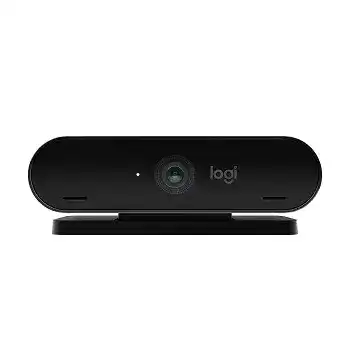
A camera that appears in FaceTime but stays blank in a browser usually has an application, permission, or USB path problem rather than a failed sensor. The Logitech 4K PRO MAGNETIC WEBCAM Driver works through macOS camera support, while compatible Logitech software can adjust framing, image controls, and recording options. This USB-C webcam was made for the Apple Pro Display XDR and attaches through its dedicated magnetic mount.
Logitech 4K Pro Magnetic Webcam Windows Driver Download
| Driver Name | Description | Supported OS | File Size | Download |
|---|---|---|---|---|
| Logitech Camera Settings | Adjusts webcam controls and camera settings on compatible Windows computers. | Windows 10 32-bit/64-bit, Windows 8 32-bit/64-bit, Windows 7 32-bit/64-bit | 76.55 MB |
Logitech 4K Pro Magnetic Webcam Mac OS Driver Download
| Driver Name | Description | Supported OS | File Size | Download |
|---|---|---|---|---|
| Logitech Camera Settings | Manages supported webcam image controls and camera preferences on newer Mac systems. | macOS 11, macOS 10.15, macOS 10.14, macOS 10.13 | 36.4 MB | |
| Logitech Camera Settings | Provides access to compatible webcam configuration options on earlier macOS releases. | macOS 10.15, macOS 10.14, macOS 10.13 | 36.34 MB |
Logitech 4K PRO MAGNETIC WEBCAM Driver When Apps Show No Video
Begin with an application that uses the macOS camera service directly. Open FaceTime or Photo Booth and select the Logitech camera from the application’s video menu. A working picture there confirms that macOS can see the webcam. When one conferencing service remains black, close every other program that may still hold the camera, then reopen only the affected service.
The camera works in FaceTime but not in a browser
Browser-based meetings require permission at two levels. macOS must permit the browser to access the camera, and the meeting page must select the Logitech device instead of another camera. Open the Privacy and Security camera controls, enable access for the browser, then quit and relaunch it. Inside the meeting page, check the camera menu again because browsers may retain an older device choice.
An outdated browser can also fail while native applications continue working. Install the latest browser release and restart the Mac before testing another call. Avoid keeping several meeting tabs open during diagnosis. One tab may claim the webcam while the visible tab displays a loading symbol, a crossed-out camera, or an empty preview.
Zoom or another desktop app cannot start the camera
Open the application’s video preferences before joining a meeting and choose the 4K Pro Magnetic Webcam manually. If its name does not appear, quit the application completely rather than closing only the meeting window. Disconnect the USB-C cable, wait several seconds, reconnect it, and launch the program again. This forces the application to rebuild its camera list.
Camera permissions may need refreshing after a macOS or application update. Turn access off for the affected program, restart the Mac, and enable it again. Also confirm that screen-recording permission is not being confused with camera permission. They control different functions, and enabling one does not grant the other.
Resolve USB-C Detection Before Changing Picture Controls
The Mac does not list the webcam
The webcam connects by USB-C, but a connector that fits does not always provide the same data path. Use the supplied cable where possible and connect it firmly at both ends. If the camera runs through the Pro Display XDR, confirm that the display itself has a working connection to the Mac. A charging-only cable or an unreliable adapter can prevent video detection entirely.
Remove docks, converters, and extension cables for the first test. Connect the webcam through a known working USB-C data port, then check the camera list in FaceTime or Photo Booth. When the device appears only after bypassing a hub, leave it on the direct path or replace the hub with one that can maintain the required data connection.
Detection disappears after sleep
A Mac may wake before an attached display and its peripheral ports finish reconnecting. The webcam can then remain absent until the USB link resets. Quit the meeting application, unplug the camera cable, and reconnect it after the display is fully awake. Logging out is rarely necessary when a simple cable reset restores the camera list.
If the problem returns after every sleep cycle, install current macOS updates and check the display connection. Repeated disconnects may come from the route between the Mac, display, and webcam rather than the camera software. Test the camera directly on the computer for one work session. A stable direct test isolates the display port, dock, or cable as the weak point.
Logitech 4K PRO MAGNETIC WEBCAM Software for Image Problems
The Logitech 4K PRO MAGNETIC WEBCAM Driver does not force every application to transmit in 4K. Resolution depends on the USB connection, computer resources, and the video service itself. Many meeting platforms reduce resolution to protect bandwidth. A sharp local preview followed by softer call video usually reflects the application or network, not a missing camera package.
4K is unavailable in the selected application
Choose 4K only in software that offers a 3840 by 2160 recording option. The camera can capture 4K UHD at 30 frames per second, but the application must accept that format. Use a suitable USB data connection and close heavy background tasks before recording. Conferencing services may still cap the outgoing stream below 4K even when the local camera supports it.
Record a short local clip to separate camera quality from meeting compression. If the saved clip contains full detail, the webcam and USB route are working. A softer remote image then points to the platform’s resolution limit, available upload speed, or automatic bandwidth management. Reinstalling software will not remove a service-side limit.
The preview looks blurry at first
Autofocus may need a moment when an application first opens or when the subject moves close to the lens. Sit at the normal working distance and give the camera a clear face or object with visible detail. Avoid placing a bright window directly behind you. Strong backlighting can make the image look washed out while focus continues searching.
When focus repeatedly moves in and out, clean the lens gently with a dry microfiber cloth and simplify the scene behind you. Reflections, close foreground objects, or constant movement can pull attention away from your face. Camera-control software may offer autofocus and framing adjustments, but first confirm that the physical lens surface is clean.
The picture is too dark, pale, or strongly tinted
Automatic exposure and white balance react to the entire scene. A bright display, colored room lighting, or sunlight from one side can shift skin tones and lower facial detail. Reduce intense background light and place a neutral light in front of you. Then close and reopen the preview so the camera can evaluate the revised scene.
If a control utility provides manual exposure or white-balance options, change one control at a time. Large adjustments made together make it difficult to identify the cause. Return to automatic values when moving between daylight and evening lighting, since a manual setting that looked natural earlier may create a blue or orange image later.
Mounting, Rotation, and Framing on Pro Display XDR
The magnetic mount shifts when the camera tilts
The dedicated mount matches the top edge of the Pro Display XDR and should sit flat before the camera angle changes. Remove dust from the contact surfaces with a dry cloth, place the mount squarely, and then adjust the lens with a light movement. Do not attach it over another monitor cover, adhesive layer, or uneven accessory that reduces direct magnetic contact.
This mount was shaped for the Pro Display XDR. Other monitors may contain metal yet provide a weaker or poorly aligned hold. A camera that stays upright but slips when angled on another display does not necessarily have a defective magnet. Use the intended display and mount position before judging its grip.
Portrait mode produces a sideways image
The camera can rotate with the Pro Display XDR, but individual applications may not refresh orientation immediately. Rotate the display before opening the meeting or recording program. If the image remains sideways, quit the application and launch it again after macOS completes the display rotation. A running program may keep the orientation captured when it first opened the camera.
Recording and streaming tools can also apply their own transform. Check the source rotation inside that program and remove any manual 90-degree setting left from an earlier session. Do not correct the same orientation in both macOS and the application, since two rotations can leave the picture sideways again or turn it upside down.
The frame is wider than expected
A wide field of view can reveal more of the room than a built-in laptop camera. Use compatible camera software or the meeting application’s framing control to crop the picture. Position the camera first, then apply digital framing. Heavy cropping reduces the advantage of the 4K sensor, so move closer or improve the physical angle before using a strong digital zoom.
Microphone and Video Conflicts During Calls
Video works but the webcam microphones do not
The camera and microphone appear as separate choices in many applications. Selecting the Logitech device for video does not always select its integrated microphones. Open the audio menu and choose the webcam microphone explicitly, then speak while watching the input meter. Grant microphone permission to the application in macOS if the meter remains still.
When the microphone name is missing, disconnect and reconnect the USB-C cable with all meeting programs closed. Test again without an audio interface, dock, or aggregate device. The Mac may retain another input as its preferred source after a headset or studio microphone was removed, so verify both the system input and the application input.
Another program keeps taking control
Streaming tools, virtual-camera utilities, browser tabs, and recording applications can remain active after their windows close. Quit them from the application menu and inspect the menu bar for background camera tools. Then reopen one video application. This approach is more effective than changing several image options while another process still owns the webcam feed.
Virtual-camera software can also replace the physical camera name with a processed source. Select the Logitech camera directly while troubleshooting. Once direct video works, add the virtual layer again. This separates a webcam failure from an incorrect scene, disabled source, or outdated virtual-camera component.
A Better Test Than Reinstalling Everything
Use the Logitech 4K PRO MAGNETIC WEBCAM Driver page as a reference for compatible camera software, but remember that macOS supplies the core USB video support. Logitech’s product download page may not provide a separate model-specific driver package. Therefore, begin with cable detection, application choice, permissions, and video format before removing software.
Run three brief tests. Check a direct preview in Photo Booth or FaceTime, record a local clip in software that offers the desired resolution, and make one call with every unused camera application closed. These tests separate hardware detection, recording quality, and conferencing behavior without mixing all three problems.
Finish with the camera mounted squarely on the Pro Display XDR, the USB-C cable fully seated, and the required camera and microphone permissions enabled. Keep manual image controls modest and let each application detect the webcam after the display reaches its final orientation. The Logitech 4K PRO MAGNETIC WEBCAM Driver setup is complete when native preview, local recording, and the chosen meeting service each select the same physical device without competing camera tools.